Table Register
The MRI Evolution system is based on a large back end database. This database contains all the Users, Preferences and data entered.
There are a wide range of functions that can be altered within the Table Register; these include; how the text in the drop down menus is displayed or allowing hazards and documents to be associated. It is also the gateway to define compulsory or unique fields that are linked with each table.
System Administration > System Preferences > System Appearance & Behaviour > Table Register
The link will open the Table Register grid. It is a grid view which can be searched, sorted and customised as normal.
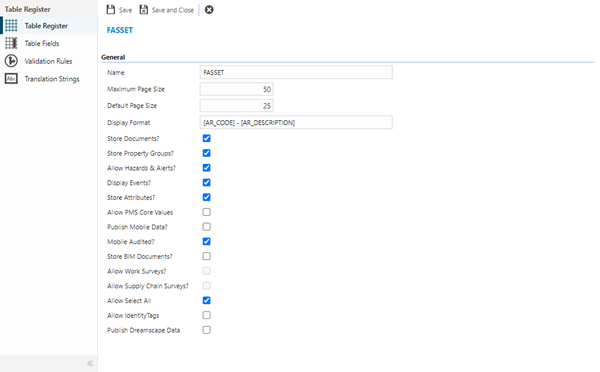
 Click to view - Table Register Fields and Descriptions
Complete the fields and click Save  . From the Table Register header a sub navigation can be accessed to allow additional features to be enabled.
These include:
- Table Fields
- Validation Rules
- Translation Strings
Table Fields
Click to view more detail.
Within the Table Register specific fields can be modified to enable certain features.
System Administration > System Preferences > Table Register – Table Fields
The link will open the Table Register / Table Fields grid. It is a grid view that can be customised and sorted as normal.
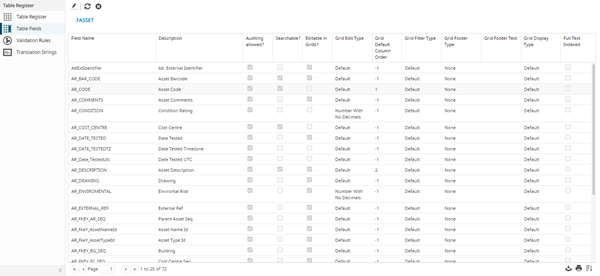
To edit a Table Field, highlight the Table Field and click Edit  .
.
| Field Name | Description |
|---|---|
| Field Name | The name of the Table Field. |
| Description | Free text description of the Table Field – by default these are blank. |
| Auditing Allowed? | Check the box to turn on the audit trails for the Table Field. |
| Searchable? | Check the box to make the Table Field searchable in the quick search function. |
| Editable in Grids? |
Available from 5.0.0.0 Check the box the make this field available as editable in grids by users |
| Grid Edit Type |
Available from 5.0.0.0 From the drop down set the field type for entering data e.g. number with no decimals or number with two decimals |
| Grid Default Column Order |
Available from 5.0.0.0 Check the box the set the default display order of the column in its primary grid Note: This setting will be overridden if a grid is personalised or used in a grid that includes fields from linked entities |
| Grid Filter Type |
Available from 5.0.0.0 From the drop down select the filter type e.g. Multiple select-allow multiple items to be selected from the filter or Number Range- allow a number range to be entered within the filter Note: The Multi Select Filter Type function will only work with direct foreign keys e.g. AR_FKEY_BG_SEQ |
| Grid Footer Type |
Available from 5.0.0.0 From the drop down select the aggregate to summarise data in the column footer |
| Grid Footer Text |
Available from 5.0.0.0 Add text to in the column footer to appear before the aggregate summary |
| Grid Display Type |
Available from 5.0.0.0 From the drop down set the field type for displaying data e.g. number with no decimals or number with two decimals |
Note: The editing and display features will vary and filter dependant on the field selected
Validation Rules
Click to view more detail.
Rules can be created to control data as it is entered e.g. Req IDs are unique or that email addresses contain an @ symbol.
System Administration > System Preferences > Table Register – Validation Rules
The link will open the Table Register / Validation Rules grid. It is a grid view which can be searched, sorted and customised as normal.
To add a new Validation Rule click New  , to edit an existing Validation Rule click Edit . A pop up window will appear which will allow the creation or amendment of a Validation Rule.
Click to view - Validation Rules Fields and Descriptions
Translation Strings
Click to view more detail.
Translation Strings are the thousands of labels from across the system. These can be altered to fit a business need.
System Administration > System Preferences > Table Register – Translation Strings
Highlight the translation string to edit, click Edit . A pop up window will appear which will allow the amendment of a Translation String.