Account Consent and Registration Settings
Available from 4.8.0.0
Account Consent and Registration Settings manage user privacy, regulatory compliance, and data protection governance by configuring consent prompts, Data Protection Officer (DPO) contact information, and policy acceptance workflows. Enter DPO details (name, phone, email, address)—these appear in the footer of privacy policies shown in MRI Evolution, Evolution Connect, and Evolution Reach, enabling users to contact your organization about privacy rights, data access requests, or consent withdrawal. Configure First Login Behaviour to control consent options when users first log in, including whether to allow users to update their communications preferences (if their account is linked to a Contact) and whether to show DPO details on first login. When policies are updated, set "Consent Update Behaviour" to control consent prompts on next login, ensuring continuous compliance with GDPR and data protection regulations. The system tracks all consent actions with timestamps and user details, creating comprehensive audit trails for compliance verification. This supports legal requirements (for example, GDPR Article 7 requiring demonstrable consent), enables users to exercise privacy rights, and maintains organizational accountability for data processing activities.
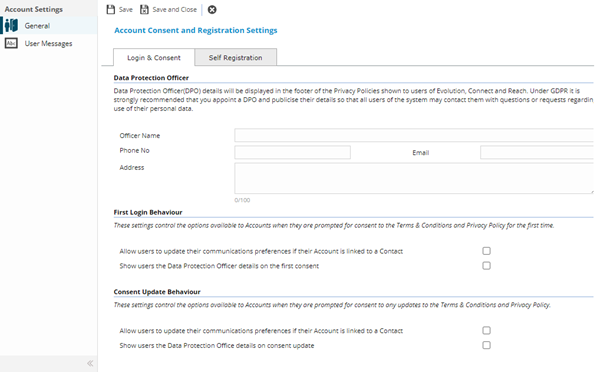
Settings > System Administration > User Accounts & Security > Account Consent & Registration Settings
The link will open the Account Consent & Registration Settings pop up window.
 Click to view - Login and Consent tab Fields and Descriptions
Click to view - Self Registration tab Fields and Descriptions
From 4.8.0.0 Self Registration settings were moved from System Administration > General Preferences to Settings > User Accounts > Account Consent & Registration Settings
Complete the fields and click Save  . Once the Account and Consent header has been completed and saved a sub navigation will appear to allow access to all user messages for Account Consent and Registration.
User Messages
Click to view more details.
User Messages allows an administrator easy access to all translation strings used within Account Consent, this enables the text values of these strings to be easily accessed and changed as required.
Settings > User Accounts > Account Consent & Registration Settings - User Messages or
Settings > System Administration > Account Consent & Registration Settings - User Messages
The link will open the User Messages grid. It is a grid view that can be customised and sorted as normal.
To edit an existing User Message highlight the message and click Edit  . A pop up window will appear which will allow the amendment of the User Message text