Facilities Booking Preferences
Facilities Booking Preferences provides comprehensive configuration control for customizing venue management system behaviour, enabling organizations to tailor booking workflows, scheduling policies, and operational parameters to meet specific business requirements. The Facilities Booking preferences define how certain elements of the Facilities Booking module behave, ensuring optimal system performance and user experience through strategic configuration management.
The Facilities Booking Preferences are maintained here.
Settings > Facilities Booking > Facilities Booking Preferences
A pop up window will appear which will allow the Facilities Booking Preferences to be set.
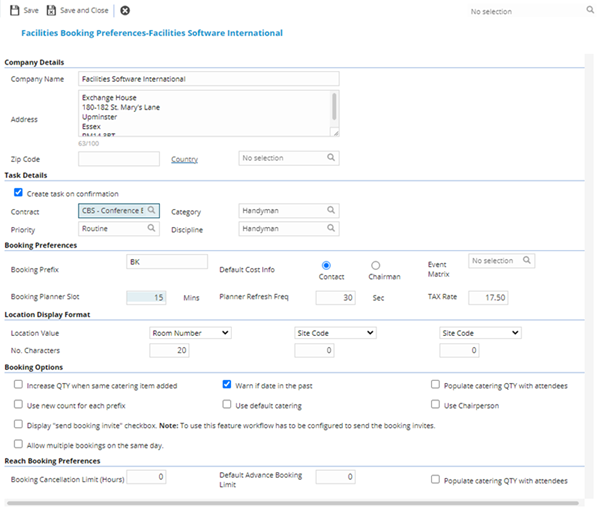
 Click to view - Facilities Booking Preferences Fields and Descriptions
| Field Name | Description |
|---|---|
| Company name | The official trading or legal name of your organization as it should appear on all facility booking confirmations, email notifications, and correspondence sent to internal staff and external visitors (e.g., "ABC Facilities Management Limited", "City Council Property Services", "XYZ Corporate Services"). This company name appears in automated booking confirmation emails, calendar invitations, visitor passes, and booking reports generated by the facility booking system. Should match your organization's branding and official documentation for professionalism and consistency. Maximum 100 characters. Used across all booking widgets and self-service portals accessed by employees making room reservations, meeting space bookings, or visitor appointments. |
| Address | The complete postal address of your primary office or facility booking location, including building name/number, street, city/town (e.g., "123 Business Park Drive, Milton Keynes, MK9 2XX" or "Unit 5, Park Lane Industrial Estate, Sheffield"). This address appears on booking confirmations sent to visitors and meeting attendees, helping them locate your premises. Also used in calendar invitations (.ics files) to provide meeting location details that integrate with Outlook, Google Calendar, and mobile devices. For organizations with multiple buildings, this typically represents the main reception or primary booking office address. Include sufficient detail for delivery services and first-time visitors to find the location easily. Multi-line formatting supported. |
| Postcode | The postal code (UK format like "SW1A 1AA") or ZIP code (US format like "10001") for your primary facility booking location. Used in booking confirmations and visitor correspondence to enable GPS navigation and mapping applications (Google Maps, Apple Maps, Waze) to provide accurate driving directions. Essential for external visitors who rely on mobile device navigation to find your premises. The postcode/ZIP also enables geographic analysis of booking patterns, visitor origins, and facility utilization by region. Combined with the address and country fields to create complete location data for calendar invitations and visitor management systems. Must match a valid postal delivery code for your region. Available from 4.4.5 |
| Country | Your companies Country - for more information see Countries. Available from 4.4.5 |
| Create Task on confirmation | Check the box if a Task is to be auto-created on confirmation of a booking. Complete the drop down boxes to dictate the Contract, Category, Priority and Discipline to be allocated to the Task. |
| Booking Prefix | Enter the prefix for all bookings. |
| Default Cost Info |
Check the radio button to define what Cost Centres will be auto-applied, the Contacts or Chair Persons. |
| Event matrix | From the drop down select the Event Matrix to be used with Facilities Bookings. - Event Matrix module only |
| Booking Planner slot | Enter the minimum amount of minutes a booking can be made for within the Planner. |
| Planner Refresh Freq | Enter how often the planner can be auto-refreshed in seconds. |
| Tax Rate | The default tax percentage applied to all facility bookings (e.g., 20 for 20% VAT, 15 for 15% GST). This rate is automatically added to booking charges when calculating the total cost. Enter the rate as a whole number without the percent symbol. This system-wide setting applies to all facility bookings unless overridden at the individual booking level. Ensure this matches your organization's current tax obligations for venue hire services. |
| Location Display Format |
The information shown when looking at Locations within a booking line can be altered using Location Display Format, from the drop downs select the Location value and the corresponding number of charterers of the data to be shown. |
| Increase QTY when same Catering item added | Check the box to increase the quantity to supply of a Catering item to the amount of times the item is assigned e.g. if the assign icon is clicked 3 times, the Catering quantity to supply will be 3- leaving the box unchecked will add the Catering item numerous times allowing for the same Catering to be ordered to a booking numerous times throughout the day. |
| Warn if date in the past | Check the box for a warning to appear against the booking if it has been made in the past. |
| Populate Catering QTY with Attendees | Check the box for the Catering quantities to supply, to auto-populate with the number of Attendees. |
| Use new count for each prefix | Check the box for a new count to start if the booking prefix is changed. |
| Use default Catering | Check the box to any Catering Menus set as default to be auto-assigned to all bookings. |
| Use Chairperson | Check the box for the Chairpersons name to be shown in the planner instead of the contact details. |
| Display "send booking invite" check-box. Note: To use this feature workflow has to be configured to send the booking invites. | Check the box for an additional icon to be shown which if clicked would trigger booking invites to be sent. |
| Allow multiple bookings on the same day. | Check the box to allow multiple rooms to be selected on a single day within the advanced room selector. |
| Booking Cancellation Limit (Hours) | Enter the number of hours prior to a booking, that a Evolution Reach user can cancel a booking from the Evolution Reach module. |
| Default Advance Booking Limit | Enter the number of advanced bookings a Evolution Reach User can make. |
| Populate Catering QTY with Attendees | Check the box for Catering quantities to supply, to auto-populate with the number of Attendees when booked through the Evolution Reach module. |
Complete the fields and click Save and Close  .
.