Excitech Settings
Available from 4.4.5
The Excitech Settings input panel allows MRI Evolution to store the set up URL s and configuration parameters for calling the Excitech FX360 Map API.
Excitech settings will be configured by MRI Software and the system administrator on install.
 Available from 7.0.0.0
The Purchase Key licence dependency for this specific element of the system has been removed and is now included as standard in the core MRI Evolution product the feature has been turned on for all systems by default.
Note: Other restrictions, such as User licence type restrictions and / or any restrictions to underlying functionality that is dependent upon Purchase Key licences will remain in place.
Settings > Integrations > Excitech Settings
The link will open the Excitech Settings grid. It is a grid view which can be searched, sorted and customised as normal.
To add a new Excitech Layerset click New  , to edit an existing Excitech Layerset click Edit
  . A pop up window will appear which will allow the creation or amendment of a Excitech Layerset.
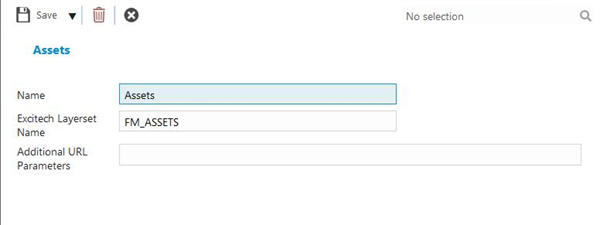
Click to view - Excitech Settings Fields and Descriptions
| Field Name | Description |
|---|---|
| Name | The name of the Excitech Setting. |
| Excitech Layerset Name | The name of the Excitech Layerset . |
| Options | Advanced feature to specify zoom level. |
Complete the fields and click Save and Close  .
.
Default settings can be specified so that entities that have not been connected to a Layerset will be auto-populated. . From the Excitech Setting Grid highlight and click Configure Layerset  .
.
Click to view - Excitech Settings Configuration Fields and Descriptions
| Field Name | Description |
|---|---|
| URL | Enter the URL for link to Excitech System. |
| Location Default | From the drop down select the default Excitech Layerset. |
| Asset Default | From the drop down select the default Excitech Layerset. |
| Helpdesk Widget Default | From the drop down select the default Excitech Layerset. |
Complete the fields and click Save  .
.