Dashboard Builder
Dashboard Builder creates interactive business intelligence dashboards by arranging visualization components to display key performance indicators and metrics. Add charts, gauges, and grids from multiple data sources to provide unified operational insights.
Settings > Intuitive BI > Intuitive BI Dashboard Designer > Dashboard Builder
Creating a Dashboard
 Click to view more detail.
Settings > Intuitive BI > Intuitive BI Dashboard Designer > Dashboard Builder
The dashboard window/ tab will appear which will allow the creation or amendment of a Dashboard.
Components can now be added.
Settings > Intuitive BI > Intuitive BI Dashboard Designer > Dashboard Builder
A pop up window will appear that will allow components to be selected. Open the folder structure to find the required component, Click on the required component to add it to the dashboard.
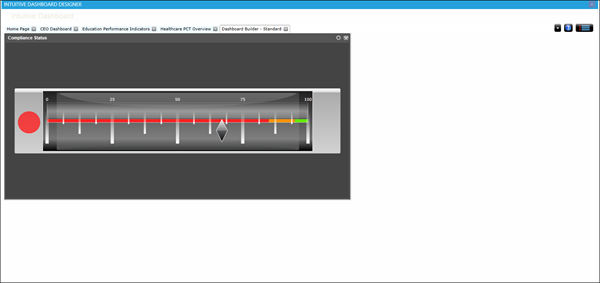
Multiple Components can be added to a single dashboard, these components can then be resized and positioned by dragging the components around and resizing as required.
Settings > Intuitive BI > Intuitive BI Dashboard Designer > Dashboard Builder
The dashboard must be saved, upon saving a pop up window will appear allowing the dashboard to be named.
Publishing the Dashboard
Click to view more detail.
For the Dashboard to be made available to widgets within MRI Evolution it must be published.
Settings > Intuitive BI > Intuitive BI Dashboard Designer > Dashboard Builder
A pop up window with the Publish Dashboard navigator will open, from the folder structure select the required database or contract, click Publish.
Once published, Dashboards can be imported into MRI Evolution.