Intuitive BI Dataset Creation
Available from 4.4.4.0
Datasets define how Datafeed data is structured for dashboard use, specifying which columns are attributes or measures, applying calculations, and enabling drill-downs. Create Datasets in Intuitive BI Dashboard Designer to transform raw data into reportable business intelligence.
Settings > Intuitive BI > Intuitive BI Dashboard Designer > Intuitive BI Dataset Creation
To create Datasets the User will require access to the System Designer Intuitive User Role
Settings > Intuitive BI > Intuitive BI Dashboard Designer > Intuitive BI Dataset Creation
The Dataset builder will become available.
Select Datafeed
 Click to view more detail.
A datafeed must be selected before the dataset can be configured.
Settings > Intuitive BI > Intuitive BI Dashboard Designer > Intuitive BI Dataset Creation
Click Select Datafeed , a pop up window with the Datafeed navigator will open, from the folder structure select the required Datafeed.
Once the Datafeed has been selected, the dataset can be configured.
Configuring the Dataset
Click to view more detail.
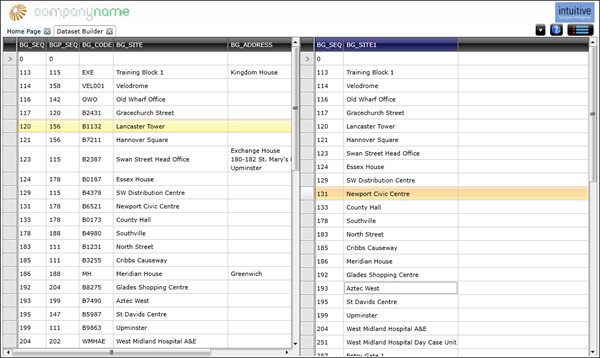
Dataset columns are dragged from the datafeed in to the dataset.
By default all columns will be considered attributes. To make the column a measure, click on the column title. A pop up window will open which will allow the measure properties to be set.
Save Dataset
Click to view more detail.
Once the dataset has been built it must be saved.
Settings > Intuitive BI > Intuitive BI Dashboard Designer > Intuitive BI Dataset Creation
Publishing the Dataset
Click to view more detail.
For the Dataset to be made available to widgets within MRI Evolution it must be published.
Settings > Intuitive BI > Intuitive BI Dashboard Designer > Intuitive BI Dataset Creation
A pop up window with the Publish Dataset navigator will open, from the folder structure select the required database or contract, click Publish.
Once published, data feeds can be imported into MRI Evolution.