Grades
Available from 5.7.0.0
Grades define named score bands with colours (for example, Excellent 90-100% in green, Good 75-89% in blue, Needs Improvement 0-74% in red) used to visually classify audit results and item performance in reports and scorecards. Create grades with specific score ranges and colours, then assign them to Grade Profile Criteria to automatically categorize mobile audit results. When inspectors complete audits on mobile devices, the system calculates scores and applies the appropriate grade colour in dashboards and reports, enabling managers to quickly identify high-performing locations (green), areas requiring attention (red), and trends over time. This standardizes performance interpretation across all sites and supports data-driven decision-making for quality improvements.
Settings > Evolution Go > Grades
or
Settings > Mobile Audits > Grades
The link will open the Grades grid. It is a grid view which can be searched, sorted and customised as normal.
To add a new Grade click New  , to edit an existing Grade click Edit
  . A pop up window will appear which will allow the creation or amendment of a Grade.
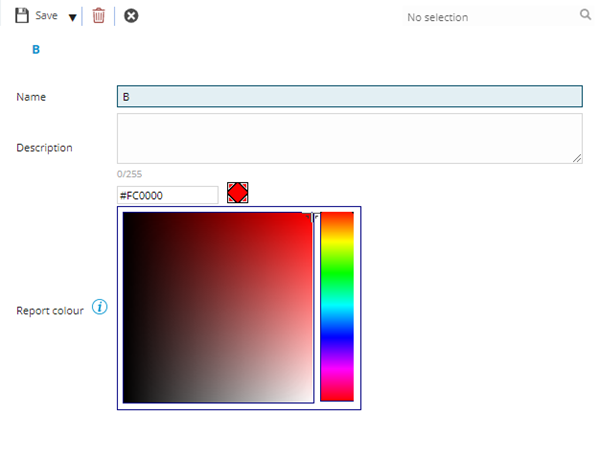
Grades - Fields
 Click to view more detail.
| Field Name | Description |
|---|---|
| Name | Enter the name of the Grade. |
| Description | Enter the description of the Grade. |
| Report Colour field and colour picker |
Set a colour that will be used to highlight Audits and Audited Items that achieve this Grade in the Scorecard Reports. Enter an RGB colour code or use the colour picker to set the desired colour. |
Complete the fields and click Save and Close  .
.