Area Types
Available from 4.4.5
Area Types classify Areas to group related Locations for organizational purposes, filtering, and reporting. Create Area Types with descriptive names and explanations (for example, "Clinical Areas" for patient care zones, "Administrative Areas" for office spaces, "Public Areas" for reception and waiting areas, "Emergency Areas" for urgent care zones) that are assigned to Areas containing similar Location groups. When creating an Area, select its Area Type to classify it—this enables Location filtering by Area Type (for example, show only Emergency Area locations), supports targeted reporting (analyse maintenance costs across Clinical Areas vs Administrative Areas), and facilitates Payment Mechanism Core Value calculations by grouping valuations based on Area Type classifications. Organizations typically define Area Types matching their operational structure and reporting requirements, ensuring consistent Location categorization across the property portfolio for meaningful analysis and resource allocation.
 Available from 7.0.0.0
The Purchase Key licence dependency for this specific element of the system has been removed and is now included as standard in the core MRI Evolution product the feature has been turned on for all systems by default.
Note: Other restrictions, such as User licence type restrictions and / or any restrictions to underlying functionality that is dependent upon Purchase Key licences will remain in place.
Area Types
The link will open the Area Types grid. It is a grid view which can be searched, sorted and customised as normal.
To add a new Area Type click New  , to edit an existing Area Type click Edit
  . A pop up window will appear which will allow the creation or amendment of a Area Type.
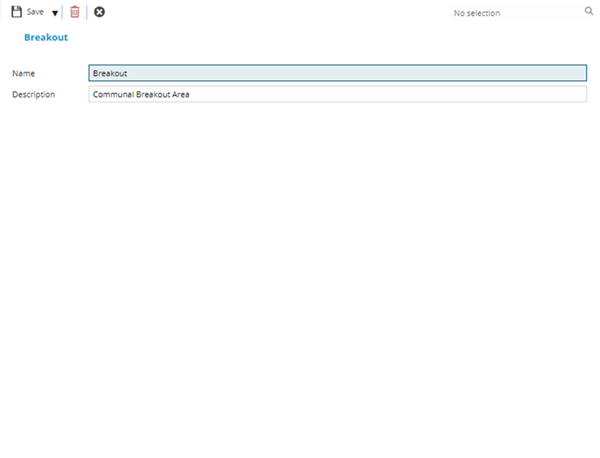
 Click to view - Area Types Fields and Descriptions
| Field Name | Description |
|---|---|
| Name | The name of the Area Type. |
| Description | The description of the Area Type. |
Complete the fields and click Save and Close  .
.