Application Branding
 Available from 7.0.0.0
The Application Branding feature allows administrators to customize the look and feel of the Evolution application interfaces for different system profiles. The interface is organized into three tabs—Reach, Evolution, and Connect—each with its own set of configurable branding options. Administrators can adjust icons, application names, header colours, menu tab styles, and more for each profile. A live preview panel lets you see changes instantly before saving.
Settings > System Administration > System Appearance & Behaviour > Application Branding
Reach Branding Tab
 Click to view more detail.
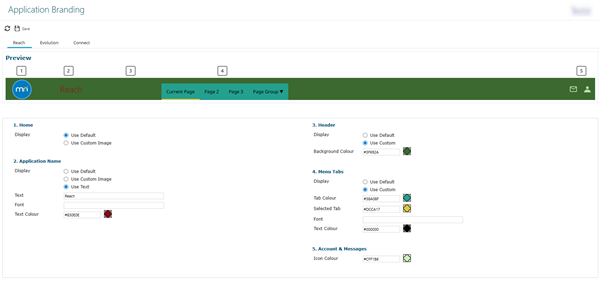
| Field Name | Description |
|---|---|
| Branding Options | |
| 1. Home |
Select default or upload a custom image for the home icon. Changes made can be viewed in the |
| 2. Application Name |
Display default, custom image, or custom text. Set font and text colour for the application name. Changes made can be viewed in the |
| 3. Header |
Set default or custom background colour for the header bar. Changes made can be viewed in the |
| 4. Menu Tabs |
Set tab colour, selected tab colour, font, and text colour for menu tabs. Changes made can be viewed in the |
| 5. Account & Messages |
Set the icon colour for account and message icons. Changes made can be viewed in the |
 section of the Preview Pane below.
 section of the Preview Pane below.
 section of the Preview Pane below.
 section of the Preview Pane below.
 section of the Preview Pane below.
Reach Branding Preview Pane

Evolution Branding Tab
Click to view more detail.
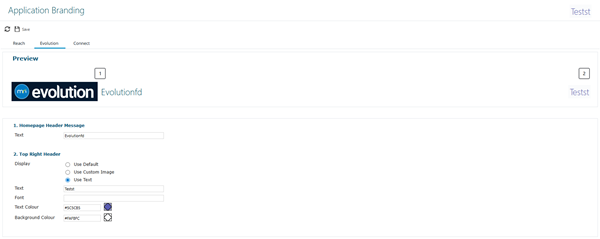
| Field Name | Description |
|---|---|
| Branding Options | |
| Homepage Header Message |
Set the text for the homepage header message. Changes made can be viewed in the |
| Top Right Header |
Choose to use default, custom image, or custom text for the top right header. Set text, font, text colour, and background colour. Changes made can be viewed in the |
Evolution Branding Preview Pane

Connect Branding Tab
Click to view more detail.
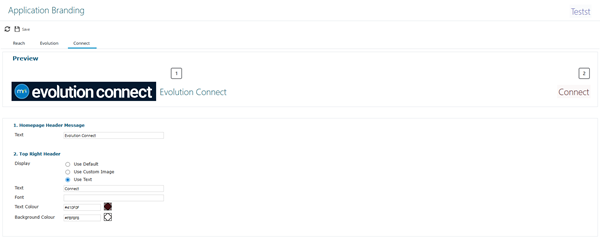
| Field Name | Description |
|---|---|
| Branding Options | |
| Homepage Header Message |
Set the text for the homepage header message. Changes made can be viewed in the |
| Top Right Header |
Choose to use default, custom image, or custom text for the top right header. Set text, font, text colour, and background colour. Changes made can be viewed in the |
Connect Branding Preview Pane
