Widget - Booking Availability
The Booking Availability Widget displays real-time room and facility availability status in dashboard interfaces, helping users quickly identify and book available spaces across the organization. Configure the widget to show booking availability for selected Location Types (for example, Meeting Rooms, Training Facilities, Equipment Storage) with customizable display options including location information (capacity, equipment, accessibility features), default time ranges (display 8am-6pm working hours or full 24-hour view), and tool-tip details (hover over bookings to see organizer name, booking purpose, attendee count). The widget integrates with the Facilities Booking module to automatically display current bookings and available time slots—when users view the widget on their home page, they see colour-coded availability (green for available, red for booked, yellow for partially available) across filtered locations, can click available slots to initiate quick bookings, and can adjust date/time filters to find suitable spaces for upcoming meetings or events. This supports efficient space utilization (identify underused facilities at a glance), reduces booking conflicts (see real-time availability before attempting bookings), and streamlines meeting planning (find available rooms matching capacity and equipment requirements without checking multiple calendars). Organizations typically configure multiple variants of this widget for different user groups—for example, executives see only boardroom and conference facility availability, while team leaders see their local office meeting room availability, ensuring each user group accesses relevant space information for their booking needs.
Settings > Widgets & Home Pages > Widgets > Widget - Booking Availability
The link will open the Widgets grid. It is a grid view which can be searched, sorted and customised as normal.
To add a new Widget click New  , to edit an existing Widget click Edit
  . A pop up window will appear which will allow the creation or amendment of a Widget.
Select the Widget template : Booking Availability. Complete the fields and click Save  . Click Configure Widget
  .
.
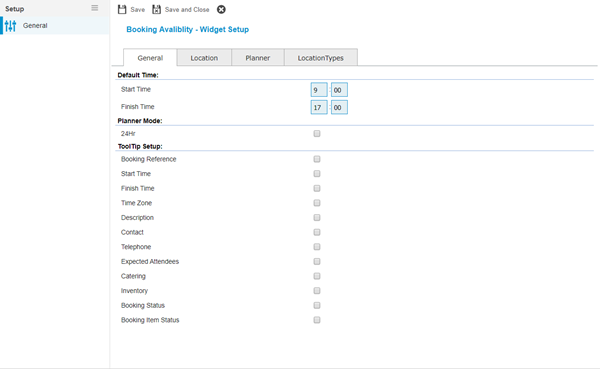
 Click to view - General Tab Fields and Descriptions
Click to view - Location Tab Fields and Descriptions
Click to view - Planner Tab Fields and Descriptions
Click to view - Location Types Tab Fields and Descriptions
Complete the fields and click Save and Close  .
.