Widget - Helpdesk
Customizable widget enabling helpdesk call logging with configurable field assignments, default values, exclusions, and document upload support. Multiple widgets support role-specific helpdesk configurations with context help and auto-population capabilities.
 Available from 7.0.0.0
The Licence restrictions for document uploads by Evolution Reach users have been removed—this capability is now included in the base MRI Evolution system.
Settings > Widgets & Home Pages > Widgets > Widget - Helpdesk
The link will open the Widgets grid. It is a grid view which can be searched, sorted and customised as normal.
To add a new Widget click New  , to edit an existing Widget click Edit
  . A pop up window will appear which will allow the creation or amendment of a Widget.
Select the Widget template : Helpdesk. Complete the fields and click Save  . Click Configure Widget
  .
.
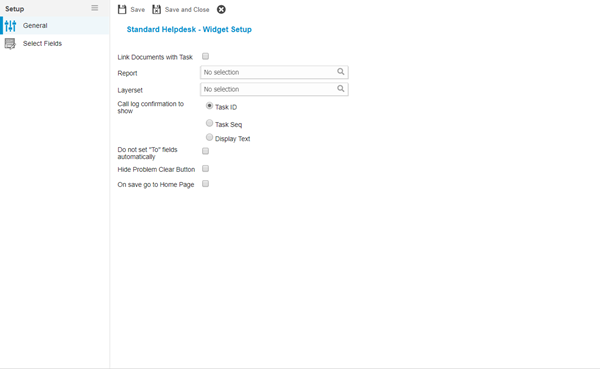
 Click to view - Widget Set up Fields and Descriptions
Complete the fields and click Save . Fields can now be assigned to the Helpdesk via the sub navigation Select Fields
Select Fields
Click to view more detail.
Select fields allows the User to define which fields a Evolution Reach User will be able to see and if any of them have default information
Settings > Widgets & Home Pages > Widgets > Widget - Helpdesk
The link will open the Select Fields grid. It is a grid view that can be customised and sorted as normal.
To assign Fields click Assign  , entities in the right hand assignment window are connected.
The order of the Fields can be adjusted using Move Up  and Move Down
  .
.
Once Fields have been assigned the Fields Setup can be configured. Double click the field to configure.
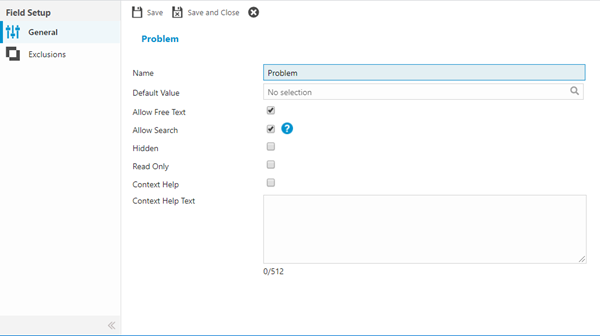
Click to view - Fields Set Up Fields and Descriptions
Exclusions
Click to view more detail.
Values can be excluded from the Helpdesk, these excluded values need to be assigned via sub navigation Exclusions.
Settings > Widgets & Home Pages > Widgets > Widget - Helpdesk
The link will open the Exclusions grid. It is a grid view that can be customised and sorted as normal.
To assign Exclusions click Assign , entities in the right hand assignment window are connected.
Complete the fields and click Save and Close  .
.
If Excitech is licensed and a Location has been added to the Widget, a hyper link to the floor plan will be seen in the Widget under Location.