Zones
Zone Settings define the visual and functional layout for Live View and Visual Booking Widgets in MRI Evolution. Each Zone typically represents a physical area, such as a floor or section of a building, and is configured with a background image (often a floor plan) to provide users with a spatial context for booking and monitoring activities.
Administrators use Zone Settings to map out areas, assign locations, and configure how users interact with spaces in real time. The workflow involves uploading a background image, defining interactive shapes for locations, and linking these shapes to Evolution Locations or Location Groups. This enables users to visually select and book spaces, or monitor occupancy and availability directly from the widget interface.
Example: A facilities manager uploads a floor plan as a Zone background, draws shapes over meeting rooms, and links each shape to a specific Location in Evolution. End users can then click on these rooms in the widget to view availability or make bookings, streamlining the space management process and integrating seamlessly with Evolution’s core scheduling and reporting features.
Settings > Widgets & Home Pages > Zone Settings
The link will open the Zone Settings menu.
To add a new Zone click New  , to edit an existing Zone click Edit
  . A pop up window will appear which will allow the creation or amendment of a Zone.
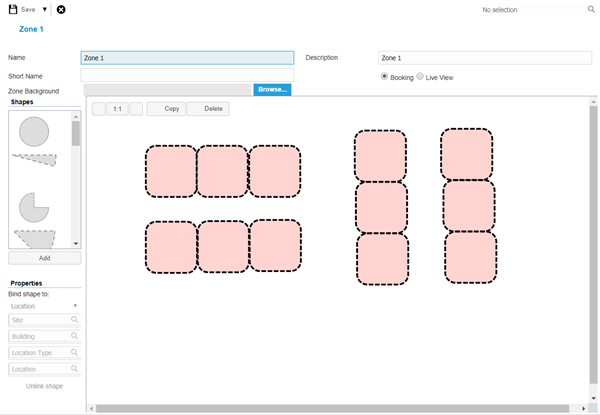
 Click to view - Zone Settings Fields and Descriptions
Complete the fields and click Save  . Once the Zone header has been completed shapes can be dragged onto the zone and connected to Locations.
Building the Zone
Click to view more detail.
Shapes
Shapes can be dragged onto the zone, the shape can then be moved into the required position and the size can be altered.
Linking the Zone
Select the shape and from the properties menu select the Location or Location group to link the shape to. Linked shapes will go green.
To unlink a shape click on the shape and from the properties menu select unlink the shape.
Linking to a Child Zone
Click to view more detail.
Within Visual bookings it is possible to drill down through zones. The Parent Zone must be created with the child Zone structured underneath it in the zone structure.
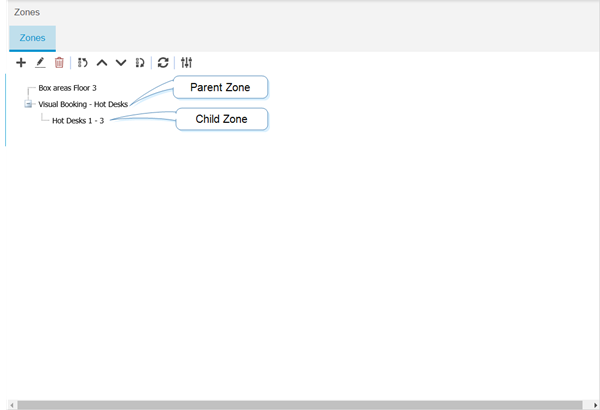
Open the Parent Zone, Draw a shape on the Zone to represent the child Zone. From the properties drop down change the drop from Location to Zone. The drop down menus will then alter to allow a child Zone to be selected.