Workflows
The Evolution Workflow management function allows administrators to configure, monitor, and maintain automated processes and event-driven actions across the system. Workflows can be triggered by a wide range of system events, database changes, or user actions, and can automate notifications, integrations, and business logic.
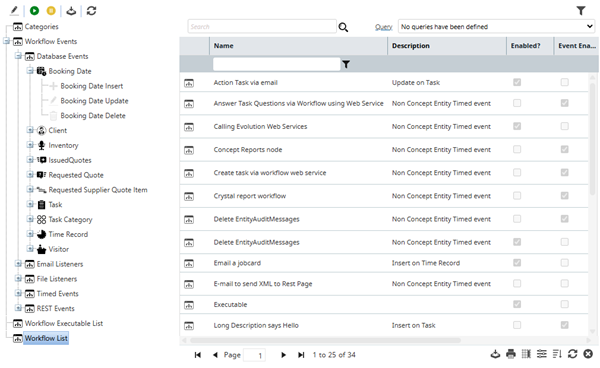
The Workflow management screen is divided into two main areas:
- Left Side – Workflow Entity Tree: A hierarchical tree view displays all workflow-related system entities, such as Workflow Events, Database Events, Tasks, Time Records, Email Listeners, REST Listeners, and more. Expanding each node reveals the available event types and categories for workflow configuration.
- Right Side – Records Grid: When an entity or event type is selected in the tree, the right side displays a grid listing all records for that entity. The grid includes columns such as Name, Description, Enabled, and Event Entity, and supports filtering and sorting.
To manage workflow records, select a record in the grid and use the toolbar buttons above the grid to perform actions:
- Edit – Modify the selected workflow record's configuration.
- Pause/Restart – Temporarily disable or re-enable a workflow.
- Export – Export workflow definitions for backup or migration.
Additional toolbar options may include creating new workflows, deleting records, and refreshing the grid. The grid supports paging and displays the total number of records.
Workflows can be enabled or disabled as required, and their status is shown in the Enabled column. Use the search and filter options to quickly locate specific workflows or event handlers.
Settings > Workflow > Workflows
The Workflow List displays all configured workflows and event handlers for the selected entity. Use the tree view to navigate between workflow categories and event types.