Planned Maintenance Summary
Available from 4.4.8.0
The Planned Maintenance Summary shows a view of all PPMs, including dormant, suspended, active and historic PPM Tasks.
Available from 6.3.0.0
Support for Daily frequency PPMs  has been added:
-
If any of the Daily PPMs are late it will be coloured red
-
If none are late but any are overdue it will be coloured orange
-
if all are on time it will be coloured green
-
The tool-tips pop-up has been updated to show details of the Daily PPMs
 Available from 7.0.0.0
The Purchase Key licence dependency for this specific element of the system has been removed and is now included as standard in the core MRI Evolution product the feature has been turned on for all systems by default.
Note: Other restrictions, such as User licence type restrictions and / or any restrictions to underlying functionality that is dependent upon Purchase Key licences will remain in place.
Available from 7.0.0.0
This function will now open in the same window as MRI Evolution, instead of a separate window, by default.
Users will still have the option to open the function in a separate window.
Either the Close  button will be hidden and the Open in new window
  button will be displayed or vice versa, depending on whether the page is opened in a page of its own, or not.
Task Management > PPMs > Planned Maintenance Summary
When the Planned Maintenance Summary is initially launched, it will open in a new window with a blank grid.
The Planned Maintenance Summary can be filtered to make the view of the Planner easier to manage and view. A minimum filter of Contract Group or Contract must be applied.
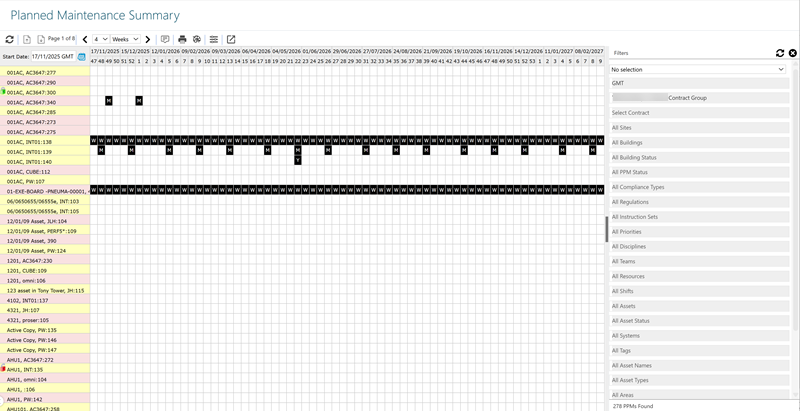
- The numbers along the top of the window indicate the week numbers with the date of the first Monday in the Month.
- Hovering the mouse cursor over a specific week number will display the date of the Monday of that week.
- Each PPM record has its own row
- Tasks frequencies will alter the colour of PPMs displayed in the Planner. The number displayed in each instance of a Daily, Weekly, Monthly or Yearly PPM indicates the frequency:
- Black= PPM Dormant records
- Blue = Suspended Dormant records
- Green = Completed on time in the scheduled week
- Orange = Completed on time outside the scheduled week
- Red = Completed late or today is past Due By date
- Grey = Overridden Tasks
- Purple = Dropped Tasks
If two or more PPMs occupy the same working week the “worst” colour will show on the Planner e.g. red, then orange, then green.
 Click to view - Planned Maintenance Summary Icons and Descriptions


 , Move Up
 , Move Down
 and Move Last