Advanced Helpdesk - Time Records
Once a Task has been logged it can be assigned to a Resource to complete the works. Each Resource can be assigned their own Time Record / s to the details of each visit.
Available from 5.5.0.0
The Time Record page has been redesigned to incorporate new fields for Appointments & Visits and to group fields more logically and improve the 'flow' of the page.
Summary of changes
- Move fields from Time Records Tab to a new Tab called Progress
- Re-organise fields and add new fields on the existing Time Records tab
- Re-name the Time Records tab to Assignment
- Add a new section to the Assignment Tab to show AppointmentVisit details
Task management > Advanced Helpdesk - Time Records
The link will open the Advanced Helpdesk / Time Records grid. It is a grid view which can be searched, sorted and customised as normal.
To add a new Time Record click New  , to edit an existing Time Record click Edit
  . A pop up window will appear which will allow the creation or amendment of a Time Record.
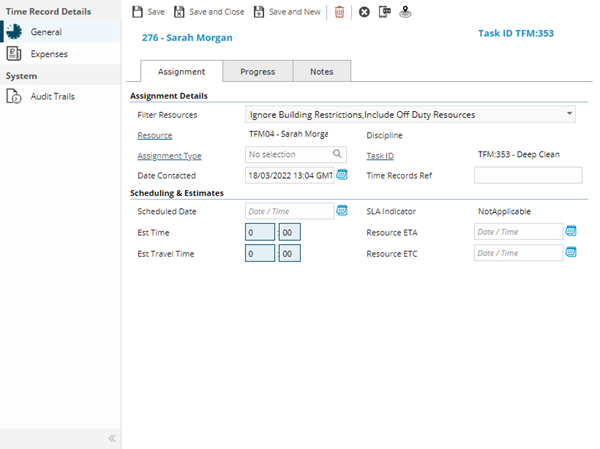
Time Record - Assignment tab
 Click to view more detail.
| Field Name | Description |
|---|---|
| Assignment Details |
|
| Filter Resources |
The Filter Resources filter control should be hidden when a Resource has been passed to the page to create a new Time Record, i.e. in the following scenarios:
See Filtering Resources below, when enabled |
| Resource |
From the drop down select the Resource to be assigned to the Task. This field is filtered by the Filtering Resources options selected. |
| Discipline | Read only field to display the primary discipline of the Resource selected |
| Assignment Type | From the drop down select the Assignment Type - for more information see Assignment Types. |
| Task ID | Auto-populated with the Task ID. |
| Date Contacted | Enter the date that the Resource was Contacted about the Task. |
| Time Records Ref | Free type ref field that can be used to filter time sheets - if the "Make Timesheet Reference Compulsory" check box is ticked against the Contract, this field will be a compulsory field that must be completed before a Task can be moved to Complete. |
| Scheduling & Estimates | |
| Auto-schedule in Appointment Window |
This checkbox should only be visible when creating new Time Records and the Task Appointment State is one of the following:
When the user checks this box:
|
| Scheduled Date | Enter the date the Task is scheduled to be completed. |
| SLA Indicator |
Read only field to display the Scheduling SLA Indicator. Possible values are:
If the Enable the scheduling SLA indicator comparison preference is not enabled, the value will always be Not Applicable If the preference is enabled, any scheduled Task Time Records are assessed, when saved, to determine whether the Time Record is likely to pass or fail one of the Task SLA targets based on the planned date of the Time Record:
|
| Est Time | Enter the Estimated Time to complete the Task. |
| Resource ETA | Enter the Resource's estimated time of arrival |
| Est Travel Time | Enter the Estimated Travel time. |
| Resource ETC | Enter the Resource's estimated time to complete |
| Appointment Details |
The section should only be visible in the following scenarios:
|
| Appointment |
This field displays the Appointment linked to the Task / Time Record. It is possible to make changes to this field when the Appointment linked to the Time Record has a Status of Provisional. Only Appointments linked to the current Task's Request will be available to select. The field will be hidden for new Time Records if the Appointment linked to the Task has a status of Complete. |
| Appointment Status |
The current Status of the Appointment linked to the Task / Time Record. The field will be hidden for new Time Records if the Appointment linked to the Task has a status of Complete. |
| Appointment Type |
The Appointment Type set against the Appointment linked to the Task / Time Record. The field will be hidden for new Time Records if the Appointment linked to the Task has a status of Complete. |
| Maximum Duration |
Maximum duration of the Appointment in hours and minutes. The field will be hidden for new Time Records if the Appointment linked to the Task has a status of Complete. |
| Request |
The Summary of the Request linked to the Appointment, linked to the current Task / Time Record. For new Time Records the field will be hidden if the Appointment Status is:
For existing Time Records the field will be hidden if the Appointment Status is:
|
| Must be between these times |
Click to see if field is visible or hidden, depending on Appointment status, when: For new Time Records the field will be hidden if the Appointment Status is:
For existing Time Records the field will be hidden if the Appointment Status is:
|
| Preferred Day |
The preferred Calendar Day for the Appointment, linked to the current Task / Time Record. For new Time Records the field will be hidden if the Appointment Status is:
For existing Time Records the field will be hidden if the Appointment Status is:
|
| Preferred Session |
The preferred Calendar Session for the Appointment, linked to the current Task / Time Record. For new Time Records the field will be hidden if the Appointment Status is:
For existing Time Records the field will be hidden if the Appointment Status is:
|
| Arrive between |
The start date /time of the Appointment Arrival Window. For new Time Records the field will be hidden if the Appointment Status is:
For existing Time Records the field will be hidden if the Appointment Status is:
|
| and |
The end date /time of the Appointment Arrival Window. For new Time Records the field will be hidden if the Appointment Status is:
For existing Time Records the field will be hidden if the Appointment Status is:
|
| Estimated Start Date |
The scheduled start time of the Appointment. For new Time Records the field will be hidden if the Appointment Status is:
For existing Time Records the field will be hidden if the Appointment Status is:
|
| Estimated Duration |
The estimated duration of the Appointment. For new Time Records the field will be hidden if the Appointment Status is:
For existing Time Records the field will be hidden if the Appointment Status is:
|
| Revisit Proposed Date |
The provisional date / time of a rescheduled or rearranged Appointment. For new an existing Time Records the field will only be visible if the Appointment Status is:
|
| Revisit Type |
The reason an Appointment revisit is required. For new an existing Time Records the field will only be visible if the Appointment Status is:
|
| Customer Rescheduled Date |
The Appointment Rescheduled date / time agreed with the Requester. For new an existing Time Records the field will only be visible if the Appointment Status is:
|
| Rescheduling Notes |
The notes related to the rescheduled Appointment. For new an existing Time Records the field will only be visible if the Appointment Status is:
|
Available from 5.5.0.0
Filtering Resources
Users can select as many, or few, of the filter options required to return the most appropriate list of Resources for Task. As more options are selected, more criteria will be applied to the returned list of Resources and vice versa.
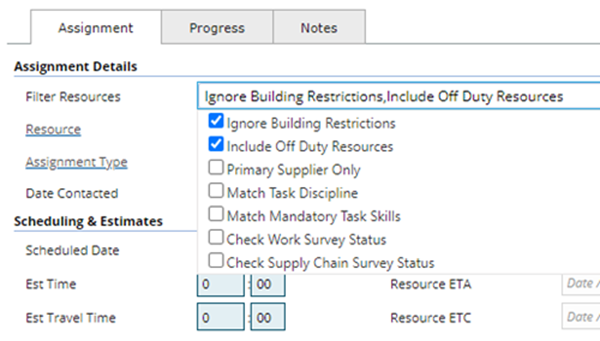
Note: The filter options selected will be stored against the user's system profile and will become their default options in all of the MRI Evolution pages listed above, until such time as they change the filter options selected.
| Filter Option | Description |
|---|---|
| Ignore Building Restrictions |
When this option is toggled ON it has the effect of ignoring one of the system's baseline filters, the filter that says the Resource must be assigned to work in the Building of the current Task. When this option is toggled OFF, only those Resources assigned to work in the Building of the current Task will be displayed. Note: This filter option is subject to user's granted Permission. |
| Include Off Duty Resources |
This filter option is the same as the existing filter checkbox for 'Show Off Duty Resources'. It should behave in the same way. When this option is toggled ON the Resources marked as off duty will also be displayed. When this option is toggled OFF the Resources marked as off duty will be excluded. Note: This filter option is subject to ISM purchase key |
| Primary Supplier Only |
By default, the Task Assignment pages show Resources that are linked to Suppliers that are Primary or Secondary Suppliers for the Contract of the current Task. When this option is toggled ON, Resources that work for the Secondary Supplier of the Task's Contract are excluded When this option is toggled OFF, Resources that work for the Primary and Secondary Supplier of the Task's Contract are displayed |
| Match Task Discipline |
This filter option is the same as the existing filter checkbox for 'Discipline' but has been renamed. When this option is toggled ON, the list of Resources will only include those that have a Primary or Secondary Discipline that matches the Discipline of the current Task When this option is toggled OFF, the list of Resources will include Resources that don't have a Primary or Secondary Discipline that matches the Discipline of the current Task |
| Match Mandatory Task Skills |
When this option is toggled ON, the list of Resources only include those that have Skills that match the mandatorySkill Requirements of the current Task, In order for the matched mandatory Skill to be considered valid, the following criteria must also be met:
When this option is toggled OFF, the list of Resources include those that have Skills that do not match the mandatorySkill Requirements of the current Task, Note: It is possible to assign Resources to Tasks where the Resource does not meet the Skill Requirement, in a similar way that Building assignments can be bypassed. |
| Check Work Survey Status |
When this option is toggled ON, the list of Resources includes only those that have a valid Survey Response (as defined by the Survey Template) to any Work Survey Templates, linked to the current Task, where the Work Survey Template:
When this option is toggled OFF, the list of Resources is not restricted to only those that have a valid Survey Response to a Work Survey Templates, linked to the current Task.
Note: This filter option is subject to the Surveys purchase key |
| Check Supply Chain Survey Status |
When this option is toggled ON, the list of Resources includes only those that have a valid Survey Response (as defined by the Survey Template) to any Supply Chain Survey Templates, linked to the current Task, where the Supply Chain Survey Template:
When this option is toggled OFF, the list of Resources is not restricted to only those that have a valid Survey Response to a Supply Chain Survey Templates, linked to the current Task.
Note: This filter option is subject to the Surveys purchase key |
Time Record - Progress tab
Click to view more detail.
| Field Name | Description |
|---|---|
| Status | |
| Status |
From the drop down select the Time Record Status The field label is a hyperlink that will open the selected Time Record Status record, if no Time Record Status selected the hyperlink will open the Time Record Status input panel in order to create a new Status |
| Scheduling Status | The Scheduling Status of the Time Record, used by the IFS-360 scheduling software - only visible if IFS360 is licensed. |
| Date Accepted | The date / time the Task / Time Record was accepted by the Resource - this field is typically populated by Resources using Evolution Go |
| Travel Start Date | The date / time the Resource began travelling to the Task - this field is typically populated by Resources using Evolution Go |
| Date Started | The date / time the Resource the Resource commenced work on the Task. |
| Date Contained | Enter the date the Task was Contained (temporarily fixed or made safe). |
| Time | |
| Core Time | Enter the hours spent on the Task at core time - if a Resource has core time rates set against them MRI Evolution will start to calculate Labour Costs. |
| O / T Rate 1 | Enter the hours spent on the Task at over time rate 1 - if a Resource has over time rate 1 rates set against them MRI Evolution will start to calculate Labour Costs. |
| O / T Rate 2 | Enter the hours spent on the Task at over time rate 2- if a Resource has over time rate 2 set against them MRI Evolution will start to calculate Labour Costs. |
| O / T Rate 3 | Enter the hours spent on the Task at over time rate 3 - if a Resource has over time rate 3 set against them MRI Evolution will start to calculate Labour Costs. |
| Travel | Enter the hours spent on the Task, Travelling - if a Resource has Travel rates set against them MRI Evolution will start to calculate Labour Costs. |
| Time Waiting | Enter the hours spent on the Task, waiting- if a Resource has waiting rates set against them MRI Evolution will start to calculate Labour Costs. |
| Parking | Enter the hours spent on the Task, parking- if a Resource has parking rates set against them MRI Evolution will start to calculate Labour Costs. |
| Time on Diversion | Enter the hours spent on the Task at divert - if a Resource has divert rates set against them MRI Evolution will start to calculate Labour Costs. |
| Total Time | Auto-calculated with the Labour Costs of the Time Record. |
| Costs | |
| Vehicle Cost | Enter Vehicle Costs. |
| Mileage Cost | Enter Mileage Costs. |
| Distance Travelled | Enter distance travelled. |
| Expense Cost | Auto-calculated with the expense totals against the Time Record. |
| Calculated Cost | Auto-calculated by adding the Labour Costs and Expense Cost together. |
| Resolution | |
| Date Finished | Enter the date finished. |
| Time between start and finish | Auto-calculated to show total hours spent on the Task for this Time Record. |
| Resolution | From the drop down select the Time Record Resolution. |
| Downtime | Enter the time the Asset associated with the Task was down / faulty. |
Time Record - Notes tab
Click to view more detail.
| Field Name | Description |
|---|---|
| Notes | Free type field allowing entry of details pertinent to the Time Record. |
Complete the fields and click Save  . Once the Time Record header has been completed and saved a sub navigation will appear to allow additional entities to be assigned.
These include:
- Expenses
Expenses
Click to view more detail.
Expenses can be used to record any incidental costs that a Resource has incurred whilst on a Task.
Task Management > Advanced Helpdesk - Time Records - Expenses
The link will open the Time Record / Expenses grid. It is a grid view that can be customised and sorted as normal.
To add a new Expense click New , to edit an existing Expense click Edit . A pop up window will appear which will allow the creation or amendment of an Expense.
Click to view - Expense Fields and Descriptions
Complete the fields and click Save and Close  .
.
To create Resources see Resources
Additional Icons
| Additional Icons | Name | Description |
|---|---|---|

|
Send Evolution Go Notification |
Available from 4.5.3 Allows a Evolution Go Notification to be sent to the User. For more information see Evolution Go Resource Functionality |

|
Last Known Location |
Available from 4.5.3 Click for a pop up map showing the User's last know Location. For more information see Evolution Go Resource Functionality |