Planned Preventative Maintenance - PPMs
Planned Preventative Maintenance (PPM) Schedules can be created at the point where an Asset is entered into MRI Evolution or may be added from Task Management > PPMs. PPMs are frequency-based work-instances that are carried out to prevent the deterioration and breakdown of an Asset during its lifetime.
More than one PPM schedule maybe created against a single Asset, for Tasks that require different frequencies.
For example, a very simplified PPM Schedule for an Air Conditioning Unit may include:
|
Monthly PPM |
Quarterly PPM |
6 Monthly PPM |
Annual PPM |
|---|---|---|---|
|
|
|
|
To prevent unnecessary Tasks being issued, Family Task Override may be used to automatically Drop Tasks against an Asset with a higher frequency Tasks (monthly) that may have steps included in a lower frequency (6 monthly / Annual) Task. To enable Family Task Override, the following conditions must be met on the Tasks:
- They must be created for the same Asset.
- They must belong to the same Family.
- They must be carried out by the same Contract.
- They must occur in the same Service Week.
The Air Conditioning Unit PPM Schedule example above would create the following results, with Family Task Override applied:
| January | February | March | April | May | June | July | August | September | October | November | December |
|---|---|---|---|---|---|---|---|---|---|---|---|
| Monthly PPM | Monthly PPM | Quarterly PPM | Monthly PPM | Monthly PPM | 6 Monthly PPM | Monthly PPM | Monthly PPM | Quarterly PPM | Monthly PPM | Monthly PPM | Annual PPM |
To create Assets see Assets
Task Management > PPMs
Note: PPMs can also be added directly from the Asset, Facilities > Assets - PPMs
The link will open the PPMs grid. It is a grid view which can be searched, sorted and customised as normal.
To add a new PPM click New  , to edit an existing PPM click Edit
  . A pop up window will appear which will allow the creation or amendment of a PPM.
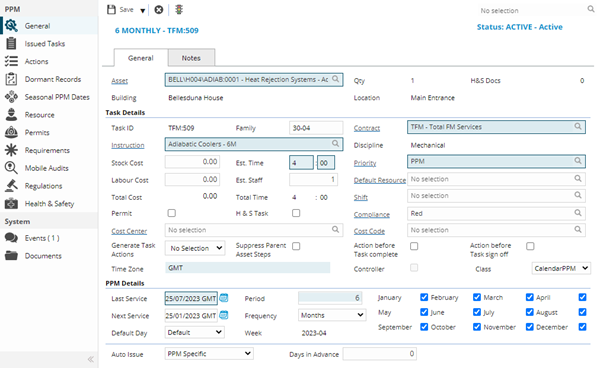
 Click to view - General Tab - Fields and Descriptions
Click to view - Notes Tab - Fields and Descriptions
Complete the fields and click Save  . Once the PPM header has been completed and saved a sub navigation will appear to allow additional entities to be assigned or viewed.
These include:
- Issued Tasks
- Actions
- Dormant Records
- Seasonal PPM Dates
- Resources
- Permits
- Requirements
- Mobile Audits
- Regulations
- Health and Safety
Once a PPM has been Saved the lock Status will appear in the top right corner of the window - see Task Lock Status.
Issued Tasks
Click to view more detail
Available from 4.5.6.0
Tasks that have been issued against this PPM can be viewed and edited from this sub navigation.
Task management > PPMs - Issued Tasks
The link will open the Issued Tasks grid. It is a grid view that can be customised and sorted as normal.
To edit an existing Issued Task click Edit. A pop up window will appear which will allow the creation or amendment of an Issued Task.
Actions
Click to view more detail.
Available from 4.4.6 Actions are used to show work or Actions that have been completed during a PPM on Child or Sub Assets. These can either be mass created by using "Generate Task Actions" for the General Tab, or can be done manually from the Actions screen. Once a PPM is issued, the PPM Actions will become Tasks Actions which can be carried out / answered against the Task.
Task Management > PPMs - Actions
If PPM Actions are created en mass, the PPM Actions will be created on save. PPM Actions can also be added manually.
The link will open the PPMs / Actions grid. It is a grid view which can be searched, sorted and customised as normal.
Available from 6.1.0.0
The Actions grid can be displayed as a hierarchical grid.
If the Enable Advanced Costs & Distribution for Task & PPM Actions Task Preference is set to True then the Actions Grid will be displayed as hierarchical showing a sub-grid listing the child PPM Action Cost Coding records.
Click the > button to toggle the sub grid to be displayed/hidden.
PPM Action Cost Coding records can be opened directly from the sub-grid.

Toolbar Icons
| Icon | Feature | Description |
|---|---|---|

|
New | Click to add a new PPM Action. |

|
Edit | Select an Action in the grid and click to edit. |

|
Delete | Select an Action in the grid and click to delete. |

|
Move to First | Select an Action in the grid and click to move it to first place in the list. |

|
Move Up | Select an Action in the grid and click to move it up one place in the list. |

|
Move Down | Select an Action in the grid and click to move it down one place in the list. |

|
Move to Last | Select an Action in the grid and click to move it to last place in the list. |

|
Child Assets |
Click Create Actions for All Child Assets |

|
Sub Assets | Click Create Actions for all Sub - Assets to manually add Actions for all Sub - Assets. |

|
Refresh | Click to Refresh the grid. |

|
Close | Click to Close the input panel. |
To add a new Action click New, to edit an existing Action click Edit . A pop up window will appear which will allow the creation or amendment of an Action.
Click to view - Actions Fields and Descriptions
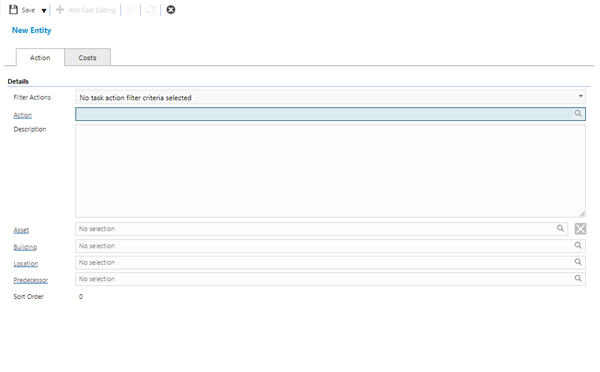

Toolbar Icons
Click to view - PPM Action Cost Coding Fields and Descriptions
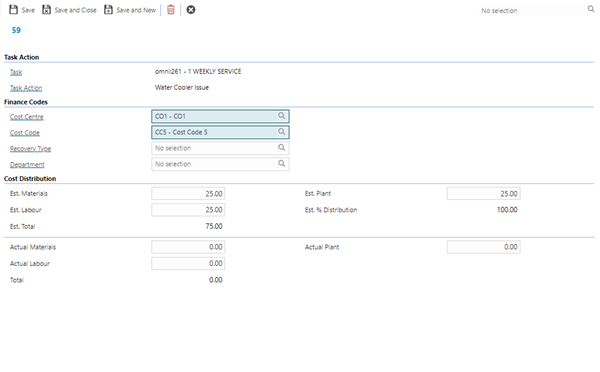
 .
.Dormant Records
Click to view more detail.
MRI Evolution creates Dormant Tasks for PPMs to enable planning, the amount of Dormant Tasks created is directly related the Contract Setting "Build Dormant PPMs years in advance". Once a PPM has been either Issued or Dropped it will be removed from the Dormant PPM records.
Dormant Records can be created, deleted, dropped and issued from the Dormant records grid Available from 4.5.6.0
Task Management > PPMs - Dormant Records
The link will open the PPM / Dormant Record grid. It is a grid view that can be customised and sorted as normal.
To add a new Dormant Record click New , to edit an existing Dormant Record click Edit . A pop up window will appear which will allow the creation or amendment of a Dormant Action.
To delete a Dormant Record click Delete Dormant Record
To drop a Dormant Record click Drop Dormant PPM  Available from 4.5.6.0
To issue a Dormant PPM click Issue PPM  Available from 4.5.6.0
Seasonal PPM Dates
Click to view more detail.
Certain PPMs will only be required on specific non- sequential dates. For example: The lawn only needs to be cut twice in the winter as opposed to weekly in the summer months. PPMs will be shown on the PPM planner with an ‘S’ to indicate that it is a Seasonal PPM.
Task management > PPMs - Seasonal PPM Dates
To create a seasonal PPM the Frequency of the PPM must be set to seasonal with the Period set to the amount of occurrences in a year. Once the PPM header has been saved select sub navigation - Seasonal PPMs
The link will open the PPM / Seasonal PPM grid. It is a grid view that can be customised and sorted as normal.
To add a new Seasonal PPM click New , to edit an existing Seasonal PPM click Edit . A pop up window will appear which will allow the creation or amendment of a Seasonal PPM
Click to view - Seasonal PPM Fields and Descriptions
Resources
Click to view more detail
Available from 4.5.6.0
Multiple Resources can be assigned as default Resources to a PPM, when the PPM is issued the Resources will be automatically assigned.
Task management > PPMs - Resources
The link will open the PPMs / Resources grid. It is a grid view that can be customised and sorted as normal.
To assign Resources click Assign , entities in the right hand assignment window are connected.
To create Resources see Resources
Permits
Click to view more detail
Available from 4.5.6.0
Permits can be assigned to a PPM, when the PPM is issued the Permit will be auto-generated for completion within the Work Permits grid, they will also form a Requirement for the Task.
Task management > PPMs - Permits
The link will open the PPMs / Permits grid. It is a grid view that can be customised and sorted as normal.
To add a new Permit click New , to edit an existing Permit click Edit. A pop up window will appear which will allow the creation or amendment of a Permit.
To create Permits see Work Permits
Requirements
Click to view more detail.
Available from 5.3.0.0
Resource Skills can be assigned to a PPM to form a Requirement for Tasks
Task management > PPMs - Requirements
The link will open the PPM / Requirements grid. It is a grid view that can be customised and sorted as normal.
To assign Requirements (Resource Skills) click Assign, Requirements in the right hand assignment window are connected.
To create Skills see Skills
Note: Checking the box "Show Requirements from Instructions Sets & Work Permits" will show requirements from connected Instruction Sets and Work Permits
Mobile Audits
Click to view more detail
Available from 4.5.6.0
Mobile Audits can be assigned to a PPM, when the PPM is issued the Mobile Audit will be generated against the PPM Task.
Task management > PPMs - Mobile Audits
The link will open the PPMs / Mobile Audits grid. It is a grid view that can be customised and sorted as normal.
To add a new Mobile Audit click New, to edit an existing Mobile Audit click Edit. A pop up window will appear which will allow the creation or amendment of a Mobile Audit.
To create Mobile Audits see Advanced Helpdesk - Audits - Evolution Go module
Regulations
Click to view more detail.
In order to manage compliance regulations can be attached to a PPM. These will auto-populate from the instruction Set but can be manually altered.
Task management > PPMs - Regulations
The link will open the PPM / Regulation grid. It is a grid view that can be customised and sorted as normal.
To assign Regulations click Assign, entities in the right hand assignment window are connected.
To create Regulations see Regulations.
Health and Safety
Click to view more detail.
Health and Safety Documents can be attached to a PPM, these will print when the PPM Job Cad is printed.
Task Management > PPMs - Health and Safety
The link will open the PPM / Health and Safety grid. It is a grid view that can be customised and sorted as normal.
To assign Health and Safety Documents click Assign , entities in the right hand assignment window are connected.
To create Health and Safety Documents see Health and Safety Documents
Additional Icons - PPM Status
Available from 4.5.0
A PPMs status can be changed by clicking Change PPM Status  .
.
PPMs have three generic states, but many statuses
Generic States:
- Active - the PPM is active and running.
- Suspended - the PPM is temporarily not required and will show suspended in the PPM Planner.
- History - the PPM is no longer required and will not be viewable in the PPM Planner.
To create PPM Statuses see PPM Status
Note: In versions prior to 4.5.0 a PPM could be suspended and reinstated using Suspend PPM  and Resume PPM
Note: There are two statuses that are pre set by MRI Evolution. These are applied when the Asset changes State, and can only be changed by changing the state of the Asset. When an Asset status is changed from Active to Suspended, PPM status will show as "Suspended by Asset". When an Asset status is changed from Active or Suspended to History, PPM status will show" History By Asset"