Tasks
The Tasks grid, by default displays all current Tasks including Tasks that are Unauthorised, Active, Assigned and Complete.
The option Show Historic Tasks may be checked to also display all Tasks in History.
The list of Tasks are maintained here.
Task Management > Tasks
The link will open the Tasks Grid. It is a grid view which can be searched, sorted and customised as normal.
Highlighting multiple lines in the Task grid and clicking the grid icons will allow feature actions to be carried out on multiple Tasks.
To add a new Task click New  , to edit an existing Task click Edit
  .
.
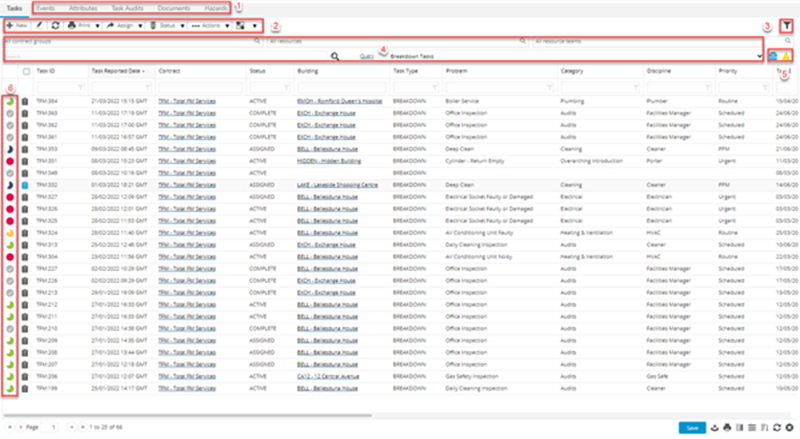
- Related Task (F_TASKS) Table Register enabled tabbed grids, such as Documents, Hazard & Alerts and so on
- Grid toolbar icons
- Show/hide toggle of Task grid filter and query options
- Task grid filter and query options
- Show/hide records in the grid toggles:
- Historic status records
- Tasks with Hazards & Alerts
- SLA Time Left and Colouration indicator:
- Controlled by the User Preferences > Tasks > Task Colours > Colouration Preference
- The colour displayed is controlled by the current date/time in comparison with the values of the User Preferences > Tasks > Task Colours > Recolour at and SLA Target Date
- Hover over the Colouration indicator to see a 'time left tool-tip' for the Task:
- Time Left: {time between current date/time and the defined SLA Target Date in format xd xh xm)
Task Icons and Descriptions
| Additional Icon | Feature | Description |
|---|---|---|
 |
New |
Click to open the helpdesk and create a new Task. The helpdesk opened is controlled by the option set for User Preferences > Tasks > Task Settings > Use Advanced HelpDesk. |

|
Edit | Select a Task in the grid and click to Edit. |

|
Refresh | Click to refresh the grid. |
| Toolbar button group - Print | ||

|
|
Click to print Job Card(s) - if multiple Tasks are highlighted multiple print windows will open. |

|
Batch Job Card | Click to batch print Job Cards - only one print window will appear if multiple Tasks are highlighted. |
| Toolbar button group - Assign | ||

|
Assign Resource |
Click to assign a Resource to the selected Task(s). The 'Assign Resource' button is subject to the following constraints to ensure that all of the selected tasks are suitable for assignment to the same Resource:
|

|
Open Planner |
Available from 5.5.0.0 Click to open the Resource Planner. The restrictions, checks and user messages for this button are identical to the checks and messages related to the 'Assign Resource' button. When opened from the main Tasks Grid, the Resource Planner will load with the Tasks Grid at the bottom of the page displaying only those Tasks selected in the main Tasks Grid. |

|
Find Nearest |
Available from 5.2.0.0 Select Task and click to find the geographically nearest available Resource. (Evolution Go module required) |

|
Open Rota Window | Click to view the Rota window for the selected Tasks - Task can be assigned within this window. |

|
Send To Contractor |
Available from 5.5.0.0 In order for the Send to Contractor button to function, the selected Tasks in the Grid must all meet the following criteria:
|

|
Remove From Contractor |
Available from 5.5.0.0 In order for the Remove from Contractor button to function, the selected Tasks in the Grid must all meet the following criteria:
|

|
Upload Document | Click to add a Document to the selected Task(s). |

|
Add Event | Click to add an Event to the selected Task(s). |

|
Assign CSF | Click to assign CSF (Customer Satisfaction Form) to the selected Task(s). |
| Toolbar button group - Status | ||

|
Authorise | Click to Authorise the selected Task(s). |

|
Mark as Complete | Click to Complete the selected Task(s). |

|
Cancel | Click to Cancel the selected Task(s). |

|
Sign Off to History | Click to Sign Off the selected Task(s). |
|
|
Restore Task |
Available from 5.5.0.0 Click to restore the selected Task(s) to the State they were prior to being sent to Rejected, History or Cancelled. |
| Toolbar button group - Actions | ||

|
Take Ownership | Click to Take Ownership of the selected Task(s) |

|
Remove Ownership | Click to Remove Ownership of the selected Task(s) |

|
Assign Ownership |
Available from 5.6.0.0 Click to Assign ownership of the selected Task(s) to another user. This button will only be displayed if the Allow users to assign ownership of Tasks to other Accounts Task Preference is set to True. A pop up will be displayed, containing two fields:
|

|
Toggle Task Lock Status | Click to Adjust Task(s) Lock Status. |

|
Issue PPMs Early | Click to short cut to Issue PPMs. |

|
Time Record Review | Click to short cut to Time Records sub navigation in Advanced Helpdesk. |
| Toolbar button group - None | ||

|
Open Task Navigator | Click to open the Task Navigation window - creates a separate pop up window which will allow a Task to be searched for without disturbing current grid view. |

|
Toggle grid between normal and attribute view | Click to toggle the Task grid to the Task Attributes grid. |

|
User Preferences |
Available from 5.7.0.0 When a user clicks on the User Preferences toolbar button a modified version of the existing User Preferences > Tasks page will open, allowing them to define all preferences in the current Task Colours tab. Access to this is controlled by a new Allow Permission for 'User Preferences in Tasks Grid' within the Tasks Securable Group. |