Calendars
The Calendars configuration establishes process configuration that enhances operational efficiency within the SLA Settings area. It provides a comprehensive approach to defining, organizing, and managing the calendars parameters that support operational efficiency across related Evolution functions.
This functionality integrates across multiple system components, enabling consistent calendars management across business processes. Effective configuration supports operational cohesion, workflow optimization, and enhanced decision-making capabilities throughout the system.
Settings > Service Level Agreements > Calenders
The link will open the Calendars grid. It is a grid view which can be searched, sorted and customised as normal.
To add a new Calendar click New  , to edit an existing Calendar click Edit
  . A pop up window will appear which will allow the creation or amendment of a Calendar.
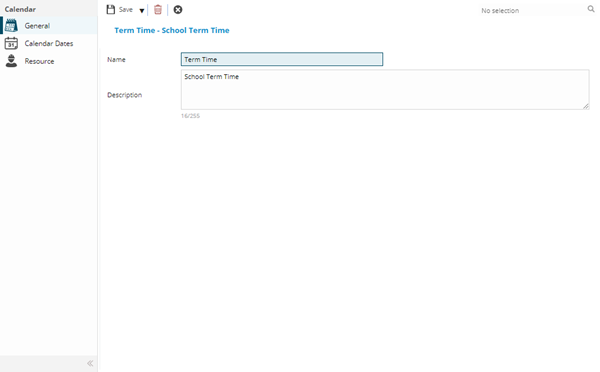
 Click to view - Calendars Fields and Descriptions
| Field Name | Description |
|---|---|
| Name | The name of the Calendar. |
| Description | The description of the Calendar. |
Complete the fields and click Save  . Once the Calendar header has been completed and saved a sub navigation will appear to allow additional entities to be assigned.
These include:
- Calendar Dates
- Resources
Calendar Dates Sub Navigation
Click to view more detail.
Calendar Dates are added to a Calendar to show the date ranges. These can be added as individual dates or in bulk using Calendar Day Quick Set Up.
Settings > Service Level Agreements > Calenders
The link will open the Calendars / Calendar Dates grid. It is a grid view that can be customised and sorted as normal.
Adding Individual Dates
One off days can be added individually.
To add a new Calendar Date click New , to edit an existing Calendar Date click Edit . A pop up window will appear which will allow the creation or amendment of a Calendar Date.
Click to view - Calendar Date Fields and Descriptions
| Field Name | Description |
|---|---|
| Date | The specific calendar date (format DD/MM/YYYY or MM/DD/YYYY depending on locale settings) being defined within this calendar to classify whether it is a working day, non-working day (weekend/holiday), or special working pattern day for SLA time calculations and resource planning. Each date is assigned a Calendar Day classification (e.g., Normal Working Day, Saturday, Sunday, Public Holiday, Site Closure Day) that controls how SLA response and resolution times are calculated for tasks created or due on that date. Essential for accurate SLA compliance tracking where working hours exclude weekends and holidays. Multiple dates can be bulk-created using the quick setup feature to efficiently establish yearly calendars including regional bank holidays, organizational shutdown periods, and weekend patterns. Calendars link to contracts, sites, or clients to apply location-specific or client-specific working day definitions. |
| Calendar Day | From the drop down select the Calender Day - for more information see Calendar Days. |
Calendar Day Quick set up
Creating multiple dates can aid in the speed of setting up a Calendar.
To quick set up a range of dates click Calendar Day Quick Set Up  . A pop up window will appear which will allow the creation or amendment of a Calendar Dates.
Click to view - Calendar Day Quick Set Up Fields and Description
| Field Name | Description |
|---|---|
| Calendar | Auto-populated with the name of the Calendar. |
| Start Date | Enter the Start Date for the date range. |
| End Date | Enter the end date for the date range. |
| Monday - Sunday | From the drop down select the Calendar Day. |
Click Create Calendar Dates , the dates will be created.
Deleting Date Ranges
Ranges of Calendar Dates can be deleted in bulk. Click Calendar Day Quick Delete  , enter the dates range to delete and click Delete Calendar Days . The Calendar Days will be deleted from the Calendar.
Calendar Templates
Calendar Templates allow a pattern of days to be set up that can be used within Calendars to quickly set up Calendar Dates.
Click Calendar Form Template  , A pop up window will appear which will allow the creation of Calendar Dates using the Calendar Template.
Click to view - Calendar Template Fields and Descriptions
| Field Name | Description |
|---|---|
| Calendar | Auto-populated with the Calendar Name. |
| Start Date | Enter the Start Date for the Calendar Template - for more information see Calendar Templates. |
| End Date | Enter the end date for thee Calendar Template. |
| Calendar Template | From the drop down select the Calendar Template. |
| Start Point | From the drop down select the start day number - relating to the days within the Calendar Template. |
Click Create Calendar Days , the Calendar Days will be created to reflect the set up of the Calendar Template.
Resources Sub Navigation
Click to view more detail.
Resources can be assigned to Calendars to reflect Resource shifts and availability.
Settings > Service Level Agreements > Calenders
The link will open the Calendars / Resources grid. It is a grid view that can be customised and sorted as normal.
To assign Resources click Assign  , entities in the right hand assignment window are connected.
To create Resources see Resources
Calendars override Resource Rotas.