Facilities Booking User Preferences
Facilities Booking User Preferences in MRI Evolution let you set your default options for the Facilities Bookings module. Adjust booking times, locations, notifications, and display settings to match your workflow and reduce repetitive entry.
These preferences are applied automatically when you use the Planner, streamlining the booking process and ensuring a consistent experience.
Business Value: Personalizing booking preferences saves time, reduces errors, and helps you manage appointments more efficiently.
Action: Open Facilities Booking User Preferences to review and update your default settings. Use these options to optimize your booking workflow in Evolution.
Settings > User Settings > Booking User Preferences
This menu can also be reached from the Planner by clicking Open User Preferences  .
.
The link will open a pop up window which will allow the User Preferences to be set.
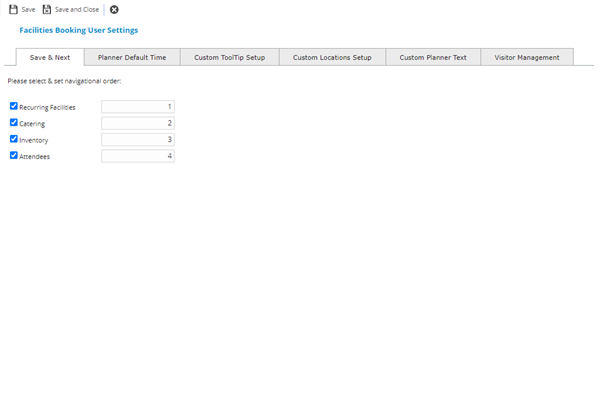
Save & Next Tab
The Save and Next preferences are used to define the working order when adding booking details. From a booking click Save your changes and navigate to the next sub menu  . MRI Evolution will use the order set in this tab to navigate to the corresponding menu.
Planner Default Time
A User can set the Planner so that only the times set in the preference will show be visible. This view can be seen by clicking Switch between 24 Hours or Planner Default Time  .
.
Custom ToolTip Setup
When a User hovers over a booking in the Planner a pop up window appears. This window will hold the details checked in this tab.
Custom Location Setup
A User can customise the Location information shown on the left side of the Planner. Check the information to be shown and set the width of the column in pixels.
Custom Planner Text
The custom planner text allows a User to set what detail will be seen in the booking line of the Planner. Check the required boxes and number the display order.
Visitor Management
Checking the box in Visitor Management will create a drop down in the name field from any previous Visitors booked into Visitor Management.
Complete the fields and click Save and Close  .
.