Widget - Intuitive BI
Available from 4.4.4.0
Intuitive BI dashboard integration widget displaying interactive business intelligence directly within the application. Configurable view modes, dashboard assignments, and parameters support real-time insights and data-driven decision making.
Settings > Widgets & Home Pages > Widgets > Widget - Intuitive BI
The link will open the Widgets grid. It is a grid view which can be searched, sorted and customised as normal.
To add a new Widget click New  , to edit an existing Widget click Edit
  . A pop up window will appear which will allow the creation or amendment of a Widget.
Select the Widget template : IntuitiveBI. Complete the fields and click Save  . Click Configure Widget
  .
.
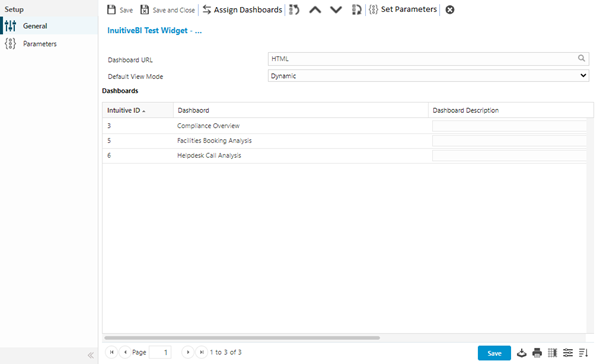
 Click to view - Intuitive BI Widget Fields and Descriptions
Dashboards need to be assigned to the Widget. To assign Dashboards click  Assign Dashboards, entities in the right hand assignment window are connected.
Available from 5.8.0.0
Once assigned, the order of the Dashboards in the grid will be the order they are displayed in the current Intuitive BI widget.
The order can be adjusted by selecting records and clicking the following toolbar buttons to achieve the desired order:
-
 Move to be first
 -
 Move up a position
 -
 Move down a position
 -
 Move to the last
Set Parameters
Click to view more detail.
Further parameters can then be added to the widget to filter the dashboard content.
Settings > Widgets & Home Pages > Widgets > Widget - Intuitive BI
To add a new Parameter click New , to edit an existing Parameter click Edit. A pop up window will appear which will allow the creation or amendment of a Parameter.
Click to view Parameter Fields and Descriptions
Complete the fields and click Save and Close  .
.
Parameters are not mandatory to Intuitive BI widgets