Helpdesk - Surveys
Available from 5.5.0.0
Use Helpdesk Surveys to view, manage, and track survey requirements and responses for each task. Dedicated survey interfaces help administrators ensure all survey protocols are completed for compliance, validation, and safety throughout the task life-cycle.
Task Management > Helpdesk > Helpdesk - Surveys
The link will open the Helpdesk / Surveys sub navigation.
The Surveys sub navigation is made up of two tabs:
Each tab contains a grid displaying the respective records for the tab.
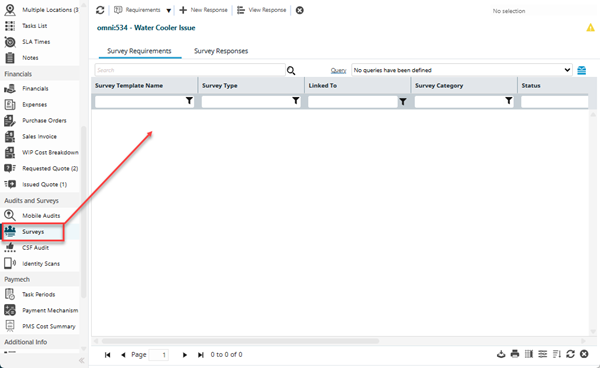
Survey Requirements tab
 Click to view more detail.
The Survey Requirements tab contains a grid of Task Requirements that are Work Surveys related to the current Task. These may have been created automatically when the Task was created or added manually via the Add/Remove Requirement toolbar button
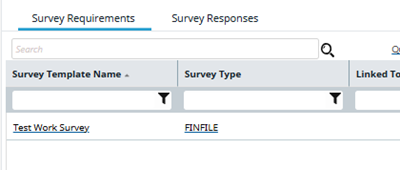
Records can be selected in the grid and use the toolbar buttons to:
- Add a new Response to the selected Work Survey
- Preview the selected Work Survey
Task Management > Helpdesk > Helpdesk - Surveys
Survey Responses tab
Click to view more detail.
The Survey Responses tab contains a grid of completed Work Surveys related to the current Task. These may have been created in MRI Evolution via the New Response toolbar button or in a Evolution Go activity.
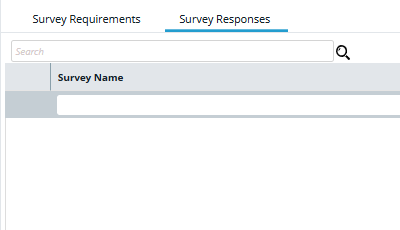
Survey Responses can be viewed, but not updated, by selecting a record in the grid and clicking the View Response toolbar button.
Opening a record from the grid will open the Work & Access Survey page.
Task Management > Helpdesk > Helpdesk - Surveys
Helpdesk - Surveys Icons
Click to view more detail.


Complete the fields and click Save  . Once the Audit header has been completed and saved entities can be assigned. These can be assigned manually or by using the wizard.