Issue PPM Tasks
Use the Issue PPM Tasks page to manually activate, drop, or omit Planned Preventative Maintenance (PPM) tasks as needed. Issued PPM Tasks appear in the Tasks grid and can be managed like any other task.
To create new PPMs, see PPM Templates.
Task Management > PPMs > Issue PPM Tasks
The link will open the Issue PPM Tasks page. The upper part of the page contains the filter options available (highlighted below) to display the relevant PPM Templates in the grid in the lower part of the page:
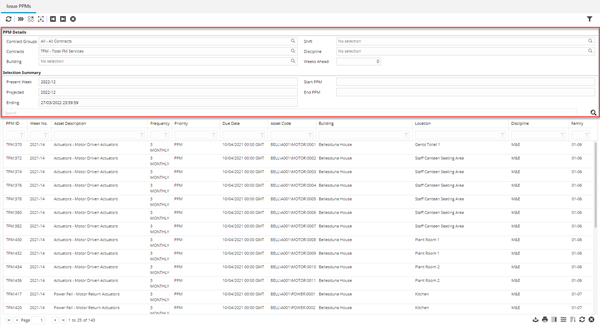
The PPM Details section is used to filter the list of PPM Templates to be issued.
Select the required filter options and click Refresh  . This will build the list of PPM Templates, the grid can be filtered down further using the standard grid functions.
Minimal Filters must include either a Contract or a Contract Group.
The weeks ahead field will dictate how many weeks in the future the list will be built for.
 Click to view - Issue PPM Icons and Descriptions

There are two ways to select PPM records in the grid:
- Drag and drop to highlight the required records
- Clicking on the first and last records in the grid
- Click on the first PPM to be Issued, Dropped or Omitted and click Set Start PPM
 .
. - Click on the last PPM to be Issued, Dropped or Omitted and click Set End PPM
 .
.- Note: the last record could be on another page of grid records
- Click on the first PPM to be Issued, Dropped or Omitted and click Set Start PPM
Once the required PPM records have been selected, click the icon to either Issue  , Drop
  or Omit
  the selected PPM(s).