Task Time Records
Task Time Records form the operational backbone of Evolution's workforce management and service delivery tracking system. These detailed records capture the complete picture of how Resources spend their time completing assigned Tasks, providing essential data for operational efficiency, cost analysis, and performance management across the organization.
Beyond simple time tracking, Time Records serve as the foundation for Evolution's comprehensive work management capabilities. They enable accurate job costing, resource utilization analysis, performance benchmarking, and compliance reporting. Each Time Record becomes part of an integrated workflow that connects field operations with financial systems, customer billing, and operational analytics.
Time Records integrate seamlessly with Evolution's mobile applications, allowing field Resources to capture work details in real-time, including time spent, materials used, work completed, and any issues encountered. This real-time data flows directly into Evolution's central database, enabling managers to monitor job progress, identify potential delays, and make informed decisions about resource allocation and customer communication.
The comprehensive time tracking capabilities provided by Time Records support advanced Evolution features including automatic timesheet generation, overtime calculation, productivity analysis, and detailed audit trails that meet regulatory compliance requirements across various industries.
Task Management > Timesheets > Time Records
The link will open the Helpdesk / Time Records grid. It is a grid view which can be searched, sorted and customised as normal.
To add a new Time Record click New  , to edit an existing Time Record click Edit
  . A pop up window will appear which will allow the creation or amendment of a Time Record.
Available from 6.2.0.0
When creating and assigning time records to Resources, the prompt for completing Work & Access Survey Templates has been updated as follows:
-
If the Survey Response Behaviour in MRI Evolution is set to Required for each Assigned Resource a check whether a Response has already been provided for this Task and Resource will occur
-
If a valid response is found then allow the user to continue with no prompts
-
If no valid response is found the following on-screen message will be displayed - "This Task requires a response to one or more Work Surveys prior to assignment. Please go to the Surveys menu in this Task to submit a response"
-
-
If the Survey Response Behaviour in MRI Evolution is set to Required once per Task a check whether a Response has already been provided for this Task will occur
-
If a valid response is found then allow the user to continue with no prompts
-
If no valid response is found the following on-screen message will be displayed - "This Task requires a response to one or more Work Surveys prior to assignment. Please go to the Surveys menu in this Task to submit a response"
-
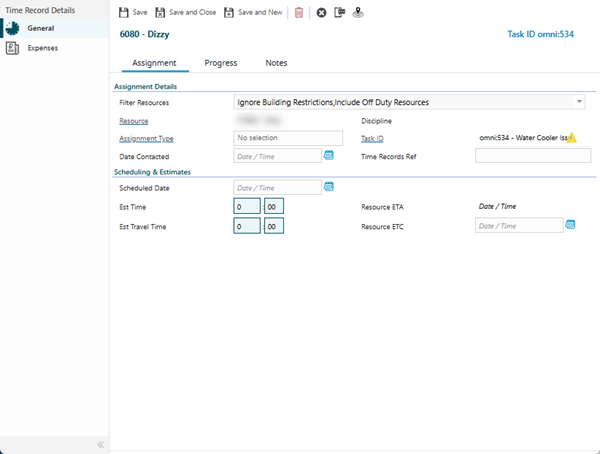
Time Record - Assignment Tab
 Click to view more detail
| Field Name | Description |
|---|---|
| Filter Resources | Multi-select filter to narrow the Resources dropdown by specific criteria such as discipline, skills, availability, location, or supplier. Used to quickly find suitable resources from potentially large resource pools without scrolling through all available resources. Particularly useful in organizations with hundreds of resources where manual searching becomes impractical. Applying filters does not assign resources—it only controls which resources appear in the Resources dropdown for selection. Filters can be combined to create precise search criteria (e.g., "Electrician" + "North Region" + "Available Today"). This filtering capability significantly speeds up resource assignment during time record creation and helps ensure the right skilled resource is selected for each task. |
| Resources | From the drop down select the Resource to be assigned to the Task. |
| Discipline | The trade, skill area, or professional specialization required for this task (e.g., Electrician, Plumber, HVAC Technician, Carpenter, Locksmith, General Maintenance). Used to categorize work by type of expertise needed and to ensure resources with appropriate qualifications are assigned. This classification supports skills-based resource allocation, helps identify workload distribution across different trades, and enables reporting on task volumes by discipline. The discipline may auto-populate based on the selected resource's primary trade, or it can be manually specified when a resource works outside their usual specialization. Essential for compliance reporting where proof of qualified tradespeople is required, and for analyzing which disciplines have capacity constraints or require additional staffing. |
| Assignment Type | The nature or category of the resource assignment to this task (e.g., Primary Engineer, Supervisor, Helper/Mate, Inspector, Specialist Consultant). Used to distinguish the role or responsibility level of each resource when multiple resources work on the same task. This classification affects how the time record is processed for billing (some assignment types may be non-chargeable), reporting, and resource utilization analysis. For example, a "Primary Engineer" assignment might be billed at a higher rate than a "Helper" assignment. The Assignment Type may determine which fields are mandatory, which approval workflows apply, or how the time record appears in different reports. Essential for accurate cost allocation, client billing transparency, and workforce planning when analyzing how different resource roles contribute to task completion. |
| Task ID | Auto-populated with the Task ID. |
| Include all Suppliers Resources | Check the box to make visible additional Suppliers Resources including ones that are not assigned to the Building of the Task. |
| Include off - duty resources? | Check the box to make visible additional Supplier Resources including ones that are currently off duty - ISM module. |
| ID Number | Auto-populated with the ID Number of the assigned Resource. |
| Date Scheduled | Enter the date the Task is scheduled to be completed. |
| Time Records Ref | Free type ref field that can be used to filter time sheets - if the "Make Timesheet Reference Compulsory" check box is ticked against the Contract, this field will be a compulsory field that must be completed before a Task can be moved to Complete. |
| Date Started | Enter the date the Task was started. |
| Date Contacted | Enter the date that the Resource was Contacted about the Task. |
| Est Time | Enter the Estimated Time to complete the Task. |
| Date Contained | Enter the date the Task was Contained (temporarily fixed or made safe). |
| Assignment Type | From the drop down select the Assignment Type - for more information see Assignment Types. |
| Est Travel Time | Enter the Estimated Travel time. |
| Status | From the drop down select the Time Record Status. |
| Core Time | Enter the hours spent on the Task at core time - if a Resource has core time rates set against them MRI Evolution will start to calculate Labour Costs. |
| O / T Rate 1 | Enter the hours spent on the Task at over time rate 1 - if a Resource has over time rate 1 rates set against them MRI Evolution will start to calculate Labour Costs. |
| O / T Rate 2 | Enter the hours spent on the Task at over time rate 2- if a Resource has over time rate 2 set against them MRI Evolution will start to calculate Labour Costs. |
| O / T Rate 3 | Enter the hours spent on the Task at over time rate 3 - if a Resource has over time rate 3 set against them MRI Evolution will start to calculate Labour Costs. |
| Travel | Enter the hours spent on the Task, Travelling - if a Resource has Travel rates set against them MRI Evolution will start to calculate Labour Costs. |
| Wait | Enter the hours spent on the Task, waiting- if a Resource has waiting rates set against them MRI Evolution will start to calculate Labour Costs. |
| Divert | Enter the hours spent on the Task at divert - if a Resource has divert rates set against them MRI Evolution will start to calculate Labour Costs. |
| Parking | Enter the hours spent on the Task, parking- if a Resource has parking rates set against them MRI Evolution will start to calculate Labour Costs. |
| Total | Auto-calculated with the Labour Costs of the Time Record. |
| Vehicle Cost | The total cost of vehicle-related expenses incurred while completing this task (e.g., fuel charges, parking fees, toll road costs, congestion charges). Used to calculate the complete cost of the job including transportation expenses beyond standard mileage rates. These costs may be reimbursed to the resource or charged directly to the client depending on contract terms. Ensure receipts are retained for audit purposes and attach them via the Expenses sub-navigation if required. This field captures actual vehicle expenses that supplement or replace standard mileage cost calculations when specific costs need to be recovered. |
| Mileage Cost | The calculated cost based on the distance travelled multiplied by the agreed mileage rate (e.g., £0.45 per mile, $0.58 per mile). Used to compensate resources for vehicle wear-and-tear, fuel consumption, and depreciation when using personal vehicles for work tasks. This amount may be automatically calculated from the Distance Travelled field and the resource's configured mileage rate, or entered manually if special rates apply. Essential for accurate job costing, resource reimbursement processing, and client billing when mileage is a chargeable expense. Ensure the mileage rate used complies with your organization's expense policy or client contract terms. |
| Distance Travelled | The total distance in miles or kilometers travelled by the resource to complete this task, including journey to the site, any travel between multiple locations during the job, and return journey. Used as the basis for calculating mileage costs and validating travel time claims. Resources should record the actual distance from vehicle odometers or mobile GPS tracking rather than estimated distances. For multi-site visits within a single task, include the cumulative distance. This data supports job costing accuracy, helps identify route optimization opportunities, and provides audit evidence for expense claims and client billing where travel distance is a chargeable component. |
| Date Finished | The date when the resource completed their work on this task or finished their assigned portion of the work. Used together with Date Started to calculate the total duration of work, validate timesheet accuracy, and track task completion timelines. This date is essential for measuring resource productivity, identifying tasks that took longer than estimated, and demonstrating compliance with service level agreements (SLAs). If multiple resources work on the same task, each time record will have its own completion date. The system uses this date to determine when the time record can be finalized for payroll, billing, or reporting purposes. |
| Downtime | Enter the time the Asset associated with the Task was down / faulty. |
| Expense Cost | Auto-calculated with the expense totals against the Time Record. |
| Calculated Cost | Auto-calculated by adding the Labour Costs and Expense Cost together. |
| Time between start and finish | Auto-calculated to show total hours spent on the Task for this Time Record. |
| Resolution | From the drop down select the Time Record Resolution. |
Complete the fields and click Save  . Once the Time Record header has been completed and saved a sub navigation will appear to allow additional entities to be assigned.
These include:
- Expenses
Time Record - Progress Tab
Click to view more detail
| Field Name | Description |
|---|---|
| Filter Resources | Filter Resources multi-select drop down |
| Resources | From the drop down select the Resource to be assigned to the Task. |
| Discipline | The trade, skill area, or professional specialization required for this task (e.g., Electrician, Plumber, HVAC Technician, Carpenter, Locksmith, General Maintenance). Used to categorize work by type of expertise needed and to ensure resources with appropriate qualifications are assigned. This classification supports skills-based resource allocation, helps identify workload distribution across different trades, and enables reporting on task volumes by discipline. The discipline may auto-populate based on the selected resource's primary trade, or it can be manually specified when a resource works outside their usual specialization. Essential for compliance reporting where proof of qualified tradespeople is required, and for analyzing which disciplines have capacity constraints or require additional staffing. |
| Assignment Type | The nature or category of the resource assignment to this task (e.g., Primary Engineer, Supervisor, Helper/Mate, Inspector, Specialist Consultant). Used to distinguish the role or responsibility level of each resource when multiple resources work on the same task. This classification affects how the time record is processed for billing (some assignment types may be non-chargeable), reporting, and resource utilization analysis. For example, a "Primary Engineer" assignment might be billed at a higher rate than a "Helper" assignment. The Assignment Type may determine which fields are mandatory, which approval workflows apply, or how the time record appears in different reports. Essential for accurate cost allocation, client billing transparency, and workforce planning when analyzing how different resource roles contribute to task completion. |
| Task ID | Auto-populated with the Task ID. |
| Include all Suppliers Resources | Check the box to make visible additional Suppliers Resources including ones that are not assigned to the Building of the Task. |
| Include off - duty resources? | Check the box to make visible additional Supplier Resources including ones that are currently off duty - ISM module. |
| ID Number | Auto-populated with the ID Number of the assigned Resource. |
| Date Scheduled | Enter the date the Task is scheduled to be completed. |
| Time Records Ref | Free type ref field that can be used to filter time sheets - if the "Make Timesheet Reference Compulsory" check box is ticked against the Contract, this field will be a compulsory field that must be completed before a Task can be moved to Complete. |
| Date Started | Enter the date the Task was started. |
| Date Contacted | Enter the date that the Resource was Contacted about the Task. |
| Est Time | Enter the Estimated Time to complete the Task. |
| Date Contained | Enter the date the Task was Contained (temporarily fixed or made safe). |
| Assignment Type | From the drop down select the Assignment Type - for more information see Assignment Types. |
| Est Travel Time | Enter the Estimated Travel time. |
| Status | From the drop down select the Time Record Status. |
| Core Time | Enter the hours spent on the Task at core time - if a Resource has core time rates set against them MRI Evolution will start to calculate Labour Costs. |
| O / T Rate 1 | Enter the hours spent on the Task at over time rate 1 - if a Resource has over time rate 1 rates set against them MRI Evolution will start to calculate Labour Costs. |
| O / T Rate 2 | Enter the hours spent on the Task at over time rate 2- if a Resource has over time rate 2 set against them MRI Evolution will start to calculate Labour Costs. |
| O / T Rate 3 | Enter the hours spent on the Task at over time rate 3 - if a Resource has over time rate 3 set against them MRI Evolution will start to calculate Labour Costs. |
| Travel | Enter the hours spent on the Task, Travelling - if a Resource has Travel rates set against them MRI Evolution will start to calculate Labour Costs. |
| Wait | Enter the hours spent on the Task, waiting- if a Resource has waiting rates set against them MRI Evolution will start to calculate Labour Costs. |
| Divert | Enter the hours spent on the Task at divert - if a Resource has divert rates set against them MRI Evolution will start to calculate Labour Costs. |
| Parking | Enter the hours spent on the Task, parking- if a Resource has parking rates set against them MRI Evolution will start to calculate Labour Costs. |
| Total | Auto-calculated with the Labour Costs of the Time Record. |
| Vehicle Cost | The total cost of vehicle-related expenses incurred while completing this task (e.g., fuel charges, parking fees, toll road costs, congestion charges). Used to calculate the complete cost of the job including transportation expenses beyond standard mileage rates. These costs may be reimbursed to the resource or charged directly to the client depending on contract terms. Ensure receipts are retained for audit purposes and attach them via the Expenses sub-navigation if required. This field captures actual vehicle expenses that supplement or replace standard mileage cost calculations when specific costs need to be recovered. |
| Mileage Cost | The calculated cost based on the distance travelled multiplied by the agreed mileage rate (e.g., £0.45 per mile, $0.58 per mile). Used to compensate resources for vehicle wear-and-tear, fuel consumption, and depreciation when using personal vehicles for work tasks. This amount may be automatically calculated from the Distance Travelled field and the resource's configured mileage rate, or entered manually if special rates apply. Essential for accurate job costing, resource reimbursement processing, and client billing when mileage is a chargeable expense. Ensure the mileage rate used complies with your organization's expense policy or client contract terms. |
| Distance Travelled | The total distance in miles or kilometers travelled by the resource to complete this task, including journey to the site, any travel between multiple locations during the job, and return journey. Used as the basis for calculating mileage costs and validating travel time claims. Resources should record the actual distance from vehicle odometers or mobile GPS tracking rather than estimated distances. For multi-site visits within a single task, include the cumulative distance. This data supports job costing accuracy, helps identify route optimization opportunities, and provides audit evidence for expense claims and client billing where travel distance is a chargeable component. |
| Date Finished | The date when the resource completed their work on this task or finished their assigned portion of the work. Used together with Date Started to calculate the total duration of work, validate timesheet accuracy, and track task completion timelines. This date is essential for measuring resource productivity, identifying tasks that took longer than estimated, and demonstrating compliance with service level agreements (SLAs). If multiple resources work on the same task, each time record will have its own completion date. The system uses this date to determine when the time record can be finalized for payroll, billing, or reporting purposes. |
| Downtime | Enter the time the Asset associated with the Task was down / faulty. |
| Expense Cost | Auto-calculated with the expense totals against the Time Record. |
| Calculated Cost | Auto-calculated by adding the Labour Costs and Expense Cost together. |
| Time between start and finish | Auto-calculated to show total hours spent on the Task for this Time Record. |
| Resolution | From the drop down select the Time Record Resolution. |
Complete the fields and click Save . Once the Time Record header has been completed and saved a sub navigation will appear to allow additional entities to be assigned.
These include:
- Expenses
Time Record - Notes Tab
Click to view more detail
| Field Name | Description |
|---|---|
| Filter Resources | ... |
| Resources | From the drop down select the Resource to be assigned to the Task. |
Expenses sub navigation
Click to view more detail.
Expenses can be used to record any incidental costs that a Resource has incurred whilst on a Task.
Task Management > Timesheets > Timesheets
The link will open the Time Record / Expenses grid. It is a grid view that can be customised and sorted as normal.
To add a new Expense click New , to edit an existing Expense click Edit . A pop up window will appear which will allow the creation or amendment of an Expense.
Click to view - Expense Fields and Descriptions
Complete the fields and click Save and Close  .
.
To create Resources see Resources
Additional Icons
| Icons | Name | Description |
|---|---|---|

|
Send Evolution Go Notification |
Available from 4.5.3.0 Allows a Evolution Go Notification to be sent to the User. For more information see Evolution Go Resource Functionality |

|
Last Known Location |
Available from 4.5.3.0 Click for a pop up map showing the User's last know Location. For more information see Evolution Go Resource Functionality |