Document Grid and Documents
The Document Manager is your central hub for uploading, reviewing, and managing documents (for example, PDFs, Word files, Excel spreadsheets, images, CAD drawings) linked to entities across MRI Evolution. Attach documents to any entity enabled with "Store Documents" in the Table Register for example, link equipment manuals to Instruction Sets, health and safety certificates to Buildings, quote PDFs to Tasks, or compliance documents to Contracts. Upload documents directly from an entity's Documents sub-navigation (for example, open an Instruction Set, select Documents, click New) or use the Document Manager grid to view all documents across the system in one place. Search and filter by document title, author, category (for example, Manuals, Certificates, Reports), entity type, or upload date to quickly locate specific files. When technicians are assigned tasks in Evolution Go, documents attached to the linked Instruction Set (for example, boiler service manual, wiring diagram, safety procedure) automatically become available on their mobile device, giving them immediate access to critical information while on-site without searching file servers or emails. This centralized document storage ensures critical information flows seamlessly to mobile workers, supports compliance audits (for example, quickly produce all fire safety certificates), and maintains document version history for accountability and traceability.
Facilities > Document Manager > Document Grid and Documents
The link will open the Document Manager grid. It is a grid view which can be searched, sorted and customised as normal.
New Documents can be added directly from the Entity, from the entity select sub menu Documents and follow the below process. Any Documents added directly from an entity can also be found in the Document Manager.
To add a new Document click New  , to edit an existing Document click Edit
  . A pop up window will appear which will allow the creation or amendment of a Document.
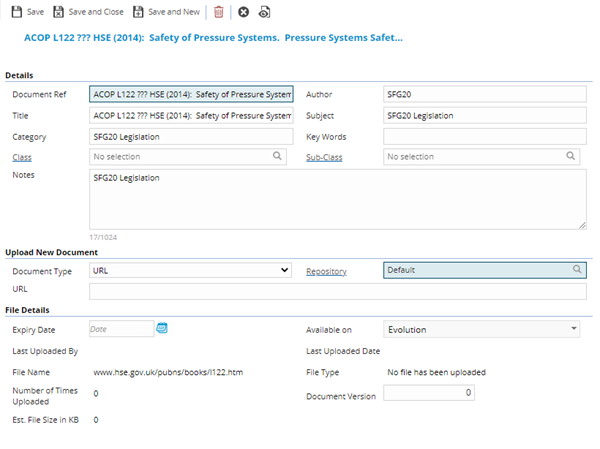
 Click to view - Document Fields and Descriptions
Complete the fields and click Save and Close  .
.
Assignment of Documents to Entities
Click to view more detail.
Once a Document has been added to the Document Manager they can be assigned to entities within MRI Evolution. This gives the functionality for one document to be assigned to many entities.
Facilities > Document Manager > Document Grid and Documents
The link will open the Entity / Document grid. It is a grid view that can be customised and sorted as normal.
To assign a Document click Assign  , entities in the right hand assignment window are connected.