Messages
The Messages function provides a way for users to interact with other users via manual messages or to act upon system generated notification messages, such as Quotes requiring authorisation.
Available from 6.0.1.0
Prior to version 6.0.1.0 of MRI Evolution, clicking the toolbar  Message icon would open the Message grid, allowing users to read and act upon the Messages as necessary.
From version 6.0.1.0 onwards the toolbar Message icon will open the Messages modal pop-up.
The Messages modal pop-up provides a summary view of a User's Messages where they can manage them without the need to open the main Message grid.
Users can still access the main Message grid via the Messages modal pop-up.
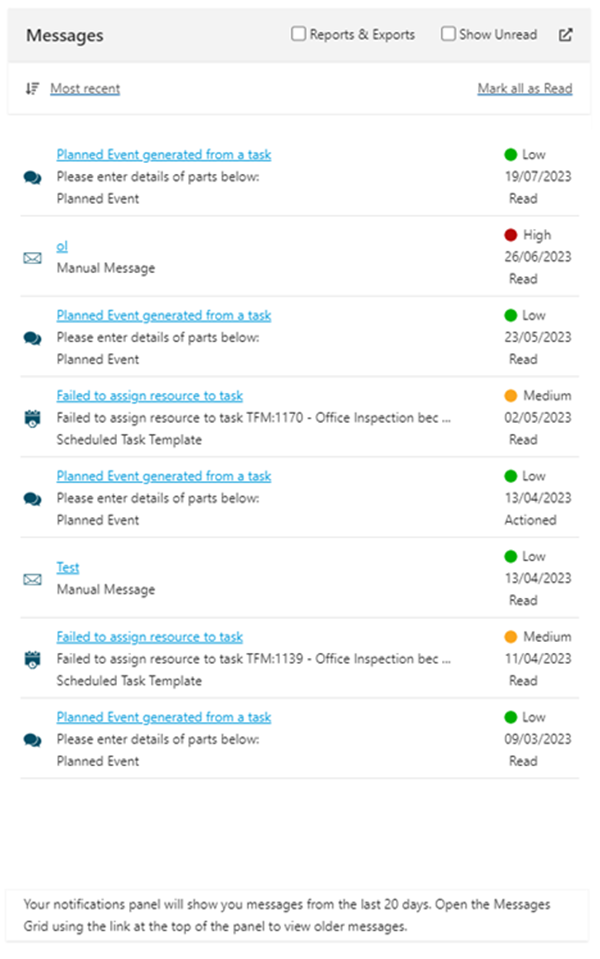
Below is a screen grab with the new Message modal pop-up invoked:
Available from 6.1.2.0
A System Preference has been added to limit the number of Messages shown in the panel to only those created in the last X number of days.
Some explanatory text has been added to the bottom of the Message pop-up, showing the current number of days stored in the System Preference.
 Available from 7.0.0.0
The location of the Messages functionality has been moved as part of the look and feel changes in version 7.
All existing functionality for determining the colour and the counts for the Message alerts are the same as the methods used for the old Message alert position prior to version 7.
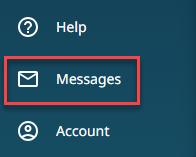
The button is now located in the main side menu, as can be seen below:
Messages
Messages Modal Pop-up
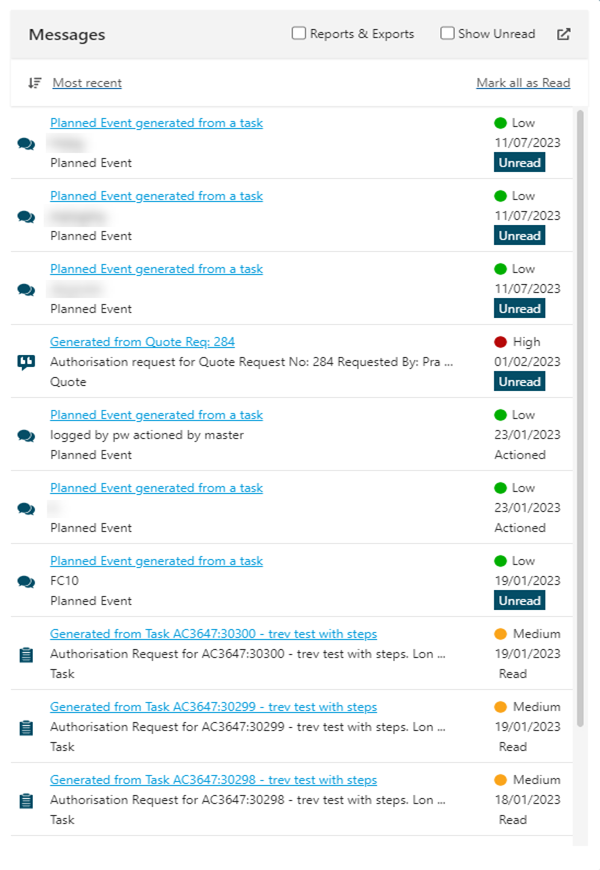
Below is an example of Messages in the modal pop-up.
Note the Messages shown have been generated from various sources, are of high, medium and low priority and there's a mixture of actioned, read and unread Messages:
The Messages modal pop-up has the following features and functionality:
Message Modal - Filter Check-boxes
There are two Message filter check-boxes available; Reports & Exports and Show Unread:

Checking the Reports & Exports box will filter the list to only show Messages related to MRI Evolution Reports or Exports of grid data.
Checking the Show Unread box, as its name suggests, will filter the list to only show Messages with an Unread status.
Message Modal - Sorting Toggles
There are two Message sorting options available; Most recent and Oldest:


Clicking the Most recent button/link will:
-
sort the Message list to show the latest received Message at the top through to the oldest received at the bottom of the list
-
toggle the Most recent button/link to show the Oldest button/link
Clicking the Oldest button/link will have the opposite effect to the Most recent button/link.
Message Modal - Mark All Read
A Mark all as Read hyper-link is available in the Message modal pop-up:

As its name suggests, clicking the Mark all as Read hyper-link will update any Messages in the list with a status of Unread to be Read.
Message Modal - Message Elements

-
Subject - hyper-link to open the Message page
-
Priority - Coloured circle and text to denote the priority:
-
Green = Low
-
Orange = Medium
-
Red = High
-
-
Message Source Icon - where possible the icon can be clicked to open the source of the Message directly from the modal pop-up, see below for a list of the different source icons
-
Body - the body text of the Message
-
Source - the generating source of the Message, click the icon to open the source record directly, the icon may not be click-able in Evolution Reach since not all records can be opened in Evolution Reach
-
Created Date - the date the Message was created
-
Message status:
-
Unread
-
Read
-
Actioned
-
Message Modal - Message Icons
Messages can originate from the following sources:
-
 - Purchase Orders
 -
 - Tasks
 -
 - Task Events
 -
 - Manual Messages
 -
 - Quotes
 -
 - Projects
 -
 - Facilities Bookings
 -
 - Issue PPM Tasks
 -
 - Concept Reports
 -
 - Grid CSV Exports
 -
 - Grid HTML Exports
 -
 - Sales Invoices
 -
 - Sales Credit Notes
 -
 - Scheduled Task Templates
 -
 - Crystal Reports
 -
- Generic Events
-
 - URL Links
Message Modal - Message Expiry
From version 6.0.1.0 onwards, Messages can have an ExpiresUTC date applied to them. Therefore, if a Message has an ExpiresUTC that is earlier than the current UTC date, the message will be excluded from the user's Messages.
Message Modal - System Messages
From version 6.0.1.0 onwards, Messages can have an IsSystem flag applied to them. All users will see system Messages as well as their own Messages, subject to permissions granted, an ExpiresUTC date, the Message having been deleted and any other filters applied by the user.
System Messages are subject to a new securable - View and Manage System Messages:
-
Read controls whether the user can see System Messages
-
Update controls whether the user can update the Read/Unread status of System Messages
-
Delete controls whether the user is able to Delete System Messages
Message Modal - Open Messages Grid
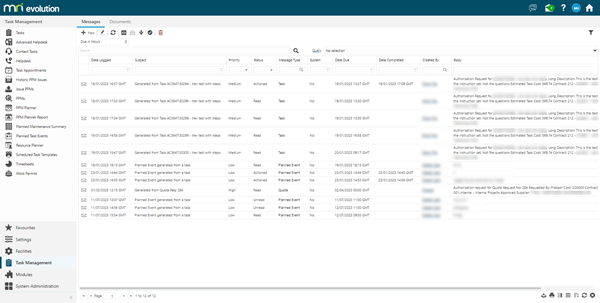
The  button will open the main Messages grid in a new browser tab.
Grid Icons and Filters


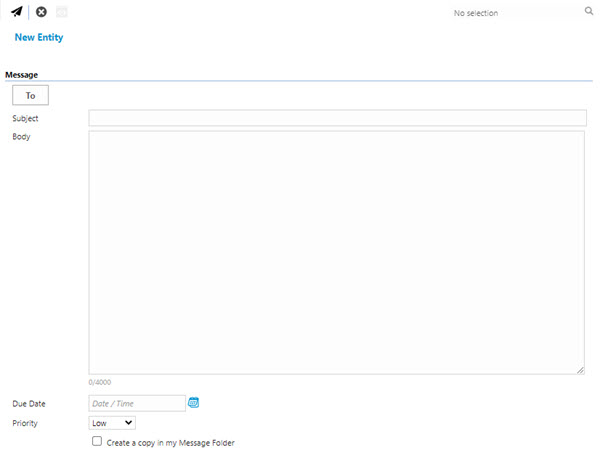
To add a new Message click New  :
:
To edit an existing Message select the record in the grid and click Edit , click the envelope icon in the grid record or double click the grid record:
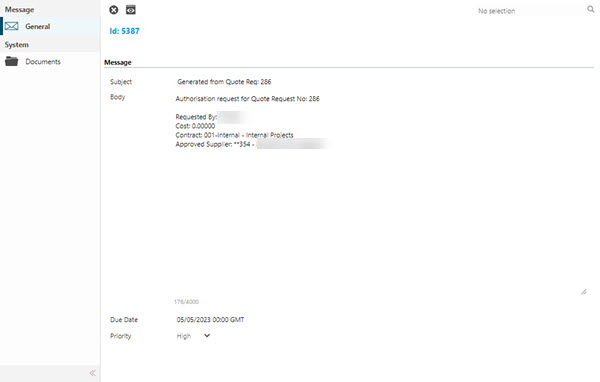
 Click to view - Manual Message Fields and Descriptions