Accounts
Manage user authentication and access control within MRI Evolution security framework. User Accounts provide fundamental system access requiring license assignments and permission configurations, enabling secure user authentication and role-based access control across all facility management operations and system features.
 Available from 7.0.0.0
The ability to create 'cloned' Support Accounts has been added, allowing MRI Support staff to gain access to a client's system using an Account that is as near as possible to a given real life user in order to diagnose and analyse client's issues.
It is only possible to create Support Accounts if Okta is enabled in the client's system.
The process must be initiated:
-
by a client's user with the necessary permission granted
-
from within the Account record that is to be cloned
Settings > User Accounts > Accounts
or
Settings > System Administration > User Accounts & Security > Accounts
The link will open the User Accounts grid. It is a grid view which can be searched, sorted and customised as normal.
To add a new User Account click New  , to edit an existing User Account click Edit
  . A pop up window will appear which will allow the creation or amendment of a User Account.
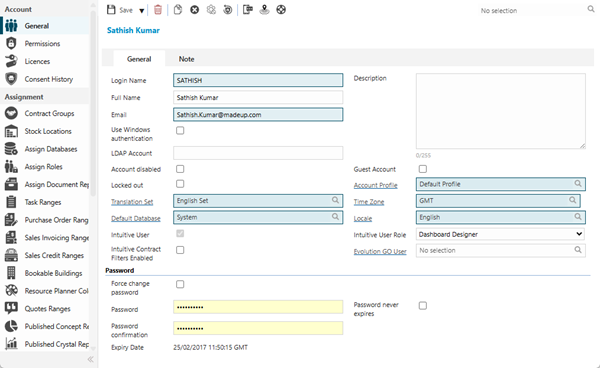
 Click to view - User Account Fields and Descriptions
User Accounts Additional Icons
| Additional Icons | Name | Description |
|---|---|---|

|
Copy |
Click to open a Copy Settings pop-up and to make a copy of the current Account. Select from the following options to copy from the existing Account to the new Account: The copy Account functionality has been enhanced to include these additional options:
|

|
Clear Personalisation | Clicking will clear the User's grid personalisations. |

|
Reset Account Consent Status |
Available from 4.8.0.0 It is possible for administrators to reset the consent status of any Account. This has been added for anyone who, when setting up new Accounts, will log on as the User (and provide consent at first login) to carry out tests of the profile and access Permissions prior to providing the login details. |

|
Resend Activation Email |
Available from 6.0.1.3 This toolbar button relates to MRI Software's Single Sign On authentication and will only be available in specific circumstances. When a Single Sign On account activation email expires or maybe the user is unable to find it (junk folder and so on), this button can be clicked to request the email activation is resent to the user's email address, stored in the Login Name field. The button will only be available where the user's email address is not in the list of Domains for Federated Identity Providers for the MRI Evolution system's client, held in MRI Software's Single Sign On system and the Account is assigned a Named or Concurrent front end User Type Licence, where the corresponding Application Type of the Licence ( MRI Evolution, Evolution Connect, Evolution Reach) has Single Sign On enabled. |

|
Send Evolution Go Notification |
Available from 4.5.3.0 Allows an Evolution Go Notification to be sent to the User. For more information see Evolution Go Resource Functionality |

|
Last Known Location |
Available from 4.5.3.0 Click for a pop up map showing the Users last known Location. For more information see Evolution Go Resource Functionality |

|
Request MRI Support |
When clicked, the Request MRI Support Account pop up will open, allowing the user to enter the email address of the MRI Support person to be granted access, the Expiry Date of the Support Account and whether the MRI Support person will be able to elevate their own permissions to Administrator level while logged in:
The email address will be checked to ensure it is a valid MRI email and whether there's an existing Support Account for the MRI Support person. Support Accounts do not consume any of the client's licences so will have no effect on the client's ability to access the system. An automated clean up routine will 'soft delete' Support Accounts that have an Expiry Date in the past. |
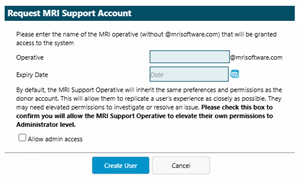
Complete the fields and click Save  . Once the User Account Header has been completed and saved, the following sub navigations will appear to allow additional entities to be assigned and the User Account to be defined:
Permissions
Click to view more detail.
Once the User Account header has been completed, the User must have their Permissions, also known as Securables, defined.
Permissions/Securables control the account's access to areas of MRI Evolution and what actions they can carry out within those areas.
Permissions are organised by function or system entity into Securable Groups. MRI Evolution's suite of web services have their own set of Securables within the relevant Securable Groups.
Settings > Accounts > Accounts
From the drop downs select the required Securable Group and where applicable the Database, check the appropriate boxes to reflect the desired Permissions for the User Account within MRI Evolution.
Securables need to be set for each Securable Group in turn, which takes a lot of effort if they are set for each User Account. Therefore, it is more efficient to create User Roles, define the Securables per Role and then Assign Roles to User Accounts. The User will inherit the Securables defined against the assigned Roles when logging in.
A Permission can be set to allow or deny a User Account as follows:
- Create: Inserting new records
- Read: Viewing data, but not changing it
- Update: Editing existing records
- Delete: Removing records
- Allow: A specified Action is allowed or denied, such as "Change Asset Status"
All Permissions have three toggle-able settings, in the following sequence:
-
 Checked : The option is available to the User, unless overridden by the same Permission set to Crossed in a Role that's been assigned to the User
 -
 Crossed : The option is denied and not available to the User, even if it has been set as Checked in a Role that's been assigned to the User
 -
 Blank : The option is not available to the User, unless overridden by the same Permission set to Checked in a Role that's been assigned to the User
Setting Securables within a Securable Group
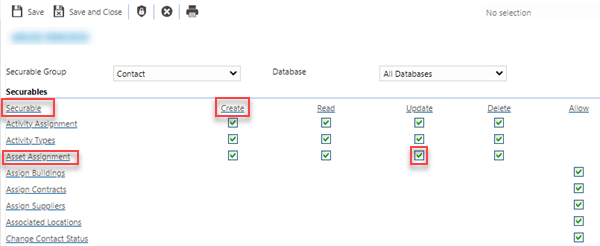
Clicking the Securable hyper-link, highlighted below, will toggle every Securable in the Securable Group to the next setting in the sequence.
Clicking a column heading, such as the Create hyper-link below, will toggle every Create Securable in the Securable Group to the next setting in the sequence.
Clicking a row heading, such as the "Asset Assignment" hyper-link below, will toggle every Securable in the row to the next setting in the sequence.
Clicking an individual Securable box, such as the Update below, will toggle the value to the next setting in the sequence.
Clicking the Assign All Permissions toolbar button will check every Securable in every Securable Group - It may not be advisable to use this since it grants full access to every area of MRI Evolution.
MRI Evolution takes into account all Permissions defined for a User. These could be set directly against their User Account or inherited from any Roles assigned to their account.
User Accounts -Permissions Additional Icons
| Additional Icons | Name | Description |
|---|---|---|

|
Assign All Permissions |
Checks all Account Permissions for every Securable Group. Available from 5.7.0.0 The user will be prompted to confirm they want to do this prior to assigning all Permissions: "Are you sure you want to apply all Permissions to this Account or Role?" |

|
Account Permissions Report | Click to run the AC-001 Account Permissions report for the current Account record. |
Licences
Click to view more detail.
A User Account must have the correct Licence type to allow access to MRI Evolution, Evolution Connect or Evolution Reach.
Settings > Accounts > Accounts
To assign a Licence click Assign  , entities in the right hand assignment window are connected.
The choice of Licences are:
- Operational Concurrent User: Access to MRI Evolution using one licence from the pool of licences that allow a limited number of Users to connect concurrently. If the maximum number of licences is in use, any User with a Concurrent licence will be unable to login to the system
- Operational Named User: A licence exclusively for this Account, it can always login
- Named Mobile User: To log into the Web Mobile application, there is no "concurrent mobile User" licence type
- System Administrator Account: To limit the User to only the System Administration menu, also excluding all other Accounts from accessing the System Administrator menu. Each MRI Evolution installation can have only one System Administrator licence
- Web Service Account: This is the Named user licence for accessing MRI Evolution Web Services
- Concurrent Web Service Account: This is the Concurrent user licence for accessing MRI Evolution Web Services
- Outlook Web Service Account: For use with the MRI Evolution-Outlook Integration
- Concurrent Evolution Reach/ Evolution Connect Account : Access to Evolution Reach/ Evolution Connect using one licence from the pool of licences that allow a limited number of Users to connect concurrently. If the maximum number of licences is in use, any User with a Concurrent licence will be unable to login to the system
- Named Evolution Reach/ Evolution Connect Account: A licence exclusively for this Account, it can always login to the Evolution Reach or Evolution Connect Module
- Allow User Account to be Impersonated by Web Service: A licence that allows the current User Account to be impersonated when running the MRI Evolution XML web service APIs - used in conjunction with the Web Service Impersonate other User Accounts licence
- Web Service Impersonate other User Accounts: A licence that allows the current User Account to impersonate another User Account, with the Allow User Account to be Impersonated by Web Service licence granted, when running MRI Evolution web services
- MRI Evolution Import: A Named user licence that allows users to use the MRI Evolution Import tool, also known as the Excel Add-in
- Guest Survey Response Account: Available from 5.7.1.0 A licence to allow a User Account to be used as the authenticating account in the new page for external users submitting Survey Responses using Survey Tokens
-
Agora Integration: Available from 6.1.0.0 This is the main licence key that controls whether fields and functionality related to the Agora Integration are available in Evolution
-
@yourService Work Order Diagnosis: Available from 6.2.0.0 A concurrent licence type that controls access to widget instances with an @yourService Embedded Widget template
Consent History
Available from 4.8.0.0
Click to view more detail.
The Privacy Policy consent history for accounts can be viewed from this sub menu.
Settings > Accounts > Accounts
It is a grid view which can be searched, sorted and customised as normal.
To view consent on historic polices click sub menu Show Historic Consents
Other Assignments
Click to view more detail.
A User Account can also be assigned to other Entities and Modules within MRI Evolution. Not all Assignments will be available, as some are dependant on the Module being purchased.
The User Account can be connected to:
| Assignment | Function |
|---|---|
|
Contract Groups |
Allows Assignment to available Contract Groups. |
| Allows Assignment to Stock Locations -Stores Module specific. | |
|
Assign Databases |
Allows Assignment to additional Databases - Multiple Database specific. |
| Allows Assignment to available Roles. | |
|
Assign Document Repositories |
Allows Assignment to available Document Repositories. |
| Contract Task Ranges | Allows Assignment to Task Authorisation Ranges - if Task Authorisation Preferences have been set to "Ranges applied to Contracts for Tasks" this will allow the assignment of Contract specific Task Authorisation Ranges. |
| Allows Assignment to Task Authorisation Ranges - if Task Authorisation Preferences have not been set to "Ranges applied to Contracts for Tasks" this will allow the assignment of Generic Task Authorisation Ranges. | |
|
Contract PO Ranges |
Allows Assignment to Purchase Order Authorisation - Purchase Order Module specific. If Purchase Order Authorisation Preferences have not been set to "Ranges applied to all Contracts for Purchase Orders" this will allow the assignment of Contract specific Task Authorisation Ranges. |
| Purchase Order Ranges |
Allows Assignment to Purchase Order Authorisation - Purchase Order Module specific. If Purchase Order Authorisation Preferences have been set to "Ranges applied to all Contracts for Purchase Orders" this will allow the assignment of a generic set of Purchase Order Ranges. |
|
Sales Invoicing Ranges |
Allows Assignment to Sales Invoicing Authorisation Ranges - Sales Invoicing Module specific. |
|
Sales Credit Ranges |
Allows Assignment to Sales Credit Authorisation Ranges - Sales Invoicing Module specific. |
| Bookable Buildings | Allows Assignment to Bookable Buildings - Buildings that contain Locations that can be booked via the Facilities Booking Module. |
|
Resource Planner Colours |
Allows Assignment to Resource Planner Colour Sets. |
|
Quotes Ranges |
Allows Assignment to Quotes Authorisation Ranges - Quotes Module specific. |
|
Published Concept Reports |
Allows Assignment to Published Concept Reports. |
|
Published Crystal Reports |
Allows Assignment to Published Concept Reports - Concept Connect Module specific. |
|
Task Event Types |
Allows Assignment to Task Event Types. |
|
Level of Completion |
Allows Assignment to Task Levels of Completion. |
|
Quote Review Criteria |
Allows Assignment to Cost Centres for Quotes Review Criteria - Quotes Module specific. |
|
Published Buildings |
Allows Assignment to Published Buildings - Evolution Reach specific |
| Allows Assignment to specific Resources for Timesheets - Evolution Connect specific | |
| Published Clients |
Available from 4.8.0.0 Allows assignment to Sales Invoicing Clients - Sales Invoicing Module specific. The Purchase Key licence dependency for this specific element of the system has been removed and is now included as standard in the core MRI Evolution product the feature has been turned on for all systems by default. Note: Other restrictions, such as User licence type restrictions and / or any restrictions to underlying functionality that is dependent upon Purchase Key licences will remain in place. |
| Published Attribute Groups | Allows Assignment to Attribute Groups. |
| User Defined Lookup |
Allows the Assignment of Tasks User Defined Lookups to the Account. Assigning / Publishing works the same way as publishing Level Of Completions:
Publishing does not stop users from seeing entities where the User Defined Lookup has been set. It only controls their ability to select User Defined Lookups in auto-completes and editable grids. |
| Connect Settings | |
|
Published Suppliers |
Allows Assignment to specific Suppliers - Evolution Connect specific |
| Reach Settings | |
|
Bookable Locations |
Allows Assignment to Bookable Locations - Evolution Reach specific, assign the User access to the Locations where Facilities Bookings can be made through Evolution Reach. |
|
Menu Permissions |
Allows Assignment to Evolution Reach Menu - Evolution Reach specific, check the menu boxes to allow the User access to the relevant Evolution Reach pages. |
|
Standalone Widgets |
Allows Assignment to Standalone Widgets - Evolution Reach specific |