Widgets
Modular interface components placed on pages to extend functionality and customize user experience. Template-based widgets connect to various system modules enabling dashboard access to features including bookings, reporting, and helpdesk.
Users configure widgets with specific settings, platform availability, and dimensions, then assign them to pages for role-appropriate interface design.
Settings > Widgets & Home Pages > Widgets
The link will open the Widget grid. It is a grid view which can be searched, sorted and customised as normal.
To add a new Widget click New  , to edit an existing Widget click Edit
  . A pop up window will appear which will allow the creation or amendment of a Widget,
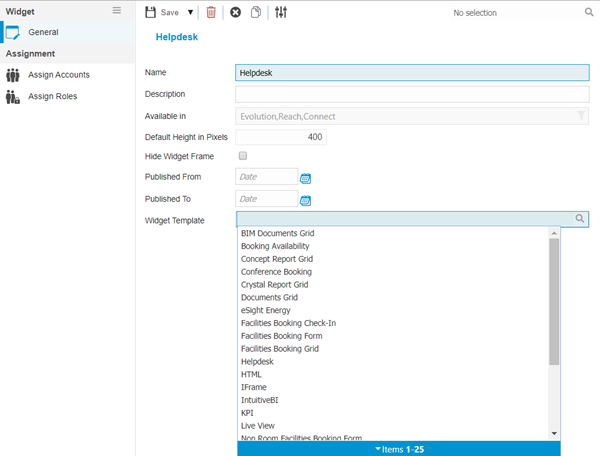
Widgets use standard templates which can then be configured to meet the User requirement.
 Click to view - Widget Fields and Descriptions
Complete the fields and click Save  . Once the Widget header has been completed and saved a sub navigation will appear to allow the Widget configuration. See the Widgets page for details on configuration.
Once Widgets have been set up they must be placed on pages and Users given access to the correct menus to be able to view.
Access to Widgets though MRI Evolution and Evolution Connect can be seen through the home page.
Complete the fields and click Save and Close  .
.