Asset Classification Groups
Available from 4.7.0.0
The Asset Classification Groups feature in MRI Evolution provides a flexible framework for organizing and managing complex asset portfolios across multiple buildings and facilities. Classification Groups allow organizations to apply tailored classification schemes that address unique operational needs, regulatory requirements, and maintenance protocols for different facility types or locations.
By establishing distinct Classification Groups, organizations can implement building-specific asset management strategies while maintaining consistency within each facility type. This ensures that asset health checks, compliance audits, and maintenance protocols are applied appropriately for each building's operational context and regulatory environment.
For example, a healthcare organization might use specialized Medical Equipment Classification Groups for hospitals and different Industrial Equipment Classification Groups for maintenance facilities. Automated health checks and compliance assessments in Evolution use these groups to apply the correct evaluation criteria for each building.
Asset Classification Groups integrate with Evolution's building management, asset health monitoring, and compliance reporting features, supporting both standardized and customized asset management strategies across the organization.
Settings > Assets > Asset Classification Groups
The link will open the Assets Classification Groups grid. It is a grid view which can be searched, sorted and customised as normal.
To add a new Assets Classification Groups click New  , to edit an existing Assets Classification Groups click Edit
  . A pop up window will appear which will allow the creation or amendment of a Assets Classification Groups.
Click the  button to run the CL-AC001 Asset Classification Group Details report.
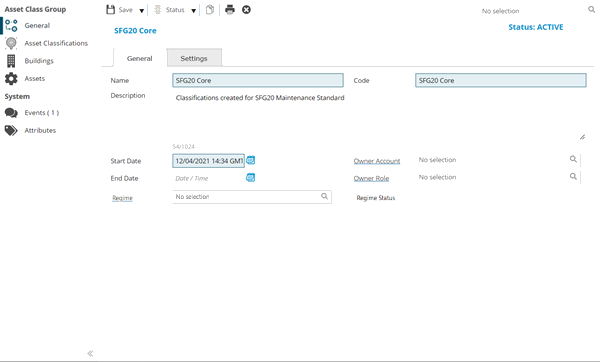
 Click to view - Assets Classification Groups Fields and Descriptions
Complete the fields and click Save  . Once the Asset Classification Group header has been completed and saved a sub navigation will appear to allow additional entities to be created / assigned.
These include:
- Asset Classifications
- Buildings
- Assets
Asset Classifications
Click to view more detail
Asset Classifications can be assigned and unassigned from the Asset Classification Group.
Settings > Assets > Asset Classification Groups
The link will open the Assets Classification Groups - Asset Classifications grid. It is a grid view that can be customised and sorted as normal.
To assign Asset Classifications click Assign , entities in the right hand assignment window are connected.
To create Asset Classifications see Asset Classifications
Additional Icons
| Icon | Feature | Description |
|---|---|---|

|
Activate | Manage the status of Asset Classifications within the context of the Asset Classification Group. For example, suspend the use of an Asset Classification within Group A without suspending it in Group B. |

|
Suspend | |

|
Delete | |

|
Create Compulsory Assets | Click to instigate the creation of any missing Compulsory Assets (Creating Compulsory Assets). |
|
|
Asset Classification Group Details | Click to run the CL-AC001 Asset Classification Group Details report. |
Creating Compulsory Assets
Click to view more detail
Compulsory Assets can be created according to the set up within the Assets Classification and Group.
 Available from 7.0.0.0
The logic to create compulsory Assets has been enhanced to take into account the Set a Description automatically in the Asset Input Panel when creating new Assets preference.
The Assets generated will have an automatically created Description value that depends upon the preference value:
-
None
-
Use Classification Name
-
Use Asset Tag
-
Use Asset Type
Settings > Assets > Asset Classification Groups
Click Create Compulsory Assets to instigate the creation of any missing Compulsory Assets. At least one compulsory Asset Classification must be selected from the grid before the button is clicked. Multiple selections are permitted. The button will open a window that allows you to apply additional filters and select some preferences for Asset Associations that are set when the compulsory Assets are created.
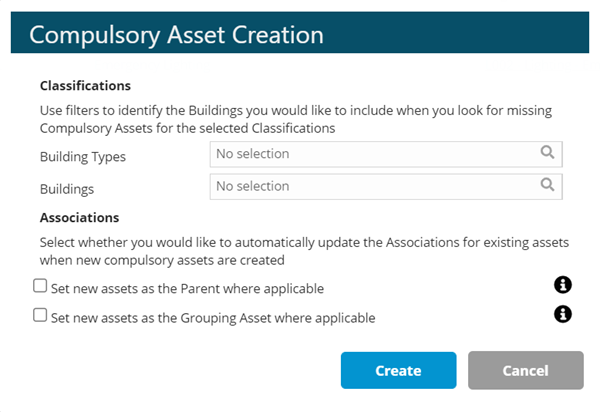
| Field | Description |
|---|---|
| Classifications | This section is used to set optional additional filters to restrict the Buildings in which the system attempts to create missing compulsory Assets |
| Building Types | From the drop down select a Building Type. If selected, compulsory Assets will only be created in Buildings assigned to this Group that have a matching Building Type |
| Buildings | From the drop down select a Building. The drop down will only list Buildings that have been assigned to this Asset Classification Group. If selected, compulsory Assets will only be created in that Building |
| Associations | This section is used to set optional preferences for whether the process should update parent or grouping associations for any existing Assets. For example, if the process creates a new compulsory Asset for ‘Fire Extinguishers Throughout’ and the Asset Classification config states that Assets with this Classification should have child Assets with Classifications of ‘Fire Extinguisher - Foam’ then the system will automatically set the new auto-generated Asset as the Parent for all existing Fire Extinguisher – Foam Assets in the same Building or Location (as defined by the Classification Scope of the compulsory Asset Classification) |
| Set new Assets as the Parent where applicable | Check this box to set the new auto-generated Assets as the Parent for any existing Assets with Asset Classifications that have a class level of Child and a matching Parent Classification. Only Assets in the same area as the new grouping Asset will be linked i.e. same Building or Location depending on the scope |
| Set new Assets as the Grouping Asset where applicable | Check this box to set the new auto-generated Assets as the Grouping Asset for any existing Assets with Asset Classifications that have a class level of Child and a matching Grouping Classification. Only Assets in the same area as the new grouping Asset will be linked i.e. same Building or Location depending on the scope |
Buildings
Click to view more detail
Assigning Buildings to the Asset Classification Group is essential for the use of Asset Classifications. When an Asset Classification Group is assigned to a Building all the Asset Classifications in the Group become available for selection when adding new Assets for these Buildings in the Asset Register.
Settings > Assets > Asset Classification Groups
The link will open the Assets Classification Groups - Buildings grid. It is a grid view that can be customised and sorted as normal.
To assign Buildings click Assign, Buildings in the right hand assignment window are connected.
To create Buildings see Building Register
By default selection of Asset Classifications are optional when creating new Assets. For Asset Classifications to be strictly enforced they can be enabled on a Building by Building basis. Open the Buildings input panel and navigate to the Other tab on the General Page. At the foot of this page you will see a check box option entitled ‘Asset Classifications are compulsory for new Assets.’
Assets
Click to view more detail
Assets will list all Assets within Buildings assigned to this Asset Classification Group.
Click the button to run the CL-AH002 Asset Health Check Summary - By Asset Class Group report.
Settings > Assets > Asset Classification Groups
The link will open the Assets Classification Groups - Assets grid. It is a grid view that can be customised and sorted as normal.
To create Assets see Asset Register
Additional Icons
| Icon | Description |
|---|---|
|
|
Activate the Asset Classification Group. Activation is captured as a System Event and will be visible in the Events sub navigation for the Group |
|
|
Suspend the Asset Classification Group. A reason for suspending any Asset Classification Group must be provided. Suspension is captured as a System Event and will be visible in the Events sub navigation for the Group |

|
Create a copy of the Asset Classification Group, including all Asset Classifications assignments |
|
|
Delete the Asset Classification Group. A reason for deleting any Asset Classification Group must be provided. Deletion is captured as a System Event and will be visible in the Events sub navigation for the Group |
|
|
Click to run the CL-AC002 Asset Classification Details report. |
The Asset Classification group must be Active to be in use.