Level Of Completion
Levels of Completion (LoCs) define standardized status labels representing task progress stages throughout the work lifecycle. Create LoCs with unique codes and descriptive names (for example, "ASSIGNED" for newly allocated work, "IN_PROGRESS" for active work, "ON_HOLD" for temporarily paused tasks, "COMPLETE" for finished work, "CANCELLED" for abandoned tasks) that technicians and administrators apply to Tasks to indicate current status. LoCs can be restricted by assigning them to specific Disciplines (for Evolution Go mobile users), Accounts (only certain users can apply certain statuses), or Roles (only certain role types can apply certain statuses)—for example, restrict "COMPLETE" LOC to Supervisor roles only, ensuring only authorized users can finalize tasks. This enables task workflow management (track progression through defined stages), supports filtering and reporting (view all IN_PROGRESS tasks, count COMPLETE tasks by week), facilitates workload analysis (identify bottlenecks where tasks accumulate at specific LoCs), and enforces process controls (restrict status changes to authorized users). Organizations typically define 5-10 LoCs matching their operational workflow stages, with appropriate restrictions ensuring data integrity and process compliance.
Settings > Tasks > Levels Of Completion
The link will open the Levels of Completion grid. It is a grid view which can be searched, sorted and customised as normal.
To add a new Level of Completion click New  , to edit an existing Level of Completion click Edit
  . A pop up window will appear which will allow the creation or amendment of a Level of Completion.
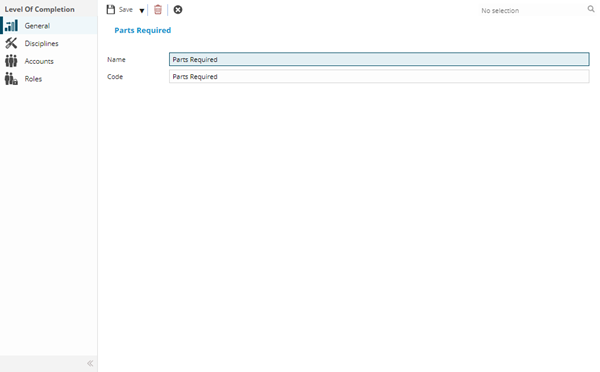
 Click to view - Level of Completion Fields and Descriptions
Complete the fields and click Save  . Once the Level of Completion header has been completed and saved a sub navigation will appear to allow additional entities to be assigned.
These include:
- Disciplines
- Accounts
- Roles
Disciplines Sub Navigation
Click to view more detail.
Settings > Tasks > Levels Of Completion
The link will open the Level of Completion / Discipline grid. It is a Grid view that can be customised and sorted as normal.
To assign Disciplines click Assign  , entities in the right hand assignment window are connected.
To create Disciplines see Discipline.
Accounts Sub Navigation
Click to view more detail.
Levels of Completion can be assigned to Accounts, if this is done only certain User Accounts will need be able to apply certain Levels of Completion.
Settings > Tasks > Levels Of Completion
The link will open the Level of Completion / Accounts grid. It is a grid view that can be customised and sorted as normal.
By default all Levels of Completion are assigned to all Accounts. To assign Accounts click Assign , entities in the right hand assignment window are connected.
To create Accounts see User Accounts.
Roles Sub Navigation
Click to view more detail.
Levels of Completion can be assigned Roles, if this is done only certain User Roles will need be able to apply certain Levels of Completion.
Settings > Tasks > Levels Of Completion
The link will open the Level of Completion / Role grid. It is a grid view that can be customised and sorted as normal.
By default all Levels of Completion are assigned to all Roles. To assign Roles click Assign , entities in the right hand assignment window are connected.
To create Roles see Roles