Account Profiles
Available from 5.1.0.0
Account Profiles enable administrators to apply different validation rules and behaviour to user accounts based on their role or integration context (for example, Helpdesk Operators, Mobile Technicians, API Integration Accounts, ChatLog Application). Create a profile with a descriptive name (for example, "Mobile Workers Profile" or "API Integration Profile"), then assign specific validation rules to it. For example, configure the "Helpdesk Profile" to require Task Title, Location, and Contact fields as mandatory when creating tasks, but configure the "ChatLog Profile" to require only Task Title and Description, allowing the ChatLog application to create tasks with fewer mandatory fields. Assign user accounts to the appropriate profile—when those users create tasks, the system enforces only the validation rules associated with their profile. This flexibility supports integration with third-party applications and mobile apps (for example, Evolution Go, Advantage ChatLog) that may have different data collection workflows, while maintaining appropriate data quality standards for each user context. All existing accounts are automatically assigned to the "Default Profile" during upgrade to ensure continuity.
Settings > User Accounts > Account Profiles or
Settings > System Administration > User Accounts & Security > Account Profiles
The link will open the Account Profile grid. It is a grid view which can be searched, sorted and customised as normal.
To add a new Account Profile click New  , to edit an existing Account Profile click Edit
  . A pop up window will appear which will allow the creation or amendment of a Account Profile
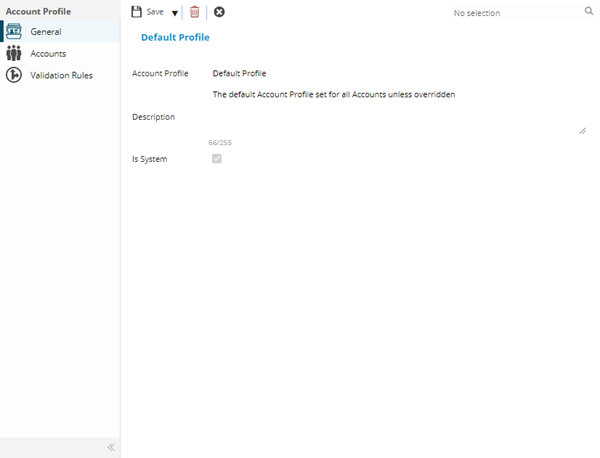
 Click to view - Account Profiles Fields and Descriptions
Complete the fields and click Save  . Once the Account Profile header has been completed and saved a sub navigation will appear to allow additional entities to be created / assigned.
These include:
- Accounts
- Validation Rules
Accounts
Click to view more detail
User Accounts are either connected to an Account Profile upon creation or can be manually assigned to an Account Profile.
A User Account can only be associated with one Account Profile. If an Account is manually assigned to a different Account Profile this will override the previously associated profile.
Settings > User Accounts > Account Profiles - Accounts or
Settings > System Administration > Account Profiles - Accounts
The link will open the Account Profile / Accounts grid. It is a grid view that can be customised and sorted as normal.
To assign User Accounts click Assign  , entities in the right hand assignment window are connected.
To create User Accounts see User Accounts
Validation Rules
Click to view more detail
When Validation Rules are created they are associated to Account Profiles, these can be manually edited and assigned from the Validation Rules section of User Profiles.
MRI Evolution has a number of standard Validation Rules, checking "Additionally show common Validation Rules that will apply to this Profile" will show these rules in the grid, if theses rules are not required they can be manually unassigned.
Settings > User Accounts > Account Profiles - Accounts or
Settings > System Administration > Account Profiles - Accounts
The link will open the Account Profile / Validation Rules grid. It is a grid view that can be customised and sorted as normal.
To assign Validation Rules click Assign , entities in the right hand assignment window are connected.
To create Validation Rules see Validation Rules