User Self Management
Available from 4.8.0.0
Users can control their own information using the Self-Management Menu in MRI Evolution and Evolution Connect , this menu allows Users to view and manage details about their Account and where applicable, the details of the Contact linked to their Account.
 Available from 7.0.0.0
The layout of the Self Management menu and the place it appears on the screen has been updated as part of the Version 7 revamp.
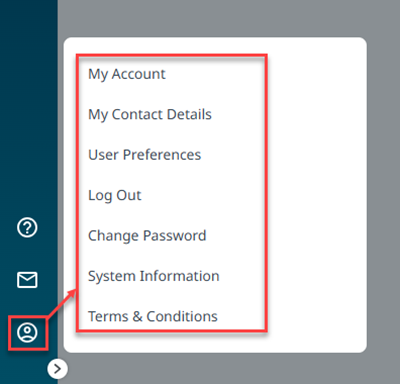
Bottom of the side menu
Subject to Permissions granted, the Self Management link will give access to or allow the User to:
- View and manage their Account and Contact details
- Click a short cut directly to a User Preferences landing page
- Log out
- Change their password
- View Terms and Conditions and the Privacy Policy documents applicable to themselves
- View the System Information Available from 5.7.0.0
My Account
Available from 7.0.0.0
Clicking the My Account menu button will open the Account Details window, subject to the necessary Permission being granted:
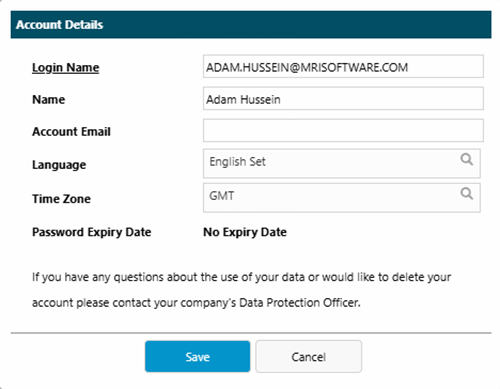
When logged in as a User that has the new Support Account type, the Account Details page will:
-
always be available, regardless of Permissions granted
-
include an option to toggle between User and Admin modes for the current Account
My Contact Details
Clicking the My Contact Details option will open the change password pop-up window:
User Preferences
Available from 7.0.0.0
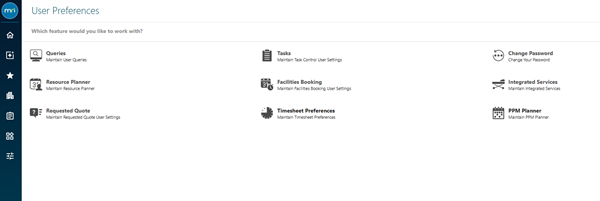
Clicking the User Preferences option will open a landing page containing the self management preferences that have been granted to your user account:
Log Out
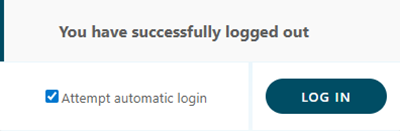
Clicking the Log Out option, as its name suggests, will log you out of the MRI Evolution system:
Change Password
Clicking the Change Password option will open the change password pop-up window:
System Information
Clicking the System Information option will open the System Information page, subject to permissions granted.
Terms & Conditions
Clicking the Terms & Conditions option will open MRI Software's Terms of Use page.