| General
|
|
| Enable Support for Multiple Regimes and Sub Groups |
Available from 6.5.0.0
Check this box to allow MRI Evolution to create unique Instruction Set Schedules and Instruction Step Links for Facilities IQ Schedules that have been organised into multiple Regimes and Sub Groups.
|
| Frequency Scope
|
These preferences can be used to define which Schedules and Tasks are retrieved via the API, based on the frequency of the recommended Action. |
| Minimum Frequency |
The minimum frequency of the Tasks and Steps that will returned when retrieving Schedules from SFG20 Facilities iQ. This is measured in hours.
E.g. 24 will not return Tasks or Actions that should be performed more than once a day.
|
| Minimum Frequency |
The maximum frequency of the Tasks and Steps that will returned when retrieving Schedules from SFG20 Facilities iQ. This is measured in hours
E.g. 8760 would mean tasks with an interval more than 1 year were not returned (set as 0 for no Maximum).
|
| Include Schedules with no Frequency |
This preference can be used to ignore or include all of the Instruction Sets that would be created for the SFG20 Schedules that are for information only and are never used for real PPM Tasks. By default these are excluded. |
| Instruction Set Values
|
These preferences control how the integration determines key values for any Instruction Sets created from the SFG20 Schedules. |
| New Instruction Set Status |
Select an appropriate Instruction Set Status.
This is the Instruction Sets Status that will be set for any new Instruction Sets created by the workflow. Select the Instruction Sets Status you want to use for any new Instruction Sets created by the integration.
|
| Category Setting |
Select from the following options:
-
Use Schedule Folder
-
Use Specific Value
This preference determines whether the workflow takes the Category of the imported Instruction Set from the folder structure of the Schedule in SFG20 or whether it uses a fixed value for all.
If the Category Setting preference is set to ‘Use Specific Value’, the value selected for the Default Category will be set as the Category for ALL imported Instruction Sets. Select the Category you want to act as the Default.
|
| Discipline Setting |
Select from the following options:
-
Use Task Skill
-
Use Specific Value
This preference determines whether the workflow takes the Discipline of the imported Instruction Set from values contained in the imported Schedule Tasks or whether it uses a fixed value for all.
If the Discipline Setting preference is set to ‘Use Specific Value’, the value selected for the Default Discipline will be set as the Discipline for ALL imported Instruction Sets. Select the Discipline you want to act as the Default.
|
| Priority Setting |
Select from the following options:
This preference determines whether the workflow takes the Priority of the imported Instruction Set from values contained in the imported XML or whether it uses a fixed value for all.
If the Priority Setting preference is set to ‘Use Specific Value’, the value selected for the Default Priority will be set as the Discipline for ALL imported Instruction Sets. Select the Priority you want to act as the Default.
|
| Schedule Tasks and Instruction Set Steps
|
These preferences control how the integration will store the itemised Tasks within each SFG20 Schedule. |
| Create schedule tasks as Instruction Steps |
An SFG20 Instruction Set is created for each individual maintenance frequency specified by the Schedule. Each Instruction Set can contain a number of ‘Tasks’ that should be performed when carrying out the PPM.
This preference controls whether or not the SFG20 integration creates these ‘Tasks’ as Instruction Set Steps or whether it appends the detail of all Task items to the long description of the Instruction Set.
|
| Step Feedback Type |
Select the Step Feedback Type that will be used for any new Steps created for Instruction Sets. |
| Make all Steps Compulsory |
This preference can be used to make all Steps compulsory, |
| Include Higher Frequency Steps |
This preference can be used to set whether each Instruction Set should include Step Actions from other, higher frequency service timings. For example, including 1M steps in a 3M Instruction, 1M and 3M steps in a 6M Instruction and so on. |
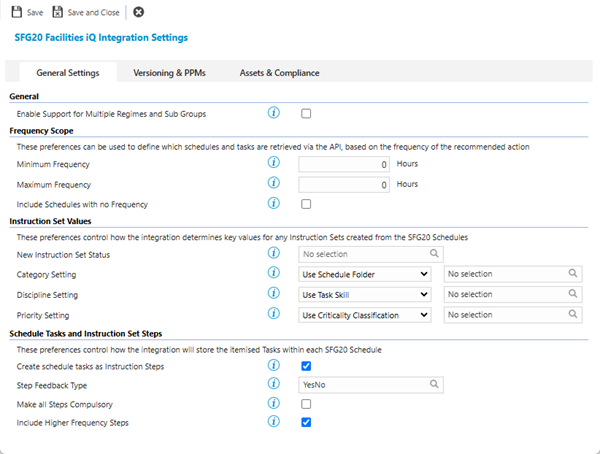
 Click to view - General Settings Tab Fields and Descriptions