Instruction Sets
Work procedures ranging from generic task guidelines to detailed PPM maintenance steps with staff requirements, estimated time, and costs. For reactive Tasks, descriptions become Helpdesk Problem codes with prompt questions.
Supports step versioning, status management, and SFG20 Facilities iQ integration. Daily frequency PPMs supported. See snippets below for version-specific features.
Available from 6.3.0.0
Support for Daily frequency PPMs has been added, fields have been re-organised along with new fields for the SFG20 Facilities iQ integration.
Available from 6.5.0.0
Support for Instruction Step versioning along with the ability to set and change the status of Instruction Steps has been added.
Settings > Tasks > Instruction Sets
The link will open the Instruction Set grid. It is a grid view which can be searched, sorted and customised as normal.
The Instruction Sets grid is a hierarchical grid. The Instruction Set is the 'parent' and the Instruction Steps assigned to the Instruction Set are the 'children'.
The chevron icon, highlighted below, is a toggle to show or hide the Instruction Steps assigned to the Instruction Set. The assigned Instruction Steps can be opened directly from the grid, without the need to open the parent Instruction Set.
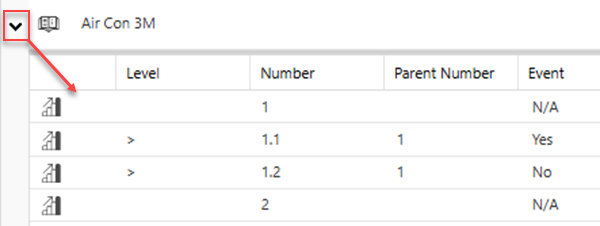
Available from 6.5.0.0
With the addition of Instruction Step Group versioning, only the latest Step Group version with either an Active, Draft or Suspended status will be displayed. Step Groups with a status of In Design or Superseded will not be displayed.
To add a new Instruction Set click New
, to edit an existing Instruction Set click Edit
. A pop up window will appear which will allow the creation or amendment of a Instruction Set.
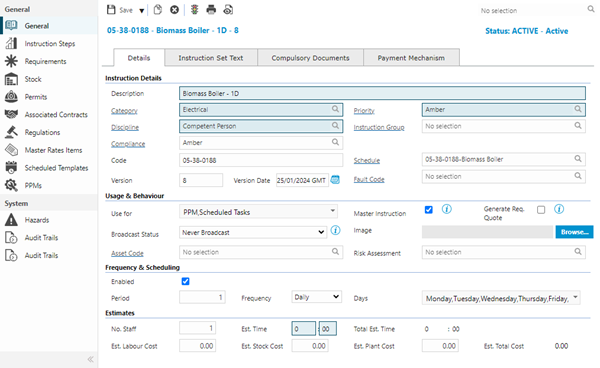
| Field Name |
Description |
| Instruction Details
|
| Description |
The description of the Instruction Set - this will be visible from the PPM or Helpdesk. |
| Category |
From the drop down, select the Category - for more information see Task Category.
The field label is a hyper-link to open the selected record.
Available from 7.0.0.0
It is possible to display the relevant parent/child relationship data in this auto-complete by enabling the Enable Hierarchical Auto-Completes option in the General Preferences page.
|
| Priority |
From the drop down, select the Priority - for more information see Priority
The field label is a hyper-link to open the selected record.
|
| Discipline |
From the drop down, select the Discipline - for more information see Discipline
The field label is a hyper-link to open the selected record.
|
| Instruction Group |
From the drop down, select the Instruction Set Group - for more information see Instruction Set Groups.
The field label is a hyper-link to open the selected record.
|
| Compliance |
Available from 4.3.0.0
From the drop down, select the Compliance Type - for more information see Compliance Types.
The field label is a hyper-link to open the selected record.
|
| Code |
The code of the Instruction Set. |
| Schedule |
Available from 6.3.0.0
From the drop down, select the Instruction Set Schedule - for more information see Instruction Set Schedules.
Only Instruction Set Schedules with a status of Active appear in the drop down.
The field label is a hyper-link to open the selected record.
The Schedule value will be changed if the Instruction Set is assigned to an Instruction Set Schedule within the Instruction Set Schedule input panel.
|
| Version |
Optional free type field to store a manual version number. |
| Version Date |
Optional date field to manually set the date the version changed. |
| Fault Code |
Available from 5.7.0.0
From the drop down select the default Fault Code, where applicable, for this Instruction Set.
Available from 6.3.0.0
The field label has been made a hyper-link to open the selected Fault Code record.
|
| Usage & Behaviour
|
| Use For |
Available from 4.5.0.0
From the drop down select the Task Type the Instruction Set is to be used for:
- Call Logging
- PPM
- Scheduled Tasks
- At Your Service Available from 5.7.0.0
Check the @yourService release notes for a compatible version to enable the At Your Service, Use For flag.
In version 4.4.5 this drop down replaced the 2 check boxes to make an Instruction Set available for Call Logging or Scheduled Tasks.
|
| Master Instruction |
Check the box if this is to be a Master Instruction - only Users with the account Permission to edit Master instructions will be able to edit this Instruction Set.
|
| Generate Req. Quote |
Available from 4.4.8.0
Check the box if a Requested Quote is to be auto-created when a Task is raised using this Instruction Set, if the Instruction Set has Master Rates Items these will be used to create the Requested Quote line items.
Leave the box unchecked if the Instruction Set is to use the Master Rates Cost Matrix to generate Costs if the Instruction Set has Master Rate Items assigned.
|
| Broadcast Status |
Available from 5.7.0.0
This setting controls whether Tasks created with this Instruction Set can be Broadcast to the Building Feed for users of the MRI Dreamscape @yourService App.
From the drop down select the Broadcast Task Status relevant for the Instruction Set:
-
Never Broadcast
-
Broadcast Available
-
Broadcast by Default
The Broadcast Status field will only be visible when the At Your Service Purchase Key is present.
|
| Image |
Available from 4.4.8.0
Click Browse to upload an image to the Instruction Set. The image must be in a valid format, GIF, PNG, JPG, JPEG and BMP can be uploaded - image is for use with the Service Catalogue Widget.
|
| Asset Code |
From the drop down select the Asset this Instruction Set is linked to - This will only be visible if the Task Preferences have been turned on.
The field label is a hyper-link to open the selected record.
|
| Risk Assessment |
Not currently in use. |
| Frequency & Scheduling |
| Enabled |
Available from 4.5.0.0
Check the box to enable the Instruction Set to auto-apply the set period and frequency to PPMs created using this Instruction Set. Leaving this unchecked will allow the User to apply the required periods and frequencies.
|
| Period |
Available from 4.5.0.0
Period and frequency are used in conjunction to set the repeat rate for the PPM, if a 6 monthly PPM was being created, the period would be set to 6 and the frequency set to monthly.
|
| Frequency |
Available from 4.5.0.0
Period and frequency are used in conjunction to set the repeat rate for the PPM, if a 6 monthly PPM was being created, the period would be set to 6 and the frequency set to monthly.
Available from 6.3.0.0
Daily has been added to the Frequency drop down.
|
| Days |
Available from 6.3.0.0
This field will be disabled unless the Frequency is set to Daily.
Select the days of the week that the Daily frequency PPM Tasks will be issued.
|
| Estimates
|
| No. Staff |
The number of Staff required to carry out the Task detailed in the Instruction Set. |
| Est. Time |
The Estimated Time required to carry out the Task using this Instruction Set. |
| Total Man Hours (HH:MM) |
Auto-calculated value derived by multiplying the No. Staff by the Est. Time in hours and minutes. |
| Est. Labour Cost |
The Estimated Labour Costs for Tasks using this Instruction Set. |
| Est. Stock Cost |
The Estimated Stock Costs for Tasks using this Instruction Set. |
| Est. Plant Cost |
Available from 5.7.0.0
The Estimated Plant Costs for Tasks using this Instruction Set.
|
| Est. Total Cost |
Available from 6.3.0.0
Auto-calculated value that's the sum of Est. Labour Cost + Est. Stock Cost + Est. Plant Cost.
|
| Field Name |
Description |
| Instruction Text |
Free Text field to enter the details of the Task. |
| Field Name |
Description |
| Compulsory Complete Documents
|
| Document Class |
From the drop down select the Document Class. This will force a User to upload a document with this class before moving the Task to Complete - for more information see Document Classes. |
| Document Sub-Class |
From the drop down select the Document Sub-Class - this will filter according to the Document Class selected. This will force a User to upload a document with this sub-class before moving the Task to Complete - for more information see Document Sub-Classes. |
| Compulsory History Documents
|
| Document Class |
From the drop down select the Document Class. This will force a User to upload a document with this class before moving the Task to History. |
| Document Sub - Class |
From the drop down select the Document Sub-Class This will force a User to upload a document with this sub - class before moving the Task to History. |
| Field Name |
Description |
| SLS |
From the drop down select the SLS - for more information see Service Level Specification (SLS). |
| PMS Priority |
From the drop down select the Priority - for more information see PMS Priority. |
| PMS Code 1 |
Free text PMS Code for the Instruction Set. |
| PMS Code 2 |
Free text PMS Code for the Instruction Set. |
| PMS Flag |
Check the box to utilise the flag within Payment mechanisms- this flag can be used as a trigger in the PMS workflows. |
| Quality Failure |
Check the box to utilise Quality Failure within Payment mechanisms- this flag can be used as a trigger in the PMS workflows. |
Complete the fields and click Save
. Once the Instruction Set header has been completed and saved sub navigations will appear to allow additional entities to be assigned / created.
These include:
- Instruction Steps
- Requirements
- Stock
- Permits
- Associated Contracts
- Regulations
- Master Rate Items
- Scheduled Templates
- PPMs
Available from 5.5.0.0
Instruction Sets are one of the system entities that can have Work & Access Surveys enabled in Table Catalog, in a similar way to enabling Hazard / Alert Types against an entity.
Once enabled against the Instruction Sets entity, a new sub navigation will become available in the System sub navigation group of the Instruction Sets input panel:
Instruction Steps
Click to view more detail.
Instruction Steps are used to insert questions into Instruction Sets.
Instruction Steps are similar to the Instruction Set Text, but in a question form, which allow specific types of answers to be entered (pass /fail, yes /no, numbers, temperature readings and so on) using Feedback Types.
Available from 6.5.0.0
Support for Instruction Step Group versioning along with the ability to set and change the status of Instruction Step Groups has been added.
Settings > Tasks > Instruction Sets
The link will open the Instruction Set / Instruction Step grid.
The upper part of the page contains a Version drop-down, the lower part of the page contains a grid of the Instruction Steps that make up the Instruction Step Group.
Selecting a Version from the drop-down will refresh the Instruction Step grid to show the Step records related to the Version.
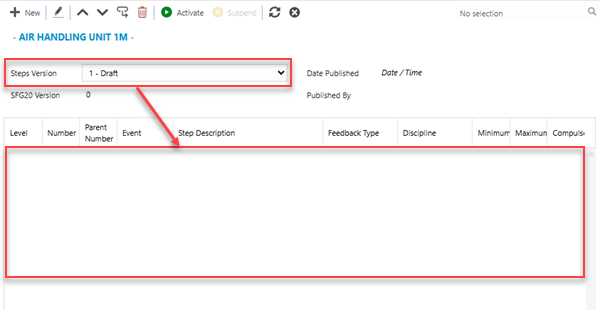
| Step Group Version Status |
Functional Behaviour |
Toolbar Buttons |
| Draft |
-
Where no Instruction Steps exist against an Instruction Set, including those created prior to version 6.5.0.0, the Status will automatically be set to Draft
-
New Instruction Steps can be added, edited, deleted, order changed and so on
-
The status can only be changed from Draft to Active, if Instruction Steps exist
-
Until the status is Active, the Steps cannot be associated with Tasks
|
-
New - Add a new Step
-
Edit - Edit the selected Step
-
Move Up - Move the selected Step up
-
Move Down - Move the selected Step down
-
Create Child Step - Add a child Step to the selected Step
-
Delete - Delete the selected Step
-
Activate - Activate the Step version
-
Suspend - Disabled
-
Refresh - Refresh the grid
|
| Active |
-
For Instruction Sets created prior to version 6.5.0.0, that have existing Instruction Steps, the status will automatically be set to Active
-
Instruction Step Groups with a status of Active may be associated with 'live' Tasks assigned to Resources and as such no changes to the Instruction Steps are allowed in this state to ensure the data integrity of the Step Answers
-
In order to make changes to the Instruction Steps, a new Version, with a status of In Design, must be added and the changes can be carried out in the new version
-
New versions of the Instruction Step Group will have a version number that's incremented by one
-
The status can be changed from Active to Suspended
-
Once Suspended, the Steps cannot be associated with Tasks
|
-
Activate - Disabled
-
Suspend - Suspend the Step version
-
New Version - Create new Step version
-
Refresh - Refresh the grid
|
| In Design |
-
New Instruction Steps can be added, edited, deleted, order changed and so on
-
The status can be changed from In Design to Active
-
Once Active, the Steps can be associated with Tasks and Resources can begin answering the Step Questions therein
-
The status can only be changed from In Design to Active, if Instruction Steps exist
-
Changing the status from In Design to Active will have the effect of changing the status of any related Instruction Step Groups from either Active to Superseded or Suspended to Superseded
|
-
New - Add a new Step
-
Edit - Edit the selected Step
-
Move Up - Move the selected Step up
-
Move Down - Move the selected Step down
-
Create Child Step - Add a child Step to the selected Step
-
Delete - Delete the selected Step
-
Activate - Activate the Step version
-
Suspend - Disabled
-
Refresh - Refresh the grid
|
| Suspended |
-
Once Suspended, the Steps cannot be associated with Tasks
-
No updates can occur to Instruction Step Groups with a status of Suspended
-
In order to make changes to the Instruction Steps, a new Version, with a status of In Design, must be added and the changes can be carried out in the new version
-
New versions of the Instruction Step Group will have a version number that's incremented by one
|
-
Activate - Disabled
-
Suspend - Activate the Step version
-
New Version - Create new Step version
-
Refresh - Refresh the grid
|
| Superseded |
-
Once Superseded, the Steps cannot be associated with Tasks
-
No updates can occur to Instruction Step Groups with a status of Superseded
|
|
To add a new Instruction Step click New
, to edit an existing Instruction Step, select an Instruction Step record in the grid and click Edit
.
To add a Child Instruction Step, select an Instruction Step record in the grid and click Create New Child Step
.
A pop up window will appear which will allow the creation or amendment of an Instruction Step or Child Step:
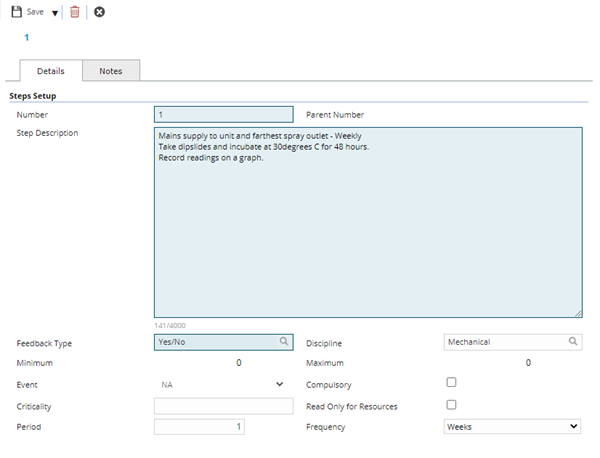
| Field Name |
Description |
| Details Tab |
| Number |
Mandatory field to define the identifying Instruction Step / Question number. |
| Parent Number |
If the current record is a Child Step, this will auto-populate with the relevant Parent Number. |
| Step Description |
Free format text field allowing users to enter an appropriate Step description or a Question to be answered. |
| Feedback Type |
From the drop down select an appropriate Feedback Type. |
| Discipline |
From the drop down select the Discipline. |
| Minimum |
If using a numerical Feedback Type above, enter an acceptable minimum value. |
| Maximum |
If using a numerical Feedback Type above, enter an acceptable maximum value. |
| Event |
If the current record is a Child Step, select the relevant Event value from the drop down to control if and when the Child Step is displayed to users.
The values displayed in the drop down will be dependent upon what has been defined in the Feedback Type set against the Parent Step:
| Event |
Description |
|
NA
|
The Child Step will always be displayed to users, regardless of what is answered for the Parent Step. |
|
Answered
|
The Child Step will only be displayed to users if the Parent Step has been answered. |
|
Yes
|
The Child Step will only be displayed to users if the Parent Step has been answered YES. |
|
No
|
The Child Step will only be displayed to users if the Parent Step has been answered NO. |
|
Minimum
|
The Child Step will only be displayed to users if the Parent Step has been answered with a value that's less than the Minimum value defined against the Parent Step. |
|
Maximum
|
The Child Step will only be displayed to users if the Parent Step has been answered with a value that's greater than the Maximum value defined against the Parent Step. |
|
| Compulsory |
Check the box if this step is to be made Compulsory to answer before the Task can be:
|
| Criticality |
Available from 5.7.0.0
Free text field to enter the criticality of the Instruction Step
|
| Read Only for Resource |
Available from 5.7.0.0
Check the box if this step is to be made read only when displayed to a Resource.
|
| Period |
Available from 4.5.0.0
Period and frequency are used in conjunction to set the repeat rate for the PPM, if a 6 monthly PPM was being created, the period would be set to 6 and the frequency set to monthly. This is used on Instruction Steps for information only
|
| Frequency |
Available from 4.5.0.0
Period and frequency are used in conjunction to set the repeat rate for the PPM, if a 6 monthly PPM was being created, the period would be set to 6 and the frequency set to monthly. This is used on Instruction Steps for information only
|
| Notes Tab
|
| Step Summary |
Available from 5.7.0.0
Free text field to enter a summary for the Instruction Step
|
| SFG20 Smart Words |
Available from 6.3.0.0
Read only field containing the relevant SFG20 Smart Words for the current Instruction Step, created as part of the SFG20 Facilities iQ integration.
Click the icon to open the SFG20 website in order to view details of the current Instruction Step.
This field will only be visible if the SFG20 Module Licence is present.
|
| Notes |
Available from 5.7.0.0
Free text field to enter any pertinent notes for the Instruction Step.
|
Complete the fields and click Save
. Once the Instruction Steps have been created the order the steps will appear can be altered using Move Up
and Move Down
.
Child questions can be created by highlighting the parent question and clicking Create new child step
.
| Additional Icons |
Feature |
Description |
|
Move Up |
Moves the highlighted question up in the list. |
|
Move down |
Moves the highlighted question down in the list. |
|
Create New Child Step |
Child steps can be created. Highlight the Parent Step and click Create New Child Step . |
Requirements Sub Navigation
Click to view more detail.
Available from 5.3.0.0
Resource Skills can be assigned to an Instruction Set to form a Requirement for Tasks
Settings > Tasks > Instruction Sets
The link will open the Instruction Set / Requirements grid. It is a grid view that can be customised and sorted as normal.
To assign Requirements (Resource Skills) click Assign
, Requirements in the right hand assignment window are connected.
To create Skills see Skills
Stock Sub Navigation
Click to view more detail.
Stock can be assigned to an Instruction Set. Once the Instruction Set is used the Stock will show as allocated within the Stores Module.
Settings > Tasks > Instruction Sets
To add a new Stock click New
, to edit an existing Stock click Edit
.A pop up window will appear which will allow the creation or amendment of a Stock.
| Field Name |
Description |
| Group |
From the drop down select the Stock Group. |
| Stock Part Code |
From the drop down select the Stock Part Code - If a group has been selected this will filter the available Part Codes. |
| Quantity |
Enter the quantity of the Stock required to complete the Task. |
Complete the fields and click Save and Close
.
Permits Sub Navigation
Click to view more detail.
Available from 5.3.0.0
Permits can be added to Instruction Sets to form a Requirement for Tasks
Available from 7.0.0.0
The Purchase Key licence dependency for this specific element of the system has been removed and is now included as standard in the core MRI Evolution product the feature has been turned on for all systems by default.
Note: Other restrictions, such as User licence type restrictions and / or any restrictions to underlying functionality that is dependent upon Purchase Key licences will remain in place.
Settings > Tasks > Instruction Sets
To add a new Permit click New
, to edit an existing Permit click Edit
. A pop up window will appear which will allow the creation or amendment of a Permit
To create Permits see Work Permits
Associated Contracts Sub Navigation
Click to view more detail.
Instruction Sets must be assigned to Contracts to be used in MRI Evolution.
Settings > Tasks > Instruction Sets
The link will open the Instruction Set / Associated Contracts grid. It is a grid view that can be customised and sorted as normal.
To assign Contracts click Assign
, entities in the right hand assignment window are connected.
To create Contracts see Contracts.
Regulations Sub Navigation
Click to view more detail.
Available from 4.3.0.0
As part of Compliance monitoring, creating a list of Regulations will enable clear definition of the Regulations that a Task is adhering to. These Regulations can be attached to an Instruction Set to allow auto-population on a Task.
Settings > Tasks > Instruction Sets
The link will open the Instruction Set / Regulations grid. It is a grid view that can be customised and sorted as normal.
To assign Regulations click Assign
, entities in the right hand assignment window are connected.
To create Regulations see Regulations
Master Rate Items Sub Navigation
Click to view more detail.
Available from 4.4.8.0
Instruction Sets can be assigned to Schedule Of Rates Master Rate Items. This will allow Schedule Of Rates Items to automatically be created when a Task is raised. If the Master Rate Items are also built into the Master Rates Cost Matrix Cost can also be auto-generated.
Settings > Tasks > Instruction Sets
The link will open the Instruction Set / Master Rate Items grid. It is a grid view that can be customised and sorted as normal.
To assign Master Rate Items click Assign
, entities in the right hand assignment window are connected.
To create Master Rate Items see Master Schedule Of Rates Groups
Additional Icons - Instruction Sets Status
Available from 4.5.0.0
An Instruction Set's Status can be changed by clicking Change Instruction Set Status
.
Instruction Sets have three generic states:
To create Instruction Set Status see Instruction Set Status
Multiple Instruction Set Statuses can be changed at once from the Instruction Set grid. Highlight the required Instruction Sets and click Change Instruction Set Status
. A pop up window will appear to allow the highlighted Instruction Sets to have there status changed.
Click the
button to run the GL-DT007 Details of Instruction set report.