Master Schedule Of Rates Groups
Master Schedule Of Rates Groups organize standardized rate items that can be copied to contracts for pricing consistency.
Create master groups containing rate items with codes, descriptions, units, and base prices. Copy master groups to contracts where rates can be adjusted per contract while maintaining standardized rate structures across the organization.
Available from 5.9.0.0
A tab has been added to the Master Schedule Of Rates Groups grid page, the tab contains a grid showing all Master Schedule Of Rate Items records from the ScheduleOfRatesMasters entity:

Settings > Finance > Master Schedule Of Rates Groups
The link will open the Master Schedule Of Rates Groups grid. It is a grid view which can be searched, sorted and customised as normal.
To add a new Master Schedule Of Rates Group click New  , to edit an existing Master Schedule Of Rates Group click Edit
  . A pop up window will appear which will allow the creation or amendment of a Master Schedule Of Rates Group.
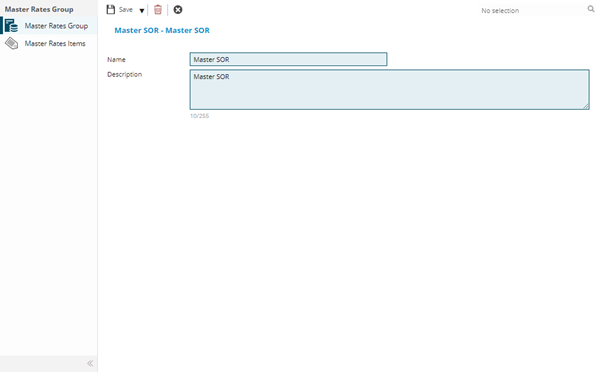
 Click to view - Master Schedule Of Rates Groups Fields and Descriptions
| Field Name | Description |
|---|---|
| Name | The name of the Master Schedule Of Rates Group. |
| Description | The description of the Master Schedule Of Rates Group. |
Complete the fields and click Save  . Once the Master Schedule Of Rates Group header has been completed and saved a sub navigation will appear to allow additional entities to be created:
- Master Rate Items
Master Rate Items
Click to view more detail.
Master Rate items form the basic listed items for the SOR e.g. the cost for Building 1m2 of brick wall.
Settings > Finance > Master Schedule Of Rates Groups
The link will open the Master Rate Items grid.
Available from 5.8.1.0
The delete toolbar button has been replaced with a Status change button group to manage the state transitions of the new Schedule Of Rates state model. A record must be selected from the grid before selecting the desired state from the button group.
Search and Query functions have been enabled in the grid, as well as column filters. A Show Historic toggle button has been added in order to show or hide Master Rate Item records with a status of History.
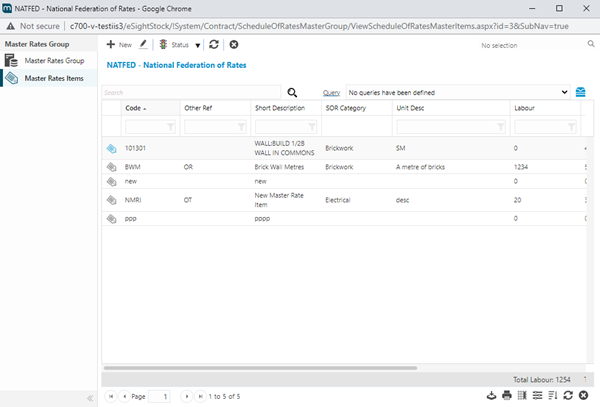
To add a new Master Rate Item click New, to edit an existing Master Rate Item click Edit . A pop up window will appear which will allow the creation or amendment of a Master Rate Item.
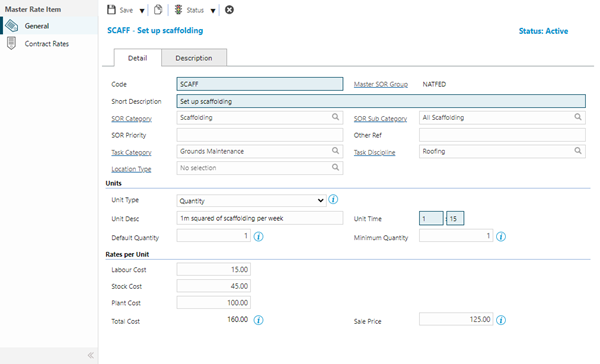
| Field Name | Description |
|---|---|
| Detail Tab |
Available from 5.8.1.0 |
| Code | The code used to identify the Master Rate Item. |
| Master SOR Group | Auto-populated with the Master SOR Group. Available from 4.4.8.0 Available from 5.8.1.0 The field label is now a hyper-link to open the populated record. |
| Short Description | The short description of the Master Rate Item. |
| SOR Category | From the drop down select the Schedule Of Rates Category. Available from 5.8.1.0 The field label is now a hyper-link to open the populated record. |
| SOR Sub Category | From the drop down select the Schedule Of Rates Sub Category. Available from 5.8.1.0 The field label is now a hyper-link to open the populated record. |
| SOR Priority | A numerical ranking value that controls the display order of this Schedule of Rates item when users select from rate lists during task creation, quote building, or purchase order line item entry (e.g., 1-9999, where lower numbers appear first). Use priority values strategically to position the most frequently used or preferred rates at the top of selection dropdowns, improving data entry efficiency for common work items. Items with the same priority are then sorted alphabetically by description. Essential for large SOR catalogs with hundreds of items, ensuring standard rates for typical repairs and maintenance appear before specialized or rarely used items. Leave blank or use high numbers (e.g., 9000+) for deprecated rates that should appear last but remain available for historical reference. |
| Other Ref | A reference for the Master Rate Item. |
| Task Category | From the drop down select the Task Category - this will filter the available SOR items on a Task. Available from 5.8.1.0 The field label is now a hyper-link to open the populated record. |
| Task Discipline |
Available from 5.8.1.0 From the drop down select the Task Discipline - this will filter the available SOR items on a Task. |
| Location Type |
Available from 5.8.1.0 From the drop down select the Location Type - this will filter the available SOR items on a Task. |
| Units Section |
Available from 5.8.1.0 |
| Unit Type |
The unit type controls how users will enter units for the rate item to determine the cost. Options include quantities, dimensions, hours and a simple required/not required check box. From the drop down select the Unit Type:
|
| Unit Description | Enter a description of the Unit, such as 'square metre of glazing', 'linear metre of bricks', 'full time employee' or 'an item of ...'. |
| Unit Time | The amount of time required to complete a single quantity of the Unit. |
| Default Quantity |
Available from 5.8.1.0 The default quantity will be used to populate the Quantity field when this rate is first selected. It can be overridden by the user if required. The default quantity will also be used when the Unit Type is Required / Not Required and the customer checks the box to say the rate item is required. |
| Minimum Quantity |
Available from 5.8.1.0 This optional value can be used to set a minimum quantity that must be requested in order for this item to be added to a Task. |
| Rates per Unit Section |
Available from 5.8.1.0 |
| Labour Cost |
The estimated cost of Labour for a single unit of the selected Unit Type when the SOR is applied to a Task. Where the Unit Type is Quantity or Quantity - Decimal, the calculation for the Task is a straightforward X multiplied by Y. When the unit type is Squared (or Cubed) the SOR, the Task has different fields to fill in and it will multiply costs by height, width (and possibly depth) instead. |
| Stock Cost |
The estimated cost of Stock for a single unit of the selected Unit Type when the SOR is applied to a Task. Where the Unit Type is Quantity or Quantity - Decimal, the calculation for the Task is a straightforward X multiplied by Y. When the unit type is Squared (or Cubed) the SOR, the Task has different fields to fill in and will multiply costs by height, width (and possibly depth) instead. |
| Plant Cost |
The estimated cost of Plant for a single unit of the selected Unit Type when the SOR is applied to a Task. Where the Unit Type is Quantity or Quantity - Decimal, the calculation for the Task is a straightforward X multiplied by Y. When the unit type is Squared (or Cubed) the SOR, the Task has different fields to fill in and it will multiply costs by height, width (and possibly depth) instead. |
| Total Cost |
Auto-calculated by adding the Labour, Stock and Plant Costs and will be used to calculate the Estimated Costs of Tasks where the rate is selected. |
| Labour Sale Price |
An alternative estimated cost of Labour for a single unit of the selected Unit Type when the SOR is applied to a Task. Where the Unit Type is Quantity or Quantity - Decimal, the calculation for the Task is a straightforward X multiplied by Y. When the unit type is Squared (or Cubed) the SOR, the Task has different fields to fill in and it will multiply costs by height, width (and possibly depth) instead. |
| Stock Sale Price |
An alternative estimated cost of Stock for a single unit of the selected Unit Type when the SOR is applied to a Task. Where the Unit Type is Quantity or Quantity - Decimal, the calculation for the Task is a straightforward X multiplied by Y. When the unit type is Squared (or Cubed) the SOR, the Task has different fields to fill in and will multiply costs by height, width (and possibly depth) instead. |
| Plant Sale Price |
An alternative estimated cost of Plant for a single unit of the selected Unit Type when the SOR is applied to a Task. Where the Unit Type is Quantity or Quantity - Decimal, the calculation for the Task is a straightforward X multiplied by Y. When the unit type is Squared (or Cubed) the SOR, the Task has different fields to fill in and it will multiply costs by height, width (and possibly depth) instead. |
| Total Sale Price |
Auto-calculated by adding the Labour Sale Price, Stock Sale Price and Plant Sale Price and will be used to calculate the Estimated Costs of Tasks where the rate is selected. Note: This field has superseded the Sale Price field added in version 5.8.1.0. |
| Currency |
From the drop-down, select the Currency that is to be used for all fiscal transactions related to the current Master Schedule Of Rate Group. Note: If no Currency is selected, the Currency marked as the Default will be set, upon Save. |
| Description Tab |
Available from 5.8.1.0 |
| Friendly Description |
Available from 5.8.1.0 This field can be used to set an alternative description for the rate item. If present, this will be used in applications that show rates to customers (e.g. AtYourService) |
| Long Description | The long description of the Master Rate Item. |
 Available from 7.0.0.0
Complete the fields and click Save. Once the Master Rate Item has been completed and saved a sub navigation will appear to allow the assignment of Master Rate Items to Contracts:
- Contract Rates
Contract Rates - sub navigation
Click to view more detail.
The Contract Rates sub navigation contains a grid of the Schedule Of Rate records created for each Contract the current Master Rate Item has been assigned to or associated with.
Available from 5.8.1.0
Clicking the  toolbar button will open an assignment window, allowing users to assign or unassign the Master Rate Item to/from relevant Contracts. Only active Contracts will be available in the assignment window.
The Assign button will not be visible if the state of the Master Rate Item is History
Opening a record from the grid displays the Schedule Of Rate page, allowing the user to view and optionally define Contract specific values that will be used when the Schedule Of Rate is added to a Task in the Contract.
Master Rate Item Toolbar Icons
| Icon | Feature | Description |
|---|---|---|
|
|
Save Button Group | Save | Save and New | Save and Close |

|
Copy |
Available from 5.8.1.0 It is possible to create a copy of the current Master Rate Item record by clicking the Copy button in the toolbar. When clicked, the page enters Copy Mode. All values from the 'original' Master Rate Item record are retained when in Copy Mode and can be changed where necessary. |

|
Status Change Button |
Available from 5.8.1.0 The button opens an expandable group containing buttons for all available state transitions:
Selecting a state from the group will change the Status of the current Master Rate Item to the selected value. |

|
Refresh from Master Rate |
Available from 5.8.1.0 Click the button to replace the SOR Item field values using the current values from the associated Master SOR Item. The button is disabled if the current Schedule Of Rates Item is not linked to a Master SOR Item. |