Compliance Types
Compliance Types define regulatory and statutory classification categories that identify which legal obligations, industry standards, or safety regulations specific maintenance activities address. Create Compliance Types with descriptive names and codes (for example, "Gas Safe", "Fire Safety", "Legionella Control", "Electrical Testing", "Asbestos Management") that align with your organizational compliance framework, then assign them to Instruction Sets or individual Tasks to tag work with the regulations it fulfils. For example, assign "Gas Safe" Compliance Type to all gas appliance service Instruction Sets, "Fire Safety" to fire alarm testing tasks, or "Legionella Control" to water temperature monitoring activities. When configured, assign each Compliance Type a colour for visual identification in the PPM Planner—for example, set Fire Safety to red, Electrical Testing to yellow, and Legionella Control to blue—enabling planners to quickly identify compliance-critical work at a glance and ensure regulatory deadlines are met. This supports regulatory compliance tracking (identify all work addressing specific regulations through reporting queries), audit trail documentation (demonstrate which maintenance activities fulfil statutory obligations during inspections), and risk management (ensure adequate coverage of compliance-critical maintenance across the estate). Organizations typically create 5-15 Compliance Types matching their key regulatory obligations—for example, healthcare facilities might include "HTM compliance", "CQC requirements", and "Infection Control", while commercial properties focus on "Building Regulations", "CDM compliance", and "LOLER inspections"—ensuring comprehensive regulatory coverage visibility across maintenance operations.
Settings > Tasks > Compliance Types
The link will open the Compliance Type grid. It is a grid view which can be searched, sorted and customised as normal.
To add a new Compliance Type click New  , to edit an existing Compliance Type click Edit
  . A pop up window will appear which will allow the creation or amendment of a Compliance Type.
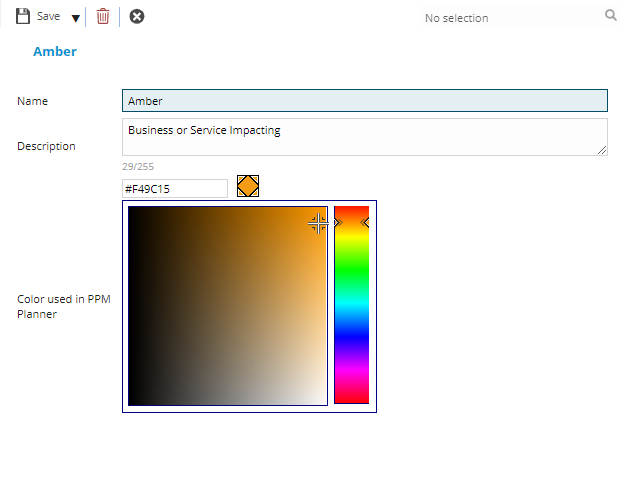
 Click to view - Compliance Type Fields and Descriptions
Complete the fields and click Save and Close  .
.