Instruction Set Schedules
Available from 6.3.0.0
Groups of Instruction Sets providing granular maintenance detail for PPM Tasks. Can map to SFG20 Maintenance Schedules for automatic updates via Facilities iQ Integration, or be used independently. Assigned to Regimes for planned maintenance workflows.
Includes staff requirements, estimated time, and costs for accurate budget and resource planning. See sections below for capabilities, integration options, and field changes.
Available from 6.5.0.0
The lengths of the following database fields have been increased:
| Field | Old Value | New Value |
|---|---|---|
| SFG20FullTitle | 128 | 512 |
| SFG20Path | 255 | 512 |
The list of Instruction Sets are maintained here.
Settings > Tasks
The link will open the Instruction Set Schedules grid. It is a grid view which can be searched, sorted and customised as normal.
The Instruction Set Schedules grid is a hierarchical grid. The Instruction Set Schedule is the 'parent' and the Instruction Sets assigned to the Schedule are the 'children'.
The chevron icon, highlighted below, is a toggle to show or hide the Instruction Sets assigned to the Instruction Set Schedule. The assigned Instruction Sets can be opened directly from the grid, without the need to open the parent Schedule.
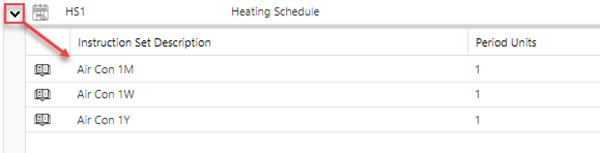
To add a new Instruction Set Schedule click New  , to edit an existing Instruction Set Schedule click Edit
  . A pop up window will appear which will allow the creation or amendment of a Instruction Set.
The upper part of the page contains the Instruction Set Schedule fields in two tabs and the lower part contains a grid of Instruction Sets that have been added to the Instruction Set Schedule.
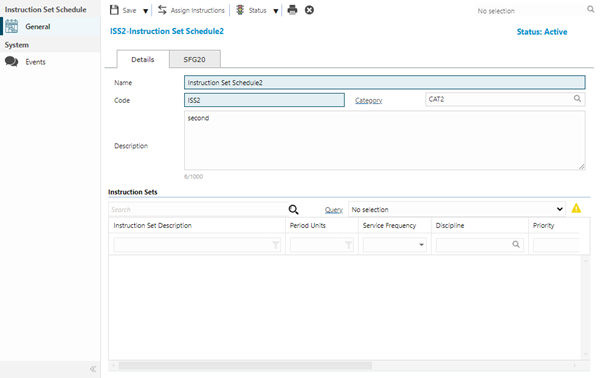
 Click to view - Instruction Set Schedules Details Tab Fields and Descriptions
 Available from 7.0.0.0
Click to view - Instruction Set Schedules SFG20 Tab Fields and Descriptions
Complete the fields and click Save  .
.
Once the Instruction Set Schedule has been completed and saved, the following sub navigation will appear:
- Regimes
Additional Icons
| Additional Icons | Feature | Description |
|---|---|---|

|
Assign Instructions |
Click the button to open the assignment window and assign or unassign Instruction Sets to the current Instruction Set Schedule. |

|
Change Status Group |
From the drop down, select an available status for the current record. A reason can be entered for making the status change. The following are the available statuses for the current status of the record:
|

|
Run Instruction Set Schedule Details Report |
Click to run the RG-002 Instruction Set Schedule Details report for the current Instruction Set Schedule record. |
Regimes
Click to view more detail.
Available from 6.3.0.0
The Regimes sub navigation contains a grid of the Regimes that the Instruction Set Schedule has been assigned to.
Settings > Tasks
The link will open the Regimes grid. It is a grid view that can be customised and sorted as normal.
Click the button to open the assignment window and assign or unassign the Instruction Set Schedule to one or more Regimes.