Grades Profiles
Available from 5.7.0.0
Grades Profiles establish comprehensive quality assessment frameworks for mobile auditing operations by defining systematic scoring criteria that translate audit responses into meaningful performance measurements and compliance ratings. These profiles combine percentage-based grade criteria with audit templates to create standardized evaluation systems that ensure consistent quality assessment across diverse facility operations, contract portfolios, and audit scenarios. For example, a "Cleaning Quality Profile" might define grade criteria where 95-100% represents "Excellent" service delivery, 80-94% indicates "Good" performance requiring minor attention, and below 80% triggers "Improvement Required" protocols with specific corrective action workflows. By linking grade profiles to mobile audit templates, facility managers can implement organization-specific quality standards that automatically calculate performance scores, generate compliance reports, and trigger appropriate follow-up actions based on audit results, ensuring that mobile auditing delivers actionable insights that drive continuous improvement and regulatory compliance across complex facility management operations.
Settings > Evolution Go > Grade Profiles
or
Settings > Mobile Audits > Grade Profiles
The link will open the Grade Profiles grid. It is a grid view which can be searched, sorted and customised as normal.
To add a new Grade Profile click New  , to edit an existing Grade click Edit
  . A pop up window will appear which will allow the creation or amendment of a Grade Profile.
The lower part of the Grade Profile page contains a grid of the Grade Criteria records associated with the current Grade Profile.
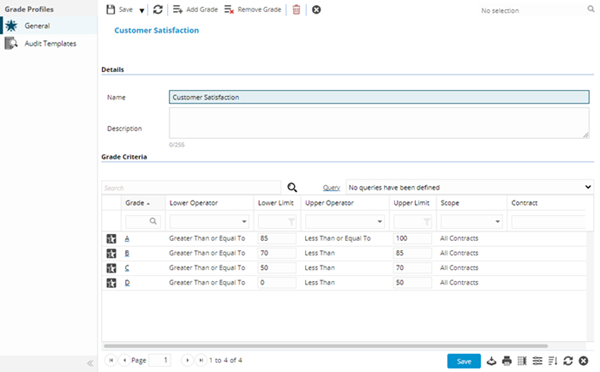
Grade Profiles - Fields
 Click to view more detail.
| Field Name | Description |
|---|---|
| Details | |
| Name | Enter the name of the Grade Profile. |
| Description | Enter the description of the Grade Profile. |
| Grade Criteria | |
| Grid | Grid containing Grade Criteria records that have been added to the Grade Profile. |
Complete the fields and click Save . Once the Grade Profile fields have been completed and saved, Grade Criteria toolbar buttons will be enabled and an Audit Templates sub navigation will appear, allowing users to assign the Grade Profile directly to Mobile Audit Templates.
Additional Icons
| Icon | Feature | Description |
|---|---|---|

|
Add Grade |
Click to open the Grade Criteria input panel. The button is disabled until the Grade Profile record is saved. |

|
Remove Grade |
Click to remove a Grade Criteria record from the Grade Profile, a record must be selected in the grid first. The button is disabled until the Grade Profile record is saved. |
Grade Criteria Input Panel
Click to view more detail.
Completed Mobile Audits will be assigned the Grade defined here if the percentage Score of the Mobile Audit meets the Grade Criteria.
The criteria involve the Contract(s) applicable and the percentage range applicable to the Grade.
Settings > Evolution Go > Grade Profiles > Add Grade
The link will open the Grade Criteria input panel.
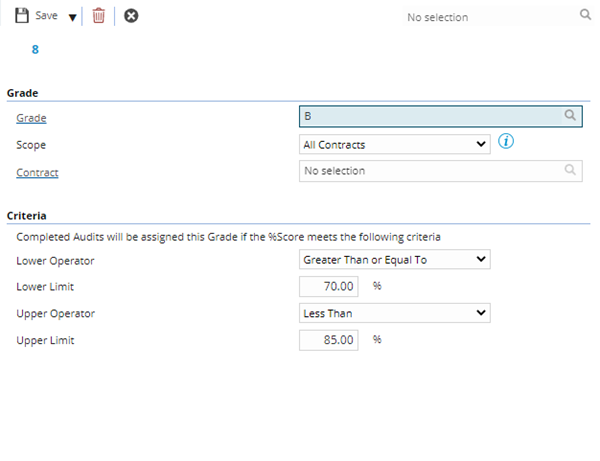
| Field Name | Description |
|---|---|
| Grade | |
| Grade |
Select the most appropriate Grade record for the Grade Criteria. The field label is a hyper-link to open the selected Grade record directly. |
| Scope |
Select the Scope for the Grade Criteria from the drop down, options are:
Selecting Contract Specific Variation allows the creation of grading criteria that will apply to Mobile Audits carried out against Tasks in a specific Contract. |
| Contract |
This field is only enabled if the Scope field above is set to Contract Specific Variation. If enabled, select the most appropriate Contract record for the Grade Criteria. The field label is a hyper-link to open the selected Contract record directly. |
| Criteria | |
| Lower Operator |
Select the Lower Operator for the Grade Criteria from the drop down, options are:
|
| Lower Limit % | Enter the lower percentage value for the Grade Criteria range. |
| Upper Operator |
Select the Upper Operator for the Grade Criteria from the drop down, options are:
|
| Upper Limit % | Enter the upper percentage value for the Grade Criteria range. |
Audit Templates
Click to view more detail.
Grade Profiles can be assigned to Mobile Audit Templates directly from this sub navigation.
Settings > Evolution Go > Grade Profiles > Audit Templates
The link will open the Grade Profiles / Audit Templates grid. It is a grid view which can be searched, sorted and customised as normal.
To assign Audit Templates click Assign  , entities in the right hand assignment window are connected.
To create Audit Templates see Mobile Audit Templates.