Rotas
Rotas define repeating working patterns (shifts by day and week) that Resources follow. A rota links together Rota Weeks, Shifts, Statutory Holidays and assigned Resources so the system can calculate availability, scheduling windows and billing/response impacts.
Create a rota when multiple Resources share the same shift cycle. After saving the header you add weeks (with daily shifts), link statutory holidays (to mark non-working days) and assign Resources.
Settings > Resources > Rotas
The link will open the Rota Grid. It is a grid view which can be searched, sorted and customised as normal.
To add a new Rota click New  , to edit an existing Rota click Edit
  . A pop up window will appear which will allow the creation or amendment of a Rota.
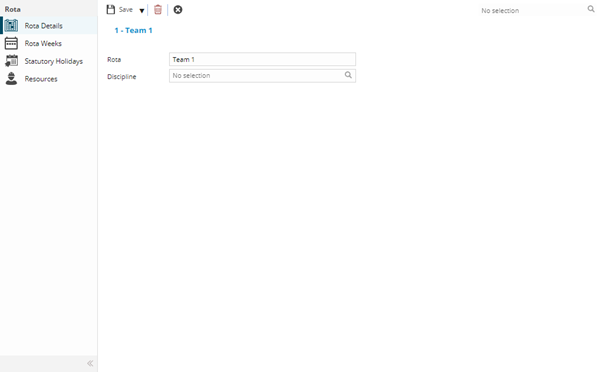
 Click to view - Rota Fields and Descriptions
| Field Name | Description |
|---|---|
| Rota | The descriptive name for this recurring work schedule pattern that defines how resources (staff, contractors, mobile workers) are allocated across time periods, shifts, and locations (e.g., "24/7 Security Cover", "M&E Day Shift", "Cleaning Evening Rota", "Weekend Emergency Response", "4-on 4-off Pattern"). Rotas organize workforce scheduling by grouping resources who work similar shift patterns and assigning them to specific working hours, days of the week, and disciplines. Each rota links to defined shifts (morning, afternoon, night) and specifies the rotation cycle. Essential for resource planning, ensuring adequate site coverage, managing shift handovers, and controlling labor costs. Mobile workers assigned to rotas automatically inherit the working hours for task scheduling and availability. Choose clear, memorable rota names that indicate the working pattern, discipline, and coverage period for operational clarity. |
| Discipline | From the drop down select the discipline for the Rota. |
Complete the fields and click Save  . Once the Rota header has been completed and saved a sub menu will appear to allow additional entities to be assigned and created.
These include:
- Rota Weeks
- Statutory Holidays
- Resources
Rota Weeks
Click to view more detail.
Rota Weeks use shifts to create the Rota. Multiple weeks can be created.
Settings > Resources > Rotas
To add a new Rota Week click New , to edit an existing Rota Week click Edit .
In each day, select from the drop down the Shifts required. All days must contain a shift - for more information see Shifts.
Complete the fields and click Save and Close  . Repeat the steps until all Rota weeks have been completed.
Statutory Holidays
Click to view more detail.
Statutory Holidays can be assigned to Rotas to show unavailability on Bank and Public Holidays.
Settings > Resources > Rotas
To assign Statutory Holidays click Assign  , entities in the right hand assignment window are connected.
To create Statutory Holidays see Statutory Holidays.
Resources
Click to view more detail.
Resources must be connected to a Rota to reflect the correct shift pattern.
Settings > Resources > Rotas
To add a new Resource click New , to edit an existing Resource click Edit . A pop up window will appear which will allow the addition of a Resource
to a Rota.
Click to view - Rota Resource Fields and Descriptions
| Fields | Description |
|---|---|
| Supplier | From the drop down select the Resources Supplier. |
| Discipline | From the drop down select the Resources Discipline. |
| Name | From the drop down select the Resource. |
| Rota | From the drop down select the Rota. |
| Start Date | Enter the date the Resource will start on the Rota. |
| Start Week | If the Rota contains more than one week enter the week number that the Resource will start on the Rota pattern. |