Supply Chain Survey Templates
Available from 5.5.0.0
Supply Chain Survey Templates provide a structured framework for collecting information from Suppliers and Resources within Evolution. These templates allow you to create standardized questionnaires that can be deployed for various supply chain management purposes, such as supplier onboarding, compliance verification, health and safety assessments, and resource credential checks.
By creating reusable survey templates, you can maintain consistency in data collection across your organization while automating the process of gathering critical information from your supply chain partners. Survey responses can be tracked, validated, and managed centrally, with configurable expiry periods ensuring that information remains current and relevant.
Supply Chain Survey Templates integrate with both desktop Evolution and mobile applications (Evolution Go and MRI Dreamscape Contractor), enabling field-based resources and suppliers to complete surveys at appropriate points in their workflow. You can configure when users are prompted to complete surveys, whether completion is mandatory, and how expired responses are handled.
Along with Work & Access Survey Templates they have replaced the Survey Templates functionality, added in the 5.3.0.0 release.
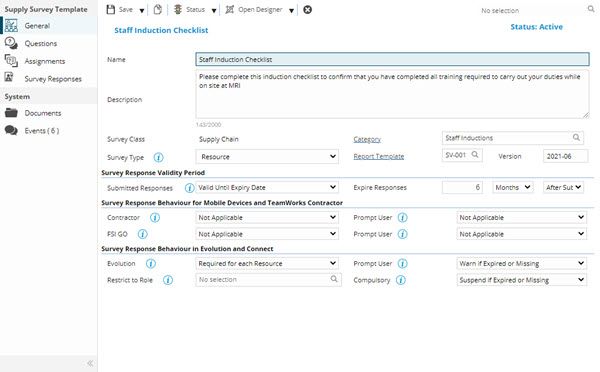
The Template must be saved before the survey designer can be opened and survey detail, such as entity assignments can be created.
Available from 6.1.2.0
A Survey Responses tab has been added to the Supply Chain Survey Templates grid. The grid contains all records related to Supply Chain Survey responses, allowing users to open them directly, without needing to open the entity records and then view the Survey Responses.
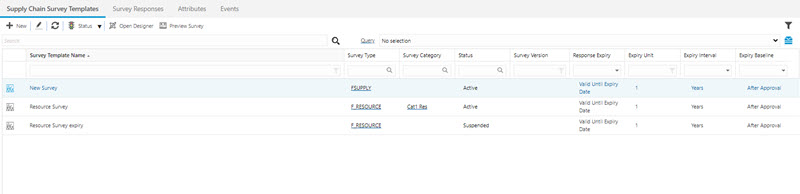
Settings > Surveys > Supply Chain Survey Templates
The link will open the Supply Chain Survey Template grid. It is a grid view which can be searched, sorted and customised as normal.
To add a new Supply Chain Survey Template click New  , to edit an existing Supply Chain Survey Template click Edit
  . A pop up window will appear which will allow the creation or amendment of a Supply Chain Survey Template.
 Click to view - Supply Survey Template Fields and Descriptions
| Field Name | Description |
|---|---|
| Name | The name of the Survey Template |
| Description |
The general description of the Survey Template |
| Survey Class |
Read only text - Supply Chain |
| Category |
From the auto-complete select the Survey Category The field label is a hyper-link that will open the selected record's input panel when clicked |
| Survey Type |
From the drop down select the Type (MRI Evolution entity the survey will be assigned to):
|
| Report Template |
From the drop down select the template to display the survey The field label is a hyper-link that will open the selected record's input panel when clicked The system standard template is SV-001 |
| Version | The version number of the Supply Chain Survey Template |
| Survey Response Validity Period | |
| Submitted Responses |
From the drop down select when the validity period of the survey response
|
| Expire Responses |
If "Valid until Expiry Date" is selected in Submitted Responses an expiry must be set. The field is made up of three elements - a number field, a time period drop down and a 'survey event' drop down. The number field will determine a quantity of the chosen time periods that the Survey Response will be valid for after the chosen 'survey event'. Response expiry period examples:
|
| Survey Response Behaviour for Mobile Devices and TeamWorks Contractor | |
| Contractor |
If the Survey Type is set to 'Resource' the drop down options are:
If the Survey Type is set to 'Supplier' the drop down options are:
|
| Prompt User |
If the Response Behaviour in Contractor is set to 'Not Applicable' the drop down options are:
If the Response Behaviour in Contractor is set to 'Required for each Supplier' the drop down options are:
|
| Evolution Go |
The only option available in the drop down for expected Response Behaviour in Evolution Go is:
|
| Prompt User |
The only option available in the drop down for Prompt User in Evolution Go is:
|
| Survey Response Behaviour in MRI Evolution and Evolution Connect | |
| MRI Evolution |
If the Survey Type is set to 'Resource' the drop down options are:
If the Survey Type is set to 'Supplier' the drop down options are:
|
| Prompt User |
If the Response Behaviour in MRI Evolution is set to 'Not Applicable' the drop down options are:
If the Response Behaviour in MRI Evolution is set to 'Required for each Supplier' or 'Required for each Resource' the drop down options are:
|
| Restrict to Role |
Optional - Only users with the selected Role can complete a Survey Response for this Template. The field is read only if the Response Behaviour in MRI Evolution is set to 'Not Applicable' The field is enabled if the Response Behaviour in MRI Evolution is set to 'Required for each Supplier' |
| Compulsory |
If the Response Behaviour in MRI Evolution is set to 'Not Applicable'
If the Response Behaviour in MRI Evolution is set to 'Required for each Supplier' or 'Required for each Resource' the drop down options are:
|
Complete the fields and click Save  . Once the Supply Survey Template header has been completed and saved, toolbar buttons and sub navigation options will appear.
These include:
- Questions
- Assignments
- Survey Responses
Questions
Click to view more detail.
Available from 5.7.0.0
Once the Supply Survey Template is created, Survey Questions can be created in the Survey Designer. The details of the created Questions will be displayed in the grid.
The Questions sub navigation will only be displayed once at least one Question has been defined in the Survey Designer.
Settings > Surveys > Supply Chain Survey Templates
The link will open the Supply Survey Templates / Questions grid. It is a grid view that can be customised and sorted as normal.
Assignments
Click to view more detail.
Once the Supply Survey Template is created it can be assigned to the relevant entities of the selected Survey Type
Settings > Surveys > Supply Chain Survey Templates
The link will open the Supply Survey Templates / Assignments grid. It is a grid view that can be customised and sorted as normal.
To assign the Supply Survey Template to entities click the Assign button to open the standard assignment window.
Survey Responses
Click to view more detail.
Available from 5.5.0.0
Once the Supply Survey Template has been created, the Survey Responses sub navigation will become available. The grid will contain the completed Supply Survey responses.
Settings > Surveys > Supply Chain Survey Templates
The link will open the Survey Responses grid. It is a grid view that can be customised and sorted as normal.
A record must be selected in the Survey Responses grid in order to use the  View Response button.
Multiple rows cannot be selected. When a row is selected and the button is clicked a new window should be opened displaying the Survey Response.
Open Designer
Click to view more detail.
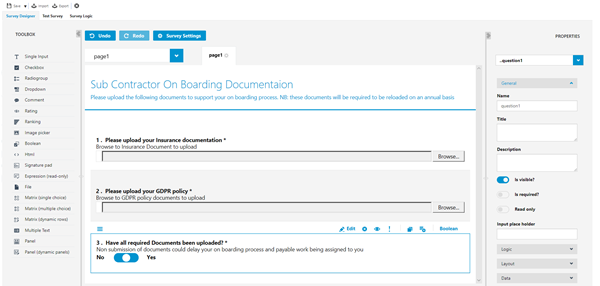
Use the Survey settings to create a title and the general description for the survey.
Use the Toolbox to create the questions, file uploads, drop downs, ratings etc..... to create the survey detail.
Available from 5.6.0.0
Matrix (single choice)
- Matrix (multiple choice)
- Matrix (dynamic choice)
- Panel (dynamic)
- Multiple Text
Available from 5.6.0.0
- Panels
- Expression (read-only)
- Comment
Available from 5.6.0.0
 and
and  toolbar buttons allow users to export the JSON file (containing the Questions and so on) from an existing Survey and import it to another Survey, thus saving time when creating multiple similar Surveys.
Once the Survey has been created click Save.
Activating the Survey
Click to view more detail.
A survey Template must be activated in order to be used for Supplier on-boarding and so on.
Click Status , from the drop down select Activate
Survey Templates can be suspended or moved to history if no longer required.