Helpdesk - Financials
The Helpdesk Financials screen provides a centralized interface for tracking estimated and actual costs across task work, enabling budget monitoring and financial accountability for maintenance operations. Enter or review cost estimates before work begins (Est. Stock, Est. Labour, Est. Plant) to establish budget baselines, then record actual expenditures as work progresses (Actual Stock from inventory withdrawals, Actual Labour from time records, Actual Plant from equipment usage, Purchases from linked Purchase Orders). The system automatically calculates totals and displays committed costs—for example, when time records are added for assigned resources with hourly rates, Actual Labour auto-populates with calculated costs; when stock items are issued from inventory, Actual Stock updates with item values; when Purchase Orders are raised against the task, the Purchases field reflects PO totals. This supports budget oversight (compare Est. Total vs Total Actual to identify cost overruns), financial reporting (analyse labour, materials, and equipment spending patterns by Cost Centre and Cost Code), and contract compliance (verify actual costs align with approved quotes or budgets). Organizations typically review this screen before approving task completion to ensure all costs are captured accurately for billing, cost allocation, or financial analysis purposes.
Task Management > Helpdesk > Helpdesk - Financials
The link will open the Task Financial sub navigation.
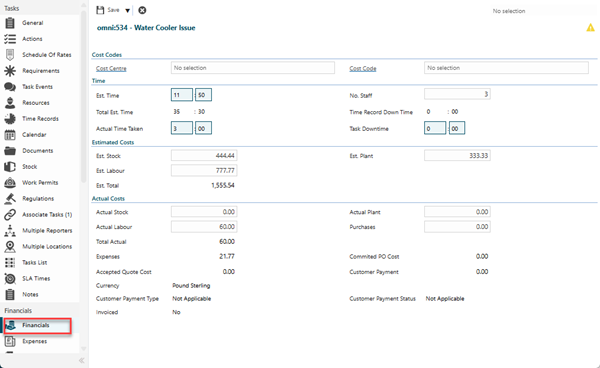
 Click to view - Financials Fields and Descriptions
| Field Name | Description |
|---|---|
| Cost Codes | |
| Cost Centre |
From the drop down select the Cost Centre - if this has been completed on the general screen this will auto-populate, Cost Centres will also filter by Contract. Available from 6.1.0.0 Cost Centres that have a Historic or Suspended state are excluded from this list. Available from 6.1.2.0 In addition to any Contract View restrictions applied to Cost Centres for the Contract related to this entity, this field may be additionally filtered to show only those Cost Centres that have been assigned to the related Building. If a Cost Centre that's assigned to the related Building is set as the default for the Building it will be set automatically in this Cost Centre auto-complete. If the user subsequently changes the related Contract, where the selected Cost Centre is not available, the Cost Centre value (and Cost Code if selected) will be cleared. |
| Cost Code |
From the drop down select the Cost Code - if this has been completed on the general screen this will auto-populate, Cost Codes will also filter by Cost Centre. Available from 6.1.0.0 Cost Codes marked as Locked against the Cost Centre are excluded from this list. |
| Time |
Available from 5.5.1.0 |
| Est. Time | Enter the Estimated time required to complete the Task - if an Instruction Set has been used that has Estimated time this field will auto-populate. |
| No Staff |
Available from 5.5.1.0 Enter the number of Staff required to complete the Task - if an Instruction Set has been used that has Estimated number of Staff this field will auto-populate. |
| Total Est. Time | Auto-calculated by multiplying the Estimated Time by the Number of Staff. |
| Time Record Down Time | Auto-calculated by adding the downtime from all Time Records for the Task together. |
| Actual Time Taken | The total time spent by all Resources on the Task. |
| Task Down Time | Enter the value of the Task's down time. |
| Estimated Costs | |
| Est. Stock |
Enter the estimated Stock Cost - if an Instruction Set has been used that has Estimated Stock Costs this field will auto-populate. Available from 6.1.0.0 Validation has been added to ensure that if the value in this field is changed it does not negatively impact any Task Actions associated with the current Task:
|
| Est. Plant |
Enter the estimated Plant Cost. Available from 6.1.0.0 Validation has been added to ensure that if the value in this field is changed it does not negatively impact any Task Actions associated with the current Task:
|
| Est. Labour |
Enter the estimated Labour Cost - if an Instruction Set has been used that has Estimated Labour Costs this field will auto-populate. Available from 6.1.0.0 Validation has been added to ensure that if the value in this field is changed it does not negatively impact any Task Actions associated with the current Task:
|
| Est. Total |
Available from 5.5.1.0 Auto-calculated by adding the Estimated Stock, Plant and Labour values. |
| Actual Costs | |
| Actual Stock | Enter the Actual Stock Cost - if the Stock Module is in use this will populate with the total value of the assigned Stock, this can be manually overwritten. |
| Actual Plant | The total cost of plant, equipment, machinery, and specialist tool hire used to complete this task, entered as a monetary value in the contract currency (e.g., £125.00, $450.75). Examples include scaffolding hire, cherry picker rental, specialist diagnostic equipment, temporary pumps, generators, dehumidifiers, and any mechanical plant beyond standard hand tools. This field captures the actual expenditure incurred (not estimates), supporting accurate job costing, project budget tracking, and recovery of rechargeable costs from clients or cost centers. Manually entered by engineers or supervisors when completing time records or financial sections. Used to calculate total task costs alongside labor, materials, and purchase orders, enabling comparison against estimates and identification of cost overruns. Essential for profitability analysis, recharge billing, and understanding the true cost of service delivery including equipment overhead. |
| Actual Labour | Enter the Actual Labour Cost - if assigned Resources have standard hourly rates held against them, this will populate with the total calculated value of the assigned Resources, this can be manually overwritten. |
| Purchases | Enter the Actual Purchase Order Cost - If the Purchase Order Module is in use this will populate the value of the assigned PO, this can be manually overwritten. |
| Total Actual |
Available from 5.5.1.0 Auto-calculated by adding the Actual Stock, Actual Plant, Actual Labour and Purchases values. |
| Expenses | Auto-calculated the totals of any expenses attached to the Task. |
| Committed PO Cost | The Cost of any related Purchase Orders that have been completed. |
| Accepted Quote Cost | If the Task has been raised from a Requested Quote, the total Net Amount value of the accepted Requested Quote can be seen here. |
| Customer Payment |
Available from 5.5.1.0 Read only field displaying the amount a Customer has paid. This field is populated from the MRI Dreamscape - At Your Service product.
This field is only displayed if the MRI Dreamscape At Your Service Integration is licensed. |
| Currency |
Available from 6.4.0.0 Read only field that displays the Currency of the fiscal values related to the current Task. The Currency value is derived from the Contract associated with the Task. |
| Customer Payment Type |
Available from 5.5.1.0 Read only field displaying the type of payment made by a Customer. This field is populated from the MRI Dreamscape - At Your Service product. Possible values:
This field is only displayed if the MRI Dreamscape At Your Service Integration is licensed. |
| Customer Payment Status |
Available from 5.5.1.0 Read only field displaying the status of a payment made by a Customer. This field is populated from the MRI Dreamscape - At Your Service product. Possible values:
This field is only displayed if the MRI Dreamscape At Your Service Integration is licensed. |
| Invoiced |
Available from 5.5.1.0 Auto-populated to indicate if the Task has been invoiced
This field is only displayed if the Sales Invoicing Module is licensed. |
Complete the fields and click Save and Close  .
.