Helpdesk - Actions
Available from 4.4.6
Task Actions are a core component of the Helpdesk, allowing users to record, manage, and respond to specific activities associated with a Task. Each Task Action can be tracked, updated, and actioned directly within the Helpdesk interface, supporting efficient workflow management and auditability.
Available from 6.1.0.0
Recent enhancements to Task Actions introduce advanced costing and cost distribution features. These are managed through the associated Task Action Cost Coding records, enabling organizations to allocate costs with greater accuracy and transparency across multiple actions and projects. This integration supports both operational and financial reporting requirements, ensuring that all Task Actions are fully traceable within the broader system context.
Task Management > Helpdesk > Helpdesk - Actions
The link will open the Helpdesk / Actions grid. It is a grid view which can be searched, sorted and customised as normal.
Available from 6.1.0.0
The Actions grid can be displayed as a hierarchical grid.
If Enable Hierarchical Grids is enabled for Task Actions in the General Preferences page and the Enable Advanced Costs & Distribution for Task & PPM Actions Task Preference is set to True then the Actions Grid will be displayed as hierarchical showing a sub-grid listing the child Task Action Cost Coding records.
Click the > button to toggle the sub grid to be displayed/hidden.
Task Action Cost Coding records can be opened directly from the sub-grid.
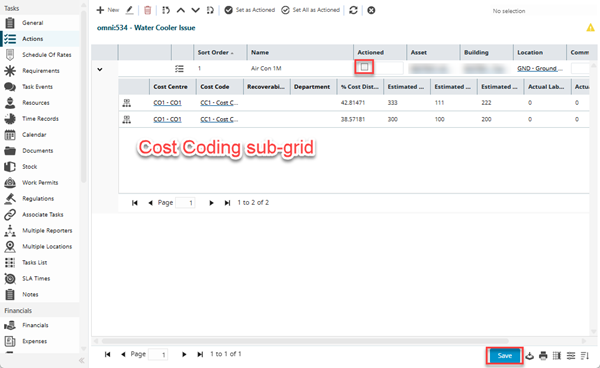
In addition to the toolbar buttons, Task Actions can be marked as Actioned directly in the grid by checking the check-box highlighted above and clicking the Save button, also highlighted.
Toolbar Icons
| Icon | Feature | Description |
|---|---|---|

|
New | Click to add a new Action. |

|
Edit | Select an Action in the grid and click to edit. |

|
Delete |
Select one or more Action records in the grid and click to delete. |

|
Move to First | Select an Action in the grid and click to move it to first place in the list. |

|
Move Up | Select an Action in the grid and click to move it up one place in the list. |

|
Move Down | Select an Action in the grid and click to move it down one place in the list. |

|
Move to Last | Select an Action in the grid and click to move it to last place in the list. |

|
Set as Actioned | Highlight one or more Actions and click to action multiple Task Actions. |

|
Set All as Actioned | Click to action all Task Actions in the grid. |

|
Refresh | Click to Refresh the grid. |

|
Close | Click to Close the input panel. |
To add a new Action click New  , to edit an existing Action click Edit
  . A pop up window will appear which will allow the creation or amendment of a Action.
 Click to view - Task Actions Fields and Descriptions
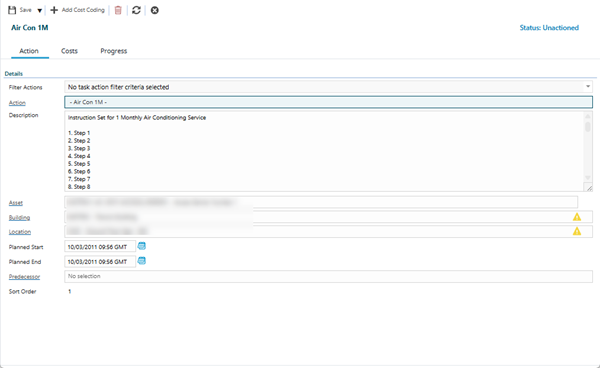
| Field Name | Description |
|---|---|
| Action Tab Available from 6.1.0.0 | |
| Details | |
| Filter Actions |
Available from 6.1.0.0 Optionally select the appropriate filter option(s) from the drop-down:
Where multiple filter options are enabled, the enabled filters are applied in addition to each other to further restrict the Action auto-complete below. The selected filter value(s) will be persisted for the current user. |
| Action |
Available from 6.1.0.0 Select the appropriate Instruction Set for the Task Action. The list of available Instruction Sets is subject to the following:
This is the old 'Name' field that's been renamed and updated. |
| Description | Auto-populated with the description of the Task Action - if created by "Generate Task Actions" or an Instruction Set has been selected manually in the name field, this will be the Instruction Set - Instruction Set Text. |
| Asset |
Auto-populated with the parent Task's Asset for the Task Action to be completed against - if creating manually select the Asset from the drop down. If the parent Task has no Asset defined, this field will be blank. When manually selecting an Asset, the list of available Assets is filtered by the Building and Location values when defined below. |
 |
Available from 6.1.0.0 When adding a new Task Action record, a clear Asset button is available to the right of the Asset field. Clicking it will clear the Asset, Building and Location fields. The button is not available when editing existing Task Action records. |
| Building |
Auto-populated with the Building the parent Task's Asset is located in. If the parent Task has no Asset defined, this field will be auto-populated with the parent Task's Building. It is possible to display the relevant parent/child relationship data in this auto-complete by enabling the Enable Hierarchical Auto-Completes option in the General Preferences page. |
| Location |
Auto-populated with the Location the parent Task's Asset is located in. If the parent Task has no Asset defined, this field will be auto-populated with the parent Task's Location. It is possible to display the relevant parent/child relationship data in this auto-complete by enabling the Enable Hierarchical Auto-Completes option in the General Preferences page. |
| Planned Start |
Available from 6.1.0.0 Enter a date the Task Action work is due to begin. This field may be auto-populated depending on the Planned Start Date Task Preference value defined. |
| Planned End |
Available from 6.1.0.0 Enter a date the Task Action work is due to finish. This field may be auto-populated depending on the Planned End Date Task Preference value defined. |
| Predecessor |
Available from 6.1.0.0 It is possible to define dependencies within Task Actions by selecting another Task Action related to the parent Task as a predecessor. |
| Sort Order |
Available from 6.1.0.0 Read only field that displays the sequence number of the Task Action in the Actions grid. The first record in the grid will be 1, the second will be 2 and so on. Using the grid toolbar buttons to change the order of the Task Actions will automatically update this value for the records affected. |
| Costs Tab Available from 6.1.0.0 | |
| Estimates | |
| Cost Calculation |
Available from 6.1.0.0 Select the most appropriate radio button option for the Task Action:
This value will be auto-populated based on either a Task system preference or a preference set against the parent Task's Contract. If the Default Cost Calculation Type for Task Actions Task system preference is set to:
It is only be possible to select a value in the Cost Calculation type radio box for the first Task Action added to a Task. Once a Task Action has been added and saved for a Task, all subsequent actions will use the same Cost Calculation type as the first. For subsequent Task Actions added to the Task, the Cost Calculation type radio box field will be disabled. |
| Est. Materials |
Available from 6.1.0.0 Enter an estimate of the cost of the Materials required to carry out the current Task Action. If the Cost Calculation type above is set to:
The value entered here will impact the Est. % Distribution field below, upon save. |
| Est. Plant |
Available from 6.1.0.0 Enter an estimate of the Plant cost required to carry out the current Task Action. If the Cost Calculation type above is set to:
The value entered here will impact the Est. % Distribution field below, upon save. |
| Est. Labour |
Available from 6.1.0.0 Enter an estimate of the Labour cost required to carry out the current Task Action. If the Cost Calculation type above is set to:
The value entered here will impact the Est. % Distribution field below, upon save. |
| Est. % Distribution |
Available from 6.1.0.0 A read only field that displays a calculated value of the current Task Action's Estimated Costs as a percentage of the parent Task's Estimated Costs. |
| Est. Total |
Available from 6.1.0.0 A read only field that displays a sum of the Estimated Cost fields above. |
| Est. Time |
Available from 6.1.0.0 Enter an estimate of the Time required to carry out the current Task Action. If the Cost Calculation type above is set to 'Add to Task Estimates':
|
| Actuals | |
| Actual Materials |
Available from 6.1.0.0 Enter the Actual Cost of the Materials it took to carry out the current Task Action. This field will be updated based upon the parent Task's Actual Materials upon save of the parent Task. Actual Material Costs from the parent Task will be apportioned across related Task Actions based on the Est. % Distribution field above. |
| Actual Plant |
Available from 6.1.0.0 Enter the Actual Plant Cost it took to carry out the current Task Action. This field will be updated based upon the parent Task's Actual Plant upon save of the parent Task. Actual Plant Costs from the parent Task will be apportioned across related Task Actions based on the Est. % Distribution field above. |
| Actual Labour |
Available from 6.1.0.0 Enter the Actual Labour Cost it took to carry out the current Task Action. This field will be updated based upon the parent Task's Actual Labour upon save of the parent Task. Actual Labour Costs from the parent Task will be apportioned across related Task Actions based on the Est. % Distribution field above. |
| Total |
Available from 6.1.0.0 A read only field that displays a sum of the Actual Cost fields above and from the parent Task's Actuals. |
| Duration |
Available from 6.1.0.0 The Actual Time it took to carry out the current Task Action. This value most likely be populated by an external system such as Evolution Go. |
| Cost Code Distribution | |
|
Available from 6.1.0.0 Task Action Cost Code Distribution Grid |
|
| Progress Tab Available from 6.1.0.0 | |
| Progress | |
| Actioned | Check the box to mark the Task Action as "Actioned". |
| Actioned By |
Available from 6.1.0.0 Read only field to display the name of the User Account that marked the Task Action as "Actioned". |
| Date Actioned |
Available from 6.1.0.0 Read only field that displays the date and time the Task Action was marked as "Actioned". |
| Duration |
Available from 6.1.0.0 The Actual Time it took to carry out the current Task Action. This value most likely be populated by an external system such as Evolution Go. |
| Time Record |
Available from 6.1.0.0 The Time Record associated with carrying out the current Task Action. This value most likely be populated by an external system such as Evolution Go. |
| % Complete |
Available from 6.1.0.0 Optional field allowing users to enter a value from 0 to 100 to represent how complete the Task Action is. |
| Comments | Free text comments relevant to the Task Action. |
 Available from 7.0.0.0
Complete the fields and click Save and Close  .
.
Toolbar Icons
| Icon | Feature | Description |
|---|---|---|

|
Save Button Group |
|
|
|
Add Cost Coding |
Available from 6.1.0.0 Click to add a new Task Action Cost Coding record. The toolbar button is only available if the Enable Advanced Costs & Distribution for Task & PPM Actions Task Preference is enabled. |
|
|
Delete Action | Click to delete the current Task Action. |
|
|
Refresh | Click to refresh the Cost Code Distribution grid in the Costs tab. |
|
|
Close | Click to Close the Task Action page. |
Click to view - Task Action Cost Coding Fields and Descriptions
Available from 6.1.0.0
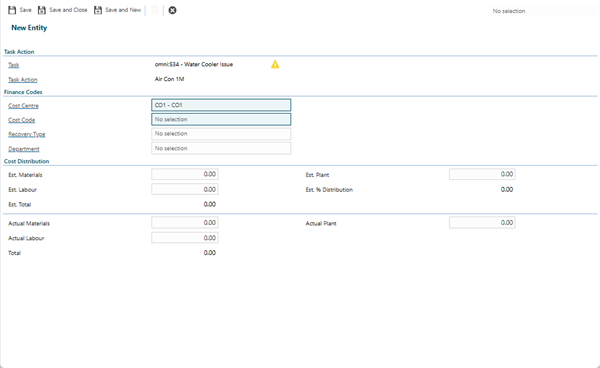
| Field Name | Description |
|---|---|
| Task Action | |
| Task |
Available from 6.1.0.0 A read-only field that displays the parent Task's id. |
| Task Action |
Available from 6.1.0.0 A read-only field that displays the parent Task Action's id. |
| Finance Codes | |
| Cost Centre |
Available from 6.1.0.0 If the parent Task has a Cost Centre defined, this will be auto-populated but a different Cost Centre can be selected for the Task Action Cost Coding record. Cost Centres that have a Historic or Suspended state are excluded from this list. In addition to any Contract View restrictions applied to Cost Centres for the Contract related to this entity, this field may be additionally filtered to show only those Cost Centres that have been assigned to the related Building. If a Cost Centre that's assigned to the related Building is set as the default for the Building it will be set automatically in this Cost Centre auto-complete. If the user subsequently changes the related Contract, where the selected Cost Centre is not available, the Cost Centre value (and Cost Code if selected) will be cleared. |
| Cost Code |
Available from 6.1.0.0 If the parent Task has a Cost Code defined, this will be auto-populated but a different Cost Code can be selected for the Task Action Cost Coding record. - for more information see Cost Codes. Cost Codes marked as Locked against the Cost Centre are excluded from this list. If a Recovery Type has been selected below and the selected Recovery Type has the Enable Department Section check-box:
Cost Codes with no specific Use value defined will be excluded from the list - Available from 6.1.2.0 |
| Recovery Type |
Available from 6.1.0.0 If the parent Task has a Recoverability Type defined, this will be auto-populated but a different Recovery Type can be selected for the Task Action Cost Coding record - for more information see Recoverability Types. |
| Department |
Available from 6.1.0.0 From the drop down select the Department for the Task Action Cost Coding where the Department is available in the Building of the parent Task. The field will be disabled if a Recoverability Type above has not been selected and the selected Recoverability Type has the Enable Department Section check-box checked. |
| Cost Distribution | |
| Est. Materials |
Available from 6.1.0.0 Enter an estimate of the cost of the Materials required to carry out the current Task Action Cost Coding. If the Task Preference for Enable Advanced Costs & Distribution for Task & PPM Actions is set to True and:
|
| Est. Plant |
Available from 6.1.0.0 Enter an estimate of the cost of the Plant required to carry out the current Task Action Cost Coding. If the Task Preference for Enable Advanced Costs & Distribution for Task & PPM Actions is set to True and:
|
| Est. Labour |
Available from 6.1.0.0 Enter an estimate of the cost of the Labour required to carry out the current Task Action Cost Coding. If the Task Preference for Enable Advanced Costs & Distribution for Task & PPM Actions is set to True and:
|
| Est. % Distribution |
Available from 6.1.0.0 A read only field that displays a calculated value of the current Task Action Cost Coding's Estimated Costs as a percentage of the parent Task Action's Estimated Costs. |
| Est. Total |
Available from 6.1.0.0 A read only field that displays a sum of the Estimated Cost fields above. |
| Actual Materials |
Available from 6.1.0.0 Enter the Actual Cost of the Materials it took to carry out the current Task Action Cost Coding. |
| Actual Plant |
Available from 6.1.0.0 Enter the Actual Cost of the Plant it took to carry out the current Task Action Cost Coding. |
| Actual Labour |
Available from 6.1.0.0 Enter the Actual Cost of the Labour it took to carry out the current Task Action Cost Coding. |
| Total |
Available from 6.1.0.0 A read only field that displays a sum of the Actual Cost fields above. |
Complete the fields and click Save and Close .