PPM Planner
PPM Planner provides a visual scheduling interface for managing your Planned Preventative Maintenance tasks before they are issued. Use it to schedule, reschedule, and balance workload across weekly time-lines using simple drag-and-drop.
Getting Started: Select at least one of Contract or Contract Group (required), then optionally apply any additional filters to narrow your view. Filters without selections will display all matching values in the grid. Your scheduled maintenance tasks appear as colour-coded blocks across a weekly calendar view.
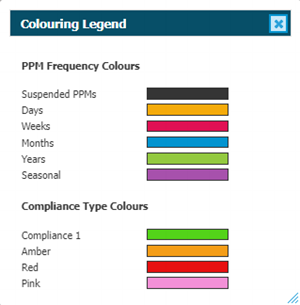
Colour Codes: Tasks are colour-coded by frequency to help you quickly identify maintenance schedules:
- Orange = Daily tasks
- Red = Weekly tasks
- Blue = Monthly tasks
- Green = Yearly tasks
- Purple = Seasonal tasks
- Black = Suspended tasks
The number displayed on each block shows the frequency interval (for example, "4" on a blue block means every 4 months).
Understanding the Layout: The planner displays tasks in rows by Asset (pink and yellow alternating colours indicate Assets in the same Task Family) and columns by week (numbered with Monday dates). The footer shows important capacity information: Hours Required (estimated time needed), Supplier Hours (available staff hours from Rotas), and % Committed (percentage of available capacity used).
Managing Tasks: You can easily manage individual tasks:
- Reschedule - Click and drag a task horizontally to move it to a different week
- Add - Right-click on empty space and select Add
- Suspend - Right-click on a task and select Drop Dormant Record
- Delete - Right-click on a task and select Delete Dormant Record
How It Works: The planner only shows tasks that are not yet issued (dormant status). Once you issue a task, it disappears from the planner and becomes visible in the Tasks grid as an active work order.
Practical Uses: Use PPM Planner to balance your maintenance workload, avoid busy periods, ensure compliance with regulatory requirements, and identify weeks where you may need additional staff. Many organizations review the planner quarterly or annually to optimize maintenance scheduling and resource allocation.
 Available from 7.0.0.0
This function will now open in the same window as MRI Evolution, instead of a separate window, by default.
Users will still have the option to open the function in a separate window.
Either the Close  button will be hidden and the Open in new window
  button will be displayed or vice versa, depending on whether the page is opened in a page of its own, or not.
Task Management > PPMs > PPM Planner
The PPM Planner only shows Dormant PPMs, once a PPM has been issued it will disappear from the Planner and be viewable in Tasks.
The PPM Planner can be filtered to make the view of the Planner easier to manage and view. A minimum filter of Contract Group or Contract must be applied.
Available from 4.5.6.0
The PPM Planner Filter bar is on the right hand side of the planner, this panel can be displayed or hidden by clicking on the dark grey bar halfway up.
Available from 6.0.1.0
Users will not be able to select a Contract with a Contract Type of Triage Only in the Contract filter.
Available from 6.3.0.0
Support has been added to the PPM Planner for PPMs with a Daily frequency:
-
Daily PPMs are displayed with a
 icon
icon -
New Days frequency added to the Legend
-
Days of the week added to the hover tool-tip
-
Hours Required and % Committed footer calculations have been updated:
-
The Hours Required for Daily PPMs is based on the Estimated Time of the PPM multiplied by the number of Tasks that would be generated within that week
-
Calculations for % Committed use the adjusted Estimated Time for Daily PPMs
-
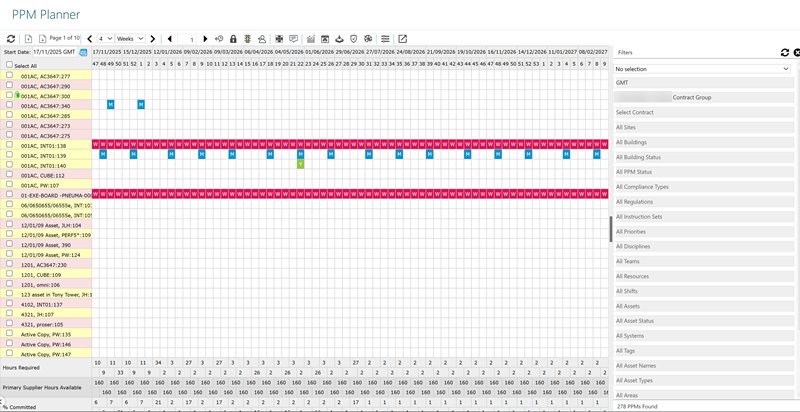
- The numbers along the top of the window indicate the week numbers with the date of the first Monday in the Month.
- Hovering the mouse cursor over a specific week number will display the date of the Monday of that week.
- Pink and Yellow coloured Row Headers indicate Assets in the same Task Family. A change in colour indicates either a change in the Asset or the Family of the PPM.
- Tasks frequencies will alter the colour of PPMs displayed in the Planner. The number displayed in each instance of a Weekly, Monthly or Yearly PPM indicates the frequency:
- Red = Weekly
- Blue = Monthly
- Green = Yearly
- Purple = Seasonal
- Black = Suspended
- Hours Required will show the number of hours required to complete the PPMs. Supplier Hours shows the number of hours available per week (calculated from Rotas). The last row shows what the percentage of available hours that would need to be committed to Tasks for that week.
- A single PPM my be rescheduled by clicking and dragging the PPM horizontally on the same Line.
- A single PPM may be dropped by right clicking on the PPM and selecting Drop Dormant Record. Available from 4.5.6.0
- A single PPM can be deleted by right clicking on the PPM and selecting Delete Dormant Record. Available from 4.5.6.0
- A single PPM may be added by right clicking on a white space on the line and selecting Add.
 Click to view - PPM Planner Icons and Descriptions


 and Resume PPM
  .
.



 , Move Up
  , Move Down
  and Move Last
Complete the required changes and close the window.