Booking Planner
Available from 6.5.0.0
Use the Facilities Booking Planner to view, create, and manage bookings in a visual calendar. Filter by building, room type, or attendees to find available slots and optimize resource use.
Business Value: Simplifies booking management, reduces scheduling conflicts, and helps users make the most of available facilities.
 Available from 7.0.0.0
This function will now open in the same window as MRI Evolution, instead of a separate window, by default.
Users will still have the option to open the function in a separate window.
Either the Close  button will be hidden and the Open in new window
  button will be displayed or vice versa, depending on whether the page is opened in a page of its own, or not.
Modules > Facilities Booking > Booking Planner
The link will open a pop up window of the Planner which will allow the creation or amendment of a Facilities Bookings.
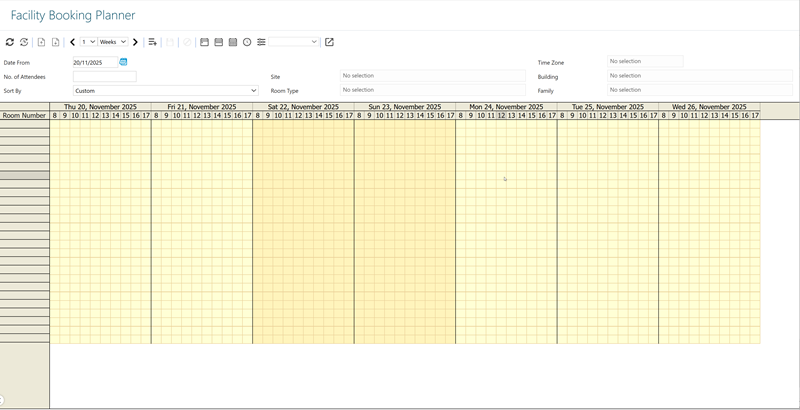
- To create a list of bookable rooms click Refresh Plan
 . The Planner will build to show the bookable rooms available to the User.
 - A single line booking can be made by holding down the left mouse key and swiping the required time span, right click on the booking and select New.
- A booking can be edited by right clicking on a booking and selecting Edit.
- A booking can be copied by right clicking on a booking and selecting Copy, the booking can then be pasted in an available room in the Planner.
- A booking item status can be changed by right clicking on a booking and selecting Change Booking Item Status, the required status can then be selected from the drop down.
Planner Icons
| Icon | Feature | Description |
|---|---|---|

|
Auto Refresh | Click the icon to make the planner auto-refresh according to the setting in Facilities Booking Preferences. |


|
Previous / Next Page | Click the Icon to scroll up and down through the Planner pages. |


|
Scroll Left / Right | Click to scroll left and right through the Planner pages. |

|
Add Bookings | Click to add multiple booking lines to one booking, once the icon has been clicked swipe out the lines that are to be booked. |

|
Commit Temporary Bookings | Once booking lines have been added via Add Bookings , they must be committed to proceed with the booking. |

|
Cancel Temporary Bookings | If booking lines have been added via Add Bookings , and all lines are not required this will cancel and release the rooms. |

|
View Day | Rebuilds the Planner to a day view. |

|
View Week | Rebuilds the Planner to a week view. |

|
View Month | Rebuilds the Planner to a month view. |

|
Switch between 24 Hours or Planner Default Time | Clicking the icon will switch the planner between a 24 hour view and the times set in the User Preference. See Facilities Booking User Preferences. |

|
Open User Preferences | Links the User to set their Facilities Booking User Preferences for the Planner. |
|
|
Close or Open in new window |
This function will now open in the same window as MRI Evolution, instead of a separate window, by default. Users will still have the option to open the function in a separate window. Either the Close |
Once the Locations have been selected the booking can be completed see Facilities Booking. See Facilities Booking.