Supplier Quotes
Supplier Quotes manage competitive pricing submissions from multiple suppliers responding to a Requested Quote, enabling cost comparison and procurement decisions. After creating a Requested Quote (for example, "Replace HVAC unit Building A"), assign multiple suppliers to specific line items by clicking Assign, selecting relevant suppliers (for example, HVAC Specialist Ltd, Climate Control Services, Mechanical Solutions), then click Request Quote to send the pricing request and change status to Active. Suppliers can enter costs via Evolution Connect self-service portal (they log in, view requested items, submit pricing and delivery time-scales) or internal staff can record quotes received by phone or email. The grid displays all supplier responses with costs, delivery dates, and terms compare submissions side-by-side to evaluate best value considering price, delivery speed, supplier performance history, and compliance requirements. Accept the preferred quote by clicking Accept (creates a Purchase Order), reject unsuitable quotes (for example, price too high, delivery too slow), or request clarification. This supports competitive tendering requirements (for example, three quotes for purchases over £5000), demonstrates value for money in procurement audits, and integrates with PO workflows for seamless order placement once supplier selection is complete.
Modules > Quotes > Requested Quotes > Supplier Quotes
The link will open the Requested Quotes / Supplier Quotes grid. It is a two grid view which can be sorted and customised as normal. The upper grid will show all Suppliers assigned to the Requested Quote. The lower grid will show the Supplier costs for the Supplier highlighted in the upper grid.
To assign Suppliers click Assign  , entities in the right hand assignment window are connected.
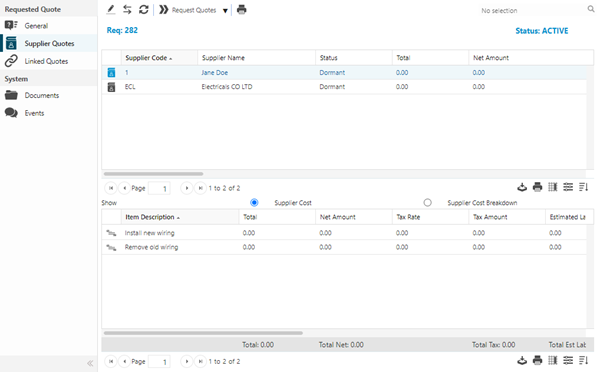
Costs must then be requested from the Supplier. Highlight the required Suppliers and click  Request Quote, the Requested Quote will now have the status in MRI Evolution of Active.
To add costs for a Supplier , double click the Supplier in the Upper Grid.
If Evolution Connect is in use see the Supplier can log on to Evolution Connect and repeat the below process. The Quote in Evolution Connect will have the status of Requested.
 Click to view - Supplier Quote Fields and Descriptions
 Available from 7.0.0.0
Complete the fields and click Save  . Once the Requested Supplier header has been completed and saved the costs can be added to the individual line items.
Adding Costs to Line Items
Click to view more detail.
Each line item can have costs allocated to it. These can be altered until the Quote is either accepted or rejected if using MRI Evolution to record the costs.
If Evolution Connect is in use see the Quote is amendable until it is submitted back to MRI Evolution.
Modules > Quotes > Requested Quotes > Supplier Quotes
Double click on a Line item, A pop up window will appear which will allow the Requested quotes costs to be recorded.
Estimated Costs can be added directly into the estimated fields, however it is recommended that the Add Supporting Costs function is used which will then auto-populate the Estimated Cost fields.
Click to view Costs to Line Items Fields and Descriptions
Click to view Supporting Cost Breakdown Fields and Descriptions
Multiple supporting cost breakdowns can be added for a line item so 2 Labour charges could be entered if required.
Submission History
Click to view more detail.
If Evolution Connect is in use, Submission history will show when a sub contractor submitted a quote and any subsequent submissions if quotes have been returned to them.
Modules > Quotes > Requested Quotes > Supplier Quotes
The link will open the Supplier Quotes / Submission History grid. It is a grid view that can be customised and sorted as normal.
Complete the fields and click Save and Close  .
.
Additional Supplier Quote Features and Icons
| Icon | Feature | Description |
|---|---|---|

|
Edit | Line items can be edited by highlighting the Line Item and clicking Edit. |
|
|
Assign | Click to assign Suppliers to the current Supplier Quote record. |

|
Refresh | Click to refresh the page. |
| State Change Button Group | ||
|
|
|
Click to request a quote from the selected Supplier(s). |

|
|
Click to Refer the Quote from the Supplier to another User - this can only be done with Active Quotes - for more information see Quote Referral Reasons. |

|
|
Click to Return the Quote to the selected Supplier for them to amend - Evolution Connect module required. |

|
|
Click to Approve the Quote from the selected Supplier and Reject all other Quotes, a generic rejection reason can be selected to reject any other assigned Suppliers. |

|
|
Click to Reject the Quote from the selected Supplier. Rejecting Quotes individually allows different rejection reasons and comments to be added to each Supplier. |

|
Duplicate Query | If the Requested Quotes User Preference has not been set to auto-check for duplicate quotes this can be manually checked by clicking Duplicate Query. |

|
Open Report | Click to open the Requested Supplier Quote report. |