Utilities Register
The Utilities Register tracks energy and resource consumption (for example, electricity kWh, gas cubic meters, water litres) across buildings, providing real-time visibility into usage trends, costs, and performance for sustainability, cost optimization, and compliance. Create a utility record for each meter or supply point by specifying the Utility Type (electricity, gas, water, heating oil), Measurement Unit (kWh, cubic meters, litres), supplier details, and account reference. Record meter readings at regular intervals (for example, monthly or quarterly), either manually through the Readings sub-navigation or via automated import from building management systems. The system calculates consumption between readings, tracks costs based on supplier rates, and generates trend reports showing usage patterns (for example, increased heating in winter, peak electricity during summer cooling). Use this data to identify inefficiencies (for example, unusually high overnight consumption indicating equipment left running), support budget forecasting for utility costs, meet regulatory reporting requirements (for example, carbon emissions, energy performance certificates), and demonstrate progress toward sustainability targets (for example, 15% reduction in electricity use year-over-year).
 Available from 7.0.0.0
The Purchase Key licence dependency for this specific element of the system has been removed and is now included as standard in the core MRI Evolution product the feature has been turned on for all systems by default.
Note: Other restrictions, such as User licence type restrictions and / or any restrictions to underlying functionality that is dependent upon Purchase Key licences will remain in place.
Facilities > Utilities
The link will open the Utilities grid. It is a grid view which can be searched, sorted and customised as normal.
To add a new Utility click New  , to edit an existing Utility click Edit
  . A pop up window will appear which will allow the creation or amendment of a Utility.
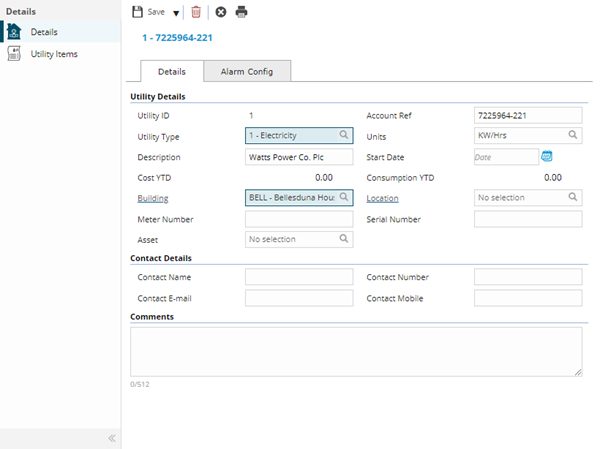
| Field Name |
Description |
| Utility Details
|
| Utility ID |
Auto-populated with the next sequential Utility ID |
| Account Ref |
The unique account number or reference assigned by the utility supplier for this service connection. Used to reconcile bills, query invoices, and identify the account when contacting the supplier's customer service team. For organizations with multiple meters, each meter may have a separate account reference, or several meters may share a single account reference depending on the billing arrangement. Essential for matching supplier invoices to the correct utility record and ensuring accurate cost allocation across buildings or cost centers. |
| Utility Type |
From the drop down enter the Utility Type - for more information see Utility Types. |
| Units |
From the drop down enter the Measurement Unit - for more information see Measurement Units. |
| Description |
The description of the Utility. |
| Start Date |
The date the Utility was brought on line. |
| Cost YTD |
Auto-calculated with the Cost of the Utility - year to date |
| Consumption YTD |
Auto-calculated with the consumption of the Utility - year to date |
| Building |
From the drop down select the Building - for more information see Building Register.
Available from 7.0.0.0 It is possible to display the relevant parent/child relationship data in this auto-complete by enabling the Enable Hierarchical Auto-Completes option in the General Preferences page. |
| Location |
From the drop down select the Location - for more information see Location Register.
Available from 7.0.0.0 It is possible to display the relevant parent/child relationship data in this auto-complete by enabling the Enable Hierarchical Auto-Completes option in the General Preferences page. |
| Meter Number |
The unique identifier displayed on the physical utility meter, typically found on the meter faceplate or body. This number is used by the supplier to identify which specific meter generated the readings on your bill and is essential when reporting meter faults, requesting meter replacements, or arranging meter inspections. Record this number exactly as it appears on the meter to avoid confusion. When meters are replaced, update this field with the new meter number and document the change in the comments for audit trail purposes. |
| Serial Number |
The manufacturer's serial number for the meter equipment or monitoring device. This may differ from the meter number and is typically used for warranty claims, equipment tracking, or maintenance of smart meters and automated monitoring equipment. For traditional analog meters, this field may be left blank if only the meter number is relevant. For modern smart meters or building management system sensors, record the equipment serial number to track device installations, firmware updates, or equipment replacements over time. |
| Asset |
From the drop down select the Asset the Utility is connected to - for more information see Asset Register. |
| Contact Details |
| Contact Name |
The contact name for the Utility. |
| Contact Number |
The contact number for the Utility. |
| Contact E-mail |
The contact e mail address for the Utility. |
| Contact Mobile |
The contact mobile number for the Utility. |
| Comments |
| Comments |
Relevant comments for the Utility. |
Alarm Config Tab is for use with MRI Energy module, this will be configured with MRI Software on install if required.
Complete the fields and click Save  . Once the Utility header has been completed and saved a sub navigation will appear to allow additional entities to be created.
These include:
Utility Items
 Click to view more detail.
Utility consumption can be recorded and monitored from Utility Items
Facilities > Utilities
The link will open the Utilities / Utility Items grid. It is a grid view that can be customised and sorted as normal.
To add a new Utility Item click New , to edit an existing Utility Item click Edit . A pop up window will appear which will allow the creation or amendment of a Utility Item.
| Field Name |
Description |
| ID |
| Utility Item ID |
Auto-generated with the next sequential Utility Id number |
| Dates |
| Date from |
The date the reading was taken from. |
| Date To |
The date the reading was taken to. |
| Consumption |
| Actual Reading |
The confirmed meter reading taken directly from the physical meter or received from the supplier's billing statement. This represents the cumulative total displayed on the meter at a specific date (e.g., 34521 kWh on the electricity meter). Actual readings are more accurate than estimates and are used by suppliers to calculate precise bills. Can be entered manually during meter inspections, imported from smart meter systems, or copied from supplier invoices. The system calculates consumption by comparing this reading with the previous actual reading, multiplied by any conversion factors for the measurement unit. |
| Actual Consumption |
The calculated amount of utility consumed during the period between this reading and the previous reading (e.g., 1,250 kWh of electricity used this month). Automatically calculated by subtracting the previous meter reading from the current actual reading, then applying any unit conversions. This value represents real, verified usage based on actual meter readings rather than estimates. Used for accurate trend analysis, budget forecasting, identifying unusual consumption patterns (e.g., sudden spikes indicating equipment issues), and demonstrating progress toward sustainability targets. Compare actual consumption against historical averages to detect inefficiencies or validate energy-saving initiatives. |
| Actual Cost |
The confirmed cost charged by the supplier for utility consumption during this period, as shown on the actual invoice or billing statement. This amount reflects the real price paid, including unit rates, standing charges, taxes, and any applicable tariffs or seasonal variations. Used to reconcile supplier invoices, allocate costs to buildings or departments, track year-to-date spending, and identify budget variances. Comparing actual costs against estimated costs reveals billing accuracy and helps validate budgeting assumptions. Essential for financial reporting, cost recovery from tenants, and demonstrating return on investment from energy efficiency projects. |
| Estimated Reading |
A projected meter reading calculated by the supplier when an actual meter reading is unavailable. Suppliers use historical consumption patterns to estimate current usage when meters cannot be accessed, are faulty, or readings were not submitted on time. Estimated readings are typically marked with an "E" on supplier bills. Record these to maintain complete billing history, but always submit actual readings when possible to ensure accurate billing. When an actual reading is later obtained, suppliers will adjust the account, potentially resulting in catch-up charges or credits. Track estimated readings to identify patterns of inaccessible meters requiring attention. |
| Estimated Consumption |
The projected amount of utility consumed during the period, calculated from estimated meter readings rather than actual readings. Based on historical usage patterns from previous periods, adjusted for seasonal variations or known changes. Less accurate than actual consumption since it relies on assumptions rather than verified meter data. Use estimated consumption for interim budget tracking or forecasting when actual readings are delayed, but always reconcile with actual consumption once verified readings are available. Persistent reliance on estimates may indicate meter access issues or data collection problems requiring investigation. |
| Estimated Cost |
The projected cost calculated from estimated consumption and current tariff rates, used when actual billing data is not yet available. Provides interim budget tracking between actual bills but may not reflect the true cost due to changes in consumption patterns, tariff variations, or seasonal pricing. When the actual bill arrives, differences between estimated and actual costs can result in significant adjustments - either additional charges if consumption was higher than estimated, or credits if it was lower. Use estimated costs cautiously for financial planning and always reconcile with actual costs to maintain accurate budget forecasts and prevent unexpected variances in financial reporting. |
Complete the fields and click Save and Close  .
.
To view Utility consumption click the  button to run the UTIL-001 Utility Report . Available from 4.4.7.0
Utilities can also be created and amended from the Building or Location entity.