Requested Quotes
Sub-contractor cost estimation and comparison system with Connect module integration for supplier self-service submissions. Manages quote headers, line items, supplier response tracking, cost comparison, and approval/rejection workflows with Historic and Cancelled record toggle for current and past request management.
Available from 6.2.0.0
The Requested Quotes grid now includes a Show Historic Records toggle icon -  . Clicking this icon will show or hide Historic and Cancelled Requested Quote records, making it easier to manage both current and past requests.
Modules > Quotes > Requested Quotes
The link will open the Requested Quotes grid. It is a grid view which can be searched, sorted and customised as normal.
To add a new Requested Quote click New  , to edit an existing Requested Quote click Edit
  . A pop up window will appear which will allow the creation or amendment of a Requested Quote.
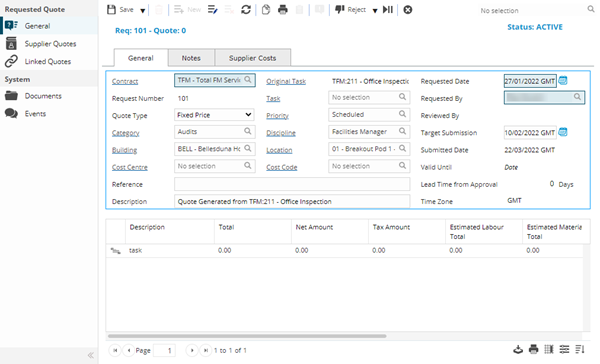
 Click to view - Requested Quotes General Fields and Descriptions
Click to view Notes Tab Fields and Descriptions
Click to view Supplier Costs Tab Fields and Descriptions - this fields will auto-populate from the approved Suppliers Quote
Complete the fields and click Save  . Once the Requested Quote header has been completed and saved a sub navigation will appear to allow additional entities to be assigned.
These include:
- Supplier Quotes
- Linked Quotes
Adding Quote Line items
Click to view more detail.
The Quote can be broken down into distinct parts, each of which can have prices associated to help with the Quote cost breakdown to see where and how money is spent.
Modules > Quotes > Requested Quotes
To add a Quote Line Item click Add item  , A pop up window will appear which will allow the creation or amendment of a Quote Line Item.
Click to view Quote Line Items Fields and Descriptions
Quote Line Items can be amended by highlighting the line and clicking Edit Item  .
.
Quote Line Items can be deleted by highlighting the line and clicking Delete Item  .
.
Supplier Quotes
Click to view more detail.
Once a Requested Quote Header has been created and the Quote Line Items added, the quote can be sent to the required Suppliers.
Modules > Quotes > Requested Quotes
The link will open the Requested Quotes / Supplier Quotes grid. It is a grid view that can be customised and sorted as normal.
To assign Suppliers click Assign  , entities in the right hand assignment window are connected.
 Available from 7.0.0.0
Suppliers with a Suspended Status will not be available to assign to the Quote.
Click the  button to run the QT-005 Details of a Requested Supplier Quote report.
To complete Supplier Quote information see Supplier Quotes.
Linked Quotes
Click to view more detail.
It is sometimes necessary to have multiple requested quotes for the same piece of work. It is possible to link these quotes together in MRI Evolution.
Modules > Quotes > Requested Quotes
The link will open the Requested Quotes / Linked Quotes grid. It is a grid view that can be customised and sorted as normal.
To assign Linked Quotes click Assign , entities in the right hand assignment window are connected.
Additional Quote Features and Icons
| Icon | Feature | Description |
|---|---|---|

|
Copy | Click to create a copy of the current Requested Quote. |

|
Open Report | Opens the QT-002 Details of a Requested Quote report. |

|
Create a Task | Once a Quote has been approved, a Task can be raised to complete the Quoted works. Clicking Create a Task raises a Breakdown Task with the Service Type of Quoted Works. |

|
Toggle Review Quote | If a Quote has Quote Review Criteria set against it, it must be reviewed before if can be Approved. If the User has the Permissions Clicking Toggle Review Quote will mark the Quote as Reviewed. |

|
|
Clicking Approve on the Quote header will accept the Quote, this can only be done from the Quote header if there is only one Supplier Quote, otherwise it must be done from the Supplier Quote screen. |

|
|
Clicking Reject on the Quote header will reject the whole quote. Once a Requested Quote has been rejected it cannot be restored. |

|
|
Click to cancel the Quote. Once a Quote has been cancelled it cannot be restored. |

|
|
Click to move the Quote Status to Complete. Once a Quote has been completed it cannot be restored to Approved. |

|
|
Click to move the Quote Status to History. Once a Quote has been moved to History it cannot be restored to Complete. |

|
Toggle on Hold | A Quote can be put ON HOLD at any-time up to the Complete Status. To reactivate the quote re-click Toggle on Hold. |