Facilities Booking
The Facilities Booking grid shows all Facility Facilities Bookings, including cancelled ones if Show/Hide Historic records is enabled. Use this grid to create, manage, or edit Facilities Bookings efficiently.
Modules > Facilities Booking > Facilities Bookings
The link will open the Facilities Bookings grid. It can be personalised and sorted in the normal way.
The grid can be filtered by one or more combinations of the following criteria:
-
Entering a Start date/time and End date/time range
-
only Facilities Bookings within the specified range will be returned in the grid
-
specifying only the Start date/time will return all Facilities Bookings from that date onwards
-
specifying only the End date/time will return all Facilities Bookings up to the specified date
-
-
A selected Site
-
selecting a Site from the list will return only those Facilities Bookings made in Buildings related to the specified Site
-
not selecting a Site from the list will return Facilities Bookings made in Buildings related to any Site
-
the list will only contain Site records related to the Bookable Buildings assigned to the current User
-
-
A selected Building
-
selecting a Building from the list will return only those Facilities Bookings made in the specified Building
-
not selecting a Building from the list will return Facilities Bookings made in any Building
-
the list will only contain the Bookable Buildings assigned to the current User
-
-
A selected Location
-
selecting a Location from the list will return only those Facilities Bookings made in the specified Location
-
not selecting a Location from the list will return Facilities Bookings made in any Location
-
the list will only contain Location records related to the Bookable Buildings assigned to the current User
-
-
Entering free typed Search criteria
-
Applying a Facilities Booking Query from the list
-
Using the standard grid column filters
The filter criteria above work in conjunction with each other. The more criteria defined, the more the grid will be filtered. If the record(s) you are expecting to see are not displayed, try removing or changing the filter criteria.
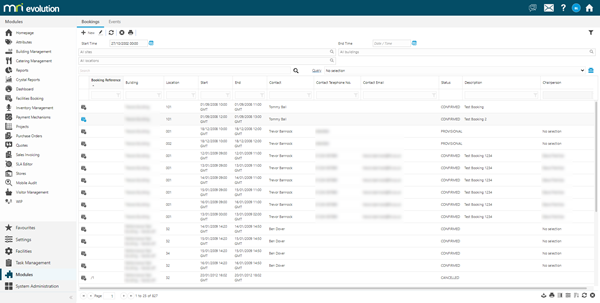
To add a new Facilities Booking click New  , to edit an existing Facilities Booking click Edit
  . A pop up window will appear which will allow the creation or amendment of a Facilities Booking.
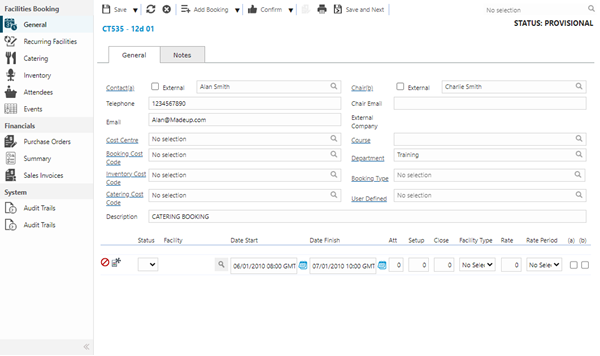
 Click to view - Facilities Bookings Fields and Descriptions
Complete the fields and click Save  . Once the Facilities Booking header has been completed and saved a sub navigation will appear to allow additional entities to be assigned.
These include:
- Recurring Facilities
- Catering
- Inventory
- Attendees
- Events
- Purchase Orders
- Summary
- Sales Invoices
Adding Room Bookings
Click to view more detail.
Once the Facilities Booking header has been completed, rooms can be added to the Facilities Booking. If the Facilities Booking has been made from the planner at least one line will already be populated, this line can be edited or more lines can be added.
Modules > Facilities Booking > Facilities Bookings
To add a Facilities Booking line click Add Booking  , a pop up window will appear which will allow rooms to be searched for.
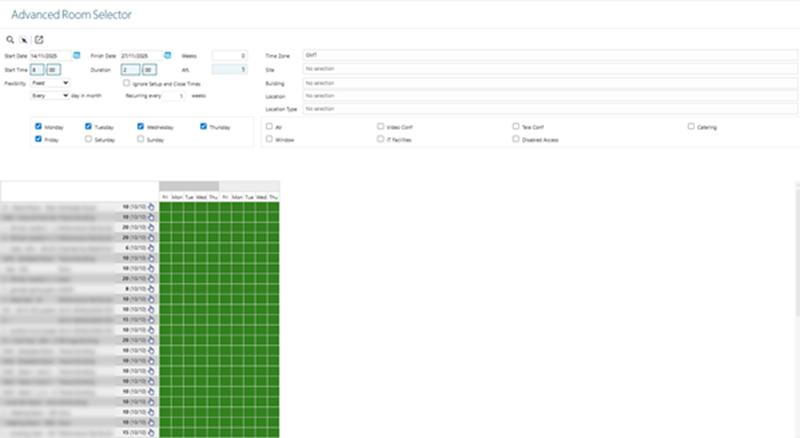
Apply the relevant dates and filters to search for available rooms that meet the required criteria, once the filters have been applied click Search Rooms  .
.
Available rooms will be shown in the bottom of the pop up window, select the required room and click Select item and close form  , the Facilities Booking line will now be added to the Facilities Booking header.
Click to view Booking Line Fields and Descriptions


Recurring Facilities
Click to view more detail.
If a Facilities Booking has multiple Facilities Booking lines with the same Catering / Inventory / Attendee requirements, recurring facilities can be used. This quickly adds recurring facilities to multiple Facilities Booking lines.
Modules > Facilities Booking > Facilities Bookings
The link will open the Recurring Facilities grid.
To assign Catering click Assign  , entities in the right hand assignment window are connected.
Click to view Catering Fields and Descriptions


To assign Inventory click Assign , entities in the right hand assignment window are connected.
Click to view Inventory Fields and Descriptions
To add Attendees click New and populate the Attendee fields.
Click to view Attendee Fields and Descriptions
Complete the fields and click Save .
Catering
Click to view more detail.
Catering can be added to individual lines of a Facilities Booking.
Modules > Facilities Booking > Facilities Bookings
The link will open the Facilities Bookings / Catering grid. It is a grid view which can be searched, sorted and customised as normal.
To assign Catering highlight the line the Catering is to be added too, click Assign , entities in the right hand assignment window are connected.
See Recurring Facilities for Catering fields and descriptions.
Inventory
Click to view more detail.
Inventory can be added to individual lines of a Facilities Booking.
Modules > Facilities Booking > Facilities Bookings
The link will open the Facilities Bookings / Inventory grid. It is a grid view which can be searched, sorted and customised as normal.
To assign Inventory highlight the line the Inventory is to be added too, click Assign , entities in the right hand assignment window are connected.
See Recurring Facilities for Catering fields and descriptions.
Attendees
Click to view more detail.
Attendees can be added to individual lines of a Facilities Booking.
Modules > Facilities Booking > Facilities Bookings
The link will open the Facilities Bookings / Attendees grid. It is a grid view which can be searched, sorted and customised as normal.
To add a new Attendee click New , a pop up window will appear which will allow the creation of an Attendee.
See Recurring Facilities for Catering fields and descriptions.
Events
Click to view more detail.
As a Facilities Booking goes through its life cycle circumstances and information about the Facilities Booking may change. This information can be recorded as Events against the Facilities Booking so that all Users can record and view the latest information.
Modules > Facilities Booking > Facilities Bookings
The link will open the Events grid. It is a grid view which can be searched, sorted and customised as normal.
To add a new Event click New , to edit an existing Event click Edit . A pop up window will appear which will allow the creation or amendment of an Event.
Purchase Orders
Click to view more detail.
Purchase Orders can be created or viewed from a Facilities Booking.
Modules > Facilities Booking > Facilities Bookings
The link will open the Facilities Bookings / Purchase Orders grid. It is a grid view which can be searched, sorted and customised as normal.
To add a new Purchase Order click New , to edit an existing Purchase Order click Edit . A pop up window will appear which will allow the creation or amendment of a Purchase Orders
Summary
Click to view more detail.
The summary sub navigation shows a summary of all items and booked dates of the Facilities Booking
Modules > Facilities Booking > Facilities Bookings
To print a copy of the summary click Booking Invoice Report  .
.
Sales Invoice
Click to view more detail.
Sales Invoices can be created or viewed form a Facilities Booking.
Modules > Facilities Booking > Facilities Bookings
The link will open the Facilities Bookings / Sales Invoices grid. It is a grid view which can be searched, sorted and customised as normal.
To add a new Sales Invoice click New , to edit an existing Sales Invoice click Edit . A pop up window will appear which will allow the creation or amendment of a Sales Invoices
Booking Status and Additional Icons
Facilities Bookings have various statuses:
- Reserved - When a Facilities Booking is first made through the planner it is reserved - this Facilities Booking reservation will be held for 10 minutes and must be saved to provisional to hold longer. To move a Reserved status to Provisional click Save
- Provisional - a Facilities Booking can be held at provisional for as long as is required, the Facilities Booking can be altered and adjusted in this state
- Confirmed - once the Facilities Booking has been confirmed its state can be moved to reflect this. To move a Facilities Booking to the confirmed state click Confirm Booking
 . Facilities Bookings can be altered and adjusted in this state
 - Complete - once a Facilities Booking has been completed its state can be moved to reflect this. To move a Facilities Booking to complete click Complete Booking
 . Facilities Bookings cannot be altered or adjusted in the state
 - Cancel - click Cancel Booking
 to cancel the Booking Header and any Booking Items linked to the Header
| Icon | Feature | Description |
|---|---|---|

|
Add Booking |
Click to open the Room Selector page in a separate window. Enter the search criteria to return matching Bookable Locations in the grid, select the most appropriate Location to add it to the Booking Header. This can be repeated multiple times to add the necessary Facilities Bookings to the Header. |

|
Add Recurring Booking | Click to add Recurring Bookings to the Booking Header. E.g. A team meeting that occurs every Friday at 10am. See Advanced Room Selector |

|
Add Non-Room Booking | It is possible to book out a non bookable room. E.g. Reception could be booked for a book sale. Click the icon and find the non bookable room. Once the room is selected a Facilities Booking line will be added to the Facilities Booking Header. |