Purchase Orders
Procurement lifecycle management tracking goods and services from requisition through fulfilment. Purchase Orders begin as requisitions with Request Numbers for draft editing, then receive Order Numbers upon approval for active processing, tracking, and lifecycle management.
Available from 6.5.0.0
The length of the following field has been increased:
| Field | Old Value | New Value |
|---|---|---|
| Order Number (POH_NUM_ORDER) | 32 | 64 |
Modules > Purchase Orders > Purchase Orders
The link will open the Purchase Orders grid. It is a grid view which can be searched, sorted and customised as normal.
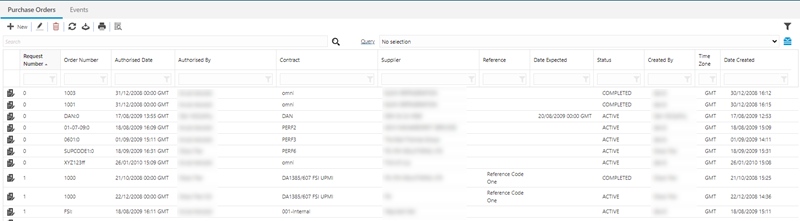
To add a new Purchase Order click New  , to edit an existing Purchase Order click Edit
  . A pop up window will appear which will allow the creation or amendment of a Purchase Order.
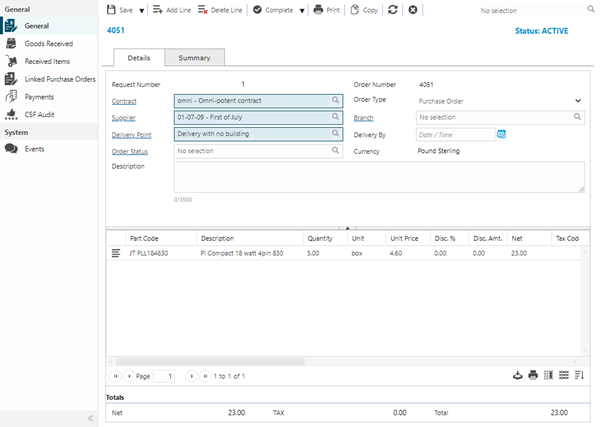
 Click to view - Purchase Orders Details Tab Fields and Descriptions
Available from 6.1.0.0
Click to view - Purchase Orders Summary Tab Fields and Descriptions
Available from 6.1.0.0
Complete the fields and click Save  . Once the Purchase Order header has been completed and saved a sub navigation will appear to allow additional entities to be assigned.
These include:
- Goods Received
- Received Items
- Linked Purchase Orders
- Payments
- CSF Audit
Purchase Order Line Items
Click to view more detail.
Once a Purchase Order Header has been created, the Line Items for the goods on order can be added. If the Purchase Order module is being used in conjunction with the Stores model, specific parts, using the Stores codes can be ordered.
Modules > Purchase Orders > Purchase Orders
To add a new Line Item click Add Item  . A pop up window will appear which will allow the creation or amendment of a Purchase Order Line Item.
Click to view - Line Item Fields and Descriptions
Goods Received
Click to view more detail.
Once the Purchase Order is active and the goods ordered begin to arrive, they can be recorded as delivered.
Modules > Purchase Orders > Purchase Orders
The link will open the Purchase Orders / Goods Received grid. It is a grid view that can be customised and sorted as normal.
To receive and item from the order, select it from the gird and click Add Goods Received  . A pop up window will appear which will allow the goods to be received.
Click to view Goods Received Fields and Descriptions
If multiple goods are delivered they can be bulk received by highlighting multiple items on the grid and clicking All Goods Received - lines cannot be part received in bulk.
Received Items
Click to view more detail.
All items that have been received can be viewed from the Purchase Order. This is a view only grid.
Modules > Purchase Orders > Purchase Orders
The link will open the Purchase Orders / Received Items grid. It is a grid view which can be searched, sorted and customised as normal.
Linked Purchase Orders
Click to view more detail.
If a Purchase Order has been split, the linked Purchase orders can be seen from this grid. This is a view only grid.
Modules > Purchase Orders > Purchase Orders
The link will open the Purchase Orders / Linked Purchase Orders grid. It is a grid view which can be searched, sorted and customised as normal.
Payments
Click to view more detail.
Once goods have been received, any payments, whether full or part, can be recorded against a Purchase Order. Amounts are calculated automatically based on the details entered about delivered goods.
Modules > Purchase Orders > Payments
The link will open the Purchase Orders / Payments grid. It is a grid view which can be searched, sorted and customised as normal.
To add a new Payment click New , to edit an existing Payment click Edit . A pop up window will appear which will allow the creation or amendment of a Payment.
Click to view Payments Fields and Descriptions
Once a payment has been saved, it can be allocated to the Line Items. To allocate payments highlight the payment and click Payment Allocations  .
.
If the amount of the Payment is equal to the Full amount of the PO, the User will be asked if the payment should automatically be allocated and the payment marked as Paid. Click OK to do this, or Cancel to manually allocate the payment.
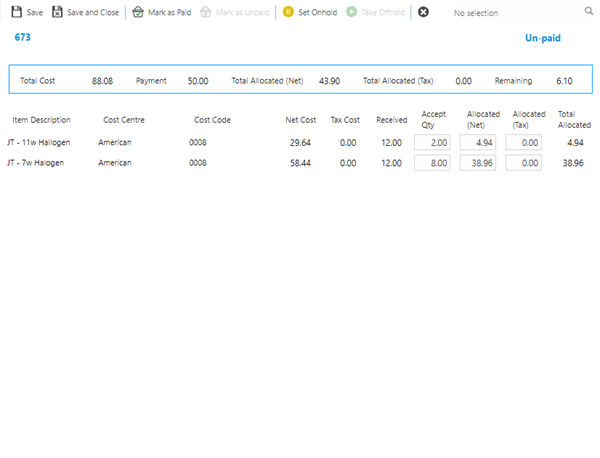
Enter the quantity of received items that are being accepted in the Accepted Qty field. The Allocated (Net) and Allocated (Tax) amounts will be auto-populated, these can be manually edited if the payment being allocated is not the full amount available. Complete the fields and click Save .
The payments can then be marked as paid, click Mark as Paid  .
.
Available from 5.9.0.0 For improved usability, text has been added to the toolbar buttons, a payment status indicator has been added and the display issues of the header have been fixed.
CSF Audit
Click to view more detail.
Customer Satisfaction Audits can be assigned to a Purchase Order.
 Available from 7.0.0.0
The Purchase Key licence dependency for this specific element of the system has been removed and is now included as standard in the core MRI Evolution product the feature has been turned on for all systems by default.
Note: Other restrictions, such as User licence type restrictions and / or any restrictions to underlying functionality that is dependent upon Purchase Key licences will remain in place.
Modules > Purchase Orders > Purchase Orders
The link will open the Purchase Orders / CSF Audit grid. It is a grid view that can be customised and sorted as normal.
To assign a CSF Audit click Assign  , entities in the right hand assignment window are connected.
Purchase Order Additional Icons
| Icon | Feature | Description |
|---|---|---|
|
|
Add Item | Adds a Line Item to the current Purchase Order. |

|
Delete Line Item | Deletes a Line Item from the current Purchase Order. |

|
Activate Purchase Order | Authorises a Purchase Order from Dormant to Active Status. |

|
Split Purchase Order | A Purchase Order can be split if it has two or more Line Items. When a Purchase Order is split, a new Contract, Supplier and Delivery Point can be added. This enables a User to easily split an order at any point if the order cannot be completely fulfilled by the original requested Supplier. |

|
Complete Purchase Order | Completes the Purchase Order - once a Purchase order has been completed it cannot be reactivated. |

|
Purchase job Card | Prints the Purchase Order. |
|
|
Add Goods Received | Receives goods on an active Purchase Order. |
|
|
Allocate Payments | Once a payment has been made, it can be allocated to the Line Items. |
|
|
Paid | Mark payment as paid. |

|
Unpaid | Mark a payment as unpaid. |

|
On Hold | Mark a payment as on hold. |

|
Off Hold | Removes an on hold status. |