Scheduled Task Templates
Scheduled Task Templates are part of the ISM Module and allow users to automate the scheduling of regular, recurring tasks such as perimeter security checks or routine cleaning. All tasks generated by a Scheduled Task Template are automatically displayed on the Task Grid with a Task Type of Scheduled Tasks.
Scheduled Task Templates can be created, edited, and deleted as needed to ensure they meet the evolving needs of your organization, providing a central location to manage and review all scheduled activities.
Task Management > Scheduled Task Templates
The link will open the Scheduled Task Templates grid. It is a grid view which can be searched, sorted and customised as normal.
Available from 5.7.0.0
The Scheduled Task Templates grid has been made a tabbed grid to improve the access and availability of the Scheduled Task data:
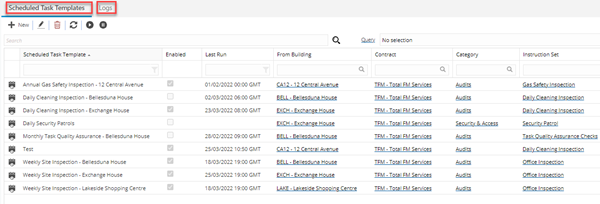
Scheduled Task Templates - Main Grid Tab
 Click to view more detail.
To add a new Scheduled Task Template click New  , to edit an existing Scheduled Task Template click Edit
  . A pop up window will appear which will allow the creation or amendment of a Scheduled Task Template.
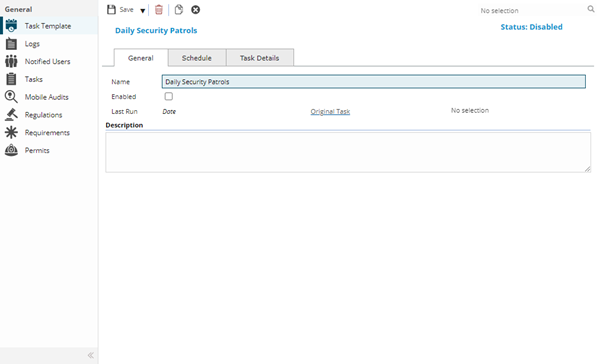
Click to view - Scheduled Task Templates General Tab Fields and Descriptions
Scheduled Task Template Icons and Descriptions
| Icon | Feature | Description |
|---|---|---|
| Toolbar button group - Save | ||

|
Save |
Click to save changes to the current record. |

|
Save and Close | Click to save changes to the current record and close the window. |

|
Save and New | Click to save changes to the current record and refresh the window ready to add a new record. |

|
Delete |
Click to delete the current record. |

|
Copy |
Available from 5.7.0.0 Click to create a copy of the current record. All information from the original Scheduled Task Template will be copied and populated in the input panel to be saved when the user clicks the Save button. |

|
Close |
Click to close the window without saving. |
Click to view - Scheduled Task Templates Schedule Tab Fields and Descriptions
Click to view - Scheduled Task Templates Task Details Tab Fields and Descriptions
Complete the fields and click Save . Once the Scheduled Task header has been completed and saved a sub navigation will appear to allow additional entities to be viewed and assigned.
These include:
- Logs
- Tasks
- Notified Users
- Mobile Audits
- Regulations
- Requirements
- Permits
Logs
Click to view more detail.
Logs is a view only grid that will list of any errors created when Task creation fails.
Task Management > Scheduled Task Templates
The link will open the Scheduled Task Templates / Logs grid. It is a view only grid view that can be customised and sorted as normal.
Tasks
Click to view more detail.
Tasks is a view only grid of all the Scheduled Tasks created so far by the template.
Task Management > Scheduled Task Templates
The link will open the Scheduled Task Templates / Tasks grid. It is a view only grid view that can be customised and sorted as normal.
Notified Users
Click to view more detail.
Notified Users is a list of Users who will be notified if a Task could not be created for any reason. The notification will be sent to the message box in MRI Evolution.
Task Management > Scheduled Task Templates
The link will open the Scheduled Task Templates / Notified Users grid. It is a grid view that can be customised and sorted as normal.
To assign Users click Assign  , entities in the right hand assignment window are connected.
To create Users see User Accounts
Mobile Audits
Click to view more detail.
If using the Evolution Go module, Mobile Audits can be attached to Scheduled Tasks.
Task Management > Scheduled Task Templates
The link will open the Scheduled Task Templates / Mobile Audits grid. It is a grid view that can be customised and sorted as normal.
To create Mobile Audits see Helpdesk - Audits - Evolution Go module
Regulations
Click to view more detail.
Task Regulations can be assigned to Scheduled Tasks. If an Instruction Set has been used that has Regulations attached these will pre populate.
Task Management > Scheduled Task Templates
The link will open the Scheduled Task Templates / Regulations grid. It is a grid view that can be customised and sorted as normal.
To assign Regulations click Assign , entities in the right hand assignment window are connected.
To create Regulations see Regulations
Requirements
Click to view more detail.
Available from 5.3.0.0
Resource Skills can be assigned to an Scheduled Task to form a Requirement for Tasks
Task Management > Scheduled Task Templates
The link will open the Scheduled Task / Requirements grid. It is a grid view that can be customised and sorted as normal.
To assign Requirements (Resource Skills) click Assign , Requirements in the right hand assignment window are connected.
To create Skills see Skills
Checking the box "Show Requirements from Instructions Sets & Work Permits" will show requirements from connected Instruction Sets and Work Permits
A Scheduled Task Template must be enabled to create Tasks
Permits
Click to view more detail
Available from 4.5.6.0
Permits can be added to Scheduled Tasks. When the Task is created the Permit will be auto-generated for completion within the Work Permits grid, Permits will also form a Requirements for Tasks.
 Available from 7.0.0.0
The Purchase Key licence dependency for this specific element of the system has been removed and is now included as standard in the core MRI Evolution product the feature has been turned on for all systems by default.
Note: Other restrictions, such as User licence type restrictions and / or any restrictions to underlying functionality that is dependent upon Purchase Key licences will remain in place.
Task Management > Scheduled Task Templates
The link will open the Scheduled Task Templates / Permits grid. It is a grid view that can be customised and sorted as normal.
To add a new Permit click New , to edit an existing Permit click Edit . A pop up window will appear which will allow the creation or amendment of a Permit
To create Permits see Work Permits
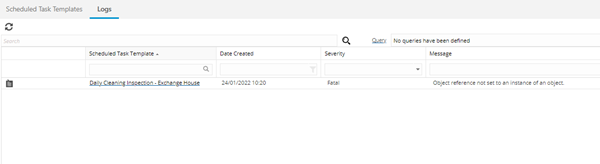
Logs - Main Grid Tab
Click to view more detail.
Available from 5.7.0.0
This tab contains a grid showing all rows from the Scheduled Task Template Logs table that the current user is able to see, based on their Contract Views.
The grid is similar to the one displayed in the Logs sub navigation of the Scheduled Task Template input panel but contains all Log records for all Scheduled Task Templates, not just the record that is currently open.
Users can filter and query the Logs grid in order to gain an overview of their current Issued Stock position without the need to open the Stock Issue Header records.