Helpdesk - General
MRI Evolution provides two Helpdesk windows; the Simple Helpdesk and Helpdesk. The Simple Helpdesk provides all the basic functionality required for logging and updating Helpdesk calls, whereas the main Helpdesk has many more advanced features, such as comprehensive task logging and a Task lifecycle management interface for reactive and planned maintenance operations.
The Helpdesk enables call logging, task assignment, resource allocation, status tracking, and full PPM management and more through dedicated tabs and sub-navigations.
Users with the necessary permissions can choose which Helpdesk to use via the Use Advanced Helpdesk setting in the Task User Preferences page:
-
with the check-box ticked, the Helpdesk will open from the Tasks grid (creating new and managing existing Tasks) as well as the menu option: Task Management > Helpdesk
Task Management > Helpdesk
The link will open the Helpdesk.
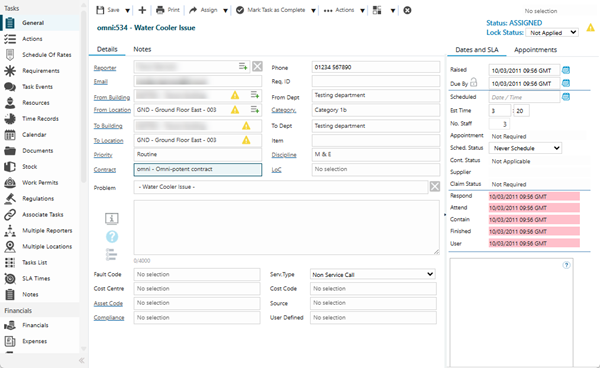
Helpdesk - Details tab
 Click to view more detail.
Available from 5.7.0.0
The Details tab label can be updated using translation strings.
| Field Name | Description |
|---|---|
| Reporter | The name of the person reporting the Breakdown - this field will form a drop down linked to the Contacts, the information can also be free typed. |
| Phone | The phone number of the person logging the Breakdown - if a reporter has been picked from the Contacts List this field may pre-fill, the information can also be free typed. |
| The Email address of the person reporting the Breakdown - if a reporter has been picked from the Contacts List this field may pre-fill, the information can also be free typed. | |
| Req. ID | Free text fields that can be used for a customer reference. |
| Building |
From the drop down select the Building where the Breakdown has occurred - if a Reporter has been picked from the Contacts List this field may pre-fill - for more information see Building Register. It is possible to display the relevant parent/child relationship data in this auto-complete by enabling the Enable Hierarchical Auto-Completes option in the General Preferences page. |
| Department |
From the drop down select the Department that the Reporter is part of - if a Reporter has been picked from the Contacts List this field may pre-fill - for more information see Departments. |
| Location |
From the drop down select the Location where the Breakdown has occurred - this list will be filtered by the Building selected, if a Reporter has been picked from the Contacts List this field may pre-fill - for more information see Location Register. It is possible to display the relevant parent/child relationship data in this auto-complete by enabling the Enable Hierarchical Auto-Completes option in the General Preferences page. |
| Category |
From the drop down select the Task Category. It is possible to display the relevant parent/child relationship data in this auto-complete by enabling the Enable Hierarchical Auto-Completes option in the General Preferences page. |
| Item | Free typed field, typically used to enter the 'thing' that is being moved by a Resource from point A to point B as part of an Integrated Services Task. |
| Priority | From the drop down select the Priority |
| Discipline | From the drop down select the Discipline |
| Contract |
From the drop down select the Contract - this will be filtered by the Category, Priority and Building selected, for more information see Contracts. Available from 6.0.1.0 Users will not be able to select a Contract with a Contract Type of Triage Only. Tasks may have been set with a Triage Only Contract as part of the Triage Contract Process Flow For Saving Tasks. Users will be able to change the Contract to a non Triage Only Contract. They will not be able to set a different Triage Only Contract or re-select the same Triage Only Contract. Available from 6.4.0.0 Selecting a Contract will set the Task's Currency to be that of the selected Contract. Contracts linked to a Supplier with a Suspended Status will not be shown in the Contract auto-complete. |
| LoC | From the drop down select the Level Of Completion (Level of Completion) for the Task. |
| Problem | Either select a problem code from the drop down list or free type a short description of the Task. If using the drop down, selecting the problem code first will auto-populate the Category, Priority, Discipline and Contract (dependant on Contract Views). If any or all of these have been pre selected the list of available problem codes will be filtered. |
| Description | The longer description of the Task. |
| Fault Code |
From the drop down select the Fault Code for the Task - for more information see Fault Codes. Available from 5.7.0.0 The Fault Code field will be automatically populated with the default Fault Code of the Instruction Set selected in the Problem field, if it has one. If the Problem field is changed to a different Instruction Set and the new Instruction Set has a different default Fault Code, the Fault Code will automatically change to the default Fault Code of the new Instruction Set. |
| Serv. Type | From the drop down select the Service type for the Task - the default value is "Non Service Call" |
| Cost Centre |
From the drop down select the Cost Centre for the Task - this will be filtered by the selected Contract and Asset -for more information see Cost Centres. Available from 6.1.0.0 Cost Centres that have a Historic or Suspended state are excluded from this list. In addition to any Contract View restrictions applied to Cost Centres for the Contract related to this entity, this field may be additionally filtered to show only those Cost Centres that have been assigned to the related Building. If a Cost Centre that's assigned to the related Building is set as the default for the Building it will be set automatically in this Cost Centre auto-complete. If the user subsequently changes the related Contract, where the selected Cost Centre is not available, the Cost Centre value (and Cost Code if selected) will be cleared. |
| Cost Code |
From the drop down select the Cost Code for the Task - this will be filtered by the selected Cost Centre - for more information see Cost Codes. Available from 6.1.0.0 Cost Codes marked as Locked against the Cost Centre are excluded from this list. |
| Asset Code | From the drop down select the Asset that has broken down, this will be filtered by the Building, Cost Centre and Location (Location will on be filtered if the Tasks User Preferences have been turned on). |
| Source |
From the drop down select the Caller Source. |
| Compliance | From the drop down select the Compliance Type - if Instruction Sets are being used in the problem code this may auto-populate, for more information see Compliance Types. |
| User Defined |
From the drop down select from the User Defined Lookup list. |
 Available from 7.0.0.0
 Click to open a page showing the Breakdown detail of the Task
 Click to open a page showing the Instruction Steps
 Click to open a page showing the results of a submitted Service Request Survey for Tasks created in the MRI Dreamscape @yourService App. The icon is only displayed if the MRI Dreamscape At Your Service Purchase Key is present. Available from 5.5.1.0
Helpdesk - Notes tab
Click to view more detail.
Available from 5.7.0.0
The Other tab has been renamed Notes. The Notes tab label can be updated using translation strings.
| Field Name | Description |
|---|---|
| Task Seq |
The Task sequence number. Available from 5.3.0.0 the Task Sequence details were moved to the Notes tab |
| Class |
The Class of the Task - Breakdown, PPM, Project or Scheduled Task. Available from 5.3.0.0 the Class details were moved to the Notes tab |
| Logged By |
The User who logged the Task. Available from 5.3.0.0 the Logged By details were moved to the Notes tab |
| Created | The date / time the Task was created. |
| Authorised By |
The User who Authorised the Task - Authorisation module must be in use otherwise this will pre populate with the User who logged the Task. Available from 5.3.0.0 the Authorised By details were moved to the Notes tab |
| Authorised |
Auto-populated with the date the Task was authorised - Authorisation module must be in use otherwise this will pre-fill with the date the Task was logged. Available from 5.3.0.0 the Authoriser details were moved to the Notes tab |
| Invoiced |
Auto-populated to indicate if the Task has been invoiced - Invoice Module required. Available from 5.3.0.0 the Invoiced details were moved to the Notes tab |
| H & S |
Check the box if the Task is related to health and safety. Available from 5.3.0.0 the H & S check box was moved to the Notes tab |
| Finished | Auto-populated with the date the Task was finished. |
| Signed Off | Auto-populated with the date the Task was signed off to history. |
| Notes |
Notes about the Task. Available from 5.3.0.0 the Notes tab was renamed to Notes tab, Notes can also be accessed from the Notes sub navigation |
| Fault Code |
From the drop down select the Fault Code for the Task - for more information see Fault Codes. This is the same field described in the Helpdesk - Details tab |
| Serv. Type | From the drop down select the Service type for the Task - the default value is "Non Service Call". this is the same field described in the Helpdesk - Details tab |
| Cost Centre |
From the drop down select the Cost Centre for the Task - this will be filtered by the selected Contract and Asset -for more information see Cost Centres. Available from 6.1.0.0 Cost Centres that have a Historic or Suspended state are excluded from this list. This is the same field described in the Helpdesk - Details tab |
| Cost Code |
From the drop down select the Cost Code for the Task - this will be filtered by the selected Cost Centre - for more information see Cost Codes. Available from 6.1.0.0 Cost Codes marked as Locked against the Cost Centre are excluded from this list. This is the same field described in the Helpdesk - Details tab |
| Asset Code |
From the drop down select the Asset that has broken down, this will be filtered by the Building, Cost Centre and Location (Location will on be filtered if the Tasks User Preferences have been turned on). This is the same field described in the Helpdesk - Details tab |
| Source |
From the drop down select the Caller Source. This is the same field described in the Helpdesk - Details tab |
| Compliance | From the drop down select the Compliance Type - if Instruction Sets are being used in the problem code this may auto-populate, for more information see Compliance Types. This is the same field described in the Helpdesk - Details tab |
| User Defined |
From the drop down select from the User Defined Lookup list. This is the same field described in the Helpdesk - Details tab |
Helpdesk - Dates and SLA tab
Click to view more detail.
| Field Name | Description |
|---|---|
| Lock Status | From the drop down select the Task Lock Status of the Task - the default state is "Not Applied". |
| Raised | Auto-populated with the date the Task was raised - this can be manually altered to reflect a Task that should have been raised in the past. |
| Due By | The date the Task is due by according to its SLA (Service Level Agreement) - this can be manually altered but must then be locked by clicking  . . |
| Scheduled |
Enter a date for when the Task is scheduled to be completed. |
| Est Time |
Available from 5.3.0.0 Auto-populated from the Instruction Set used to create the Task, this can be manually entered or adjusted |
| No. Staff |
Available from 5.3.0.0 Auto-populated from the Instruction Set used to create the Task, this can be manually entered or adjusted |
| Appointment |
Available from 5.5.0.0 Only visible when Appointments & Visits has been licensed. Read-only field showing the Appointment State of the current Task The Appointment label is be a custom hyper-link that will do one of the following actions:
|
| Cont. Status |
Available from 5.3.0.0 If Contractor Gateway is in use, the Cont. Status (Contractor Status) will show the status of the Task in Contractor Gateway. Possible options are as follows:
|
| Supplier |
Available from 5.3.0.0 If Contractor Gateway is in use, the Supplier field will show the Supplier assigned to the Task. |
| Claim Status |
Available from 6.3.1.0 Auto-populated with the current State value of a Payment Application related to current Task. |
| Respond | Auto-populated with the respond (time it takes to assign the first Resource) SLA. |
| Attend | Auto-populated with the attend (earliest start time on time records) SLA. |
| Contain | Auto-populated with the contain (earliest Contain time on Time Records) SLA. |
| Finished | Auto-populated with Finish SLA - On completion MRI Evolution will reference either the time the Task was moved to Complete or the latest finish time on the Time Records when the Task was moved to Complete (Depending on how the Contract is set up will depend which of these times MRI Evolution references) . |
| User |
Auto-populated with the user defined SLA. |
| User Defined Box |
The content of the User Defined Box is defined in the User Task Preferences page. It can display either:
|
Appointment Request Pop-up details
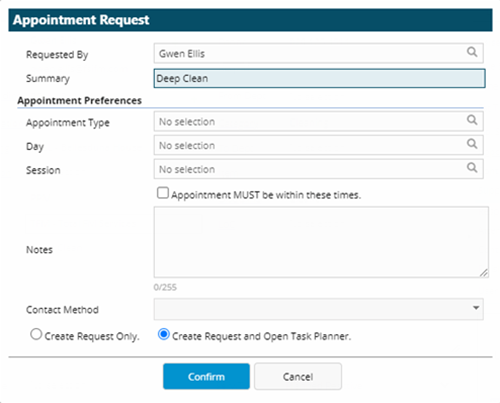
| Field | Description |
|---|---|
|
Requested By |
Automatically populated with the Reporter / Contact selected for the current Task |
|
Summary |
Automatically populated with the Problem/Short Description of the current task |
|
Day |
List of Calendar Days to choose from |
| Session | List of Calendar Sessions to choose from |
| Appointment MUST be within these times | Check-box to enforce the Appointment falls within the Day and Session selected |
| Notes | Free format text field to store any pertinent details about the Appointment |
|
Contact Method |
Automatically populated using the Contact Preference values of the Reporter / Contact selected for the current Task |
|
Create Request Only \ Create Request and Open Task Planner |
Set as 'Create Request Only' on first load. Any changes to this Radio button selection will be stored in the user's system profile to set the same value next time the page is opened. |
Helpdesk - Appointments tab
Click to view more detail.
The Appointments tab will only be displayed where an Appointment has been created against the Task. It contains the information relevant to the arranged Appointment for a Resource to visit a Site, Building or Location in order to carry out work for the Task.
Available from 6.4.1.0
The restriction to hide the Appointments tab when the Appointment Status is Not Required has been removed.
The Appointments tab will not be displayed if the Appointments purchase key isn't present.
| Field Name | Description |
|---|---|
| Appointment | The Summary given to the Appointment |
| Visit Status | The current Status of the Appointment linked to the current Task |
| Window Start | The start date/time of the Appointment arrival window |
| Window End | The end date/time of the Appointment arrival window |
| Est Start Date | The earliest Estimated Start Date of any Tasks linked to the Appointment |
| Request Preferences | |
| Request | The Summary of the Request linked to the current Task |
| Tasks | The number of Tasks linked to the Request |
| Day | The preferred Calendar Day for the Request |
| Session | The preferred Calendar Session for the Request |
| Contact by | A multi-select drop down to set the preferred contact method for the Request |
| Notes | Any Notes added to the Appointment are displayed here |
| Map Panel |
Map view using the Open Street maps control showing the position of the Building linked to the current Task. The Building's position is plotted using the Latitude and Longitude values stored against the Building |
Helpdesk - User Defined Box
Click to view more detail.
The User Defined Box in the Helpdesk can be used for many purposes but typical uses are to:
-
display a map showing the position of the Building where the Task is taking place
-
prompt Users with consistent Text e.g. steps for completing a call or a reminder to give out the Task ID before hanging up
The content of the User Defined Box is configured in the User Task Preferences page.
Complete the fields and click Save  .
.
Not all fields on the Helpdesk may need to be populated when first logging the Task, as long as the User is on the General sub menu, many of these options can be altered as required.
Once the Helpdesk has been completed and saved, many sub navigations will appear to allow additional entities to be assigned / created.
Helpdesk Icons
|
Icon |
Feature | Description |
|---|---|---|

|
Create new Task | Click to open the helpdesk in a new window, ready to enter details of a new Task |

|
Print Job Card |
Click to print Job Card - The print window will open. |

|
Assign button group |
Available from 5.5.0.0 If the Status of the current Task is one of the following, the Assign button group is disabled:
|

|
Assign Resource |
Available from 5.5.0.0 Click the Icon to open the Time Record page and Assign a Resource. Available from 6.2.0.0 If the Auto-Create Task Work Order POs preference is set to On Assignment A Task Work Order Purchase Order will be created automatically for the current Task when the Task Status is changed from Active to Assigned, unless a Purchase Order already exists against the Task. The details of the Purchase Order will depend on the system or Contract preferences for Create Task Work Order PO Lines from Task Actions (if present). |

|
Open Planner |
Available from 5.5.0.0 Click the Icon to open the Resource Planner page. When opened from the Helpdesk, the Resource Planner will open with the following settings specifically for the current Task:
|

|
Find Nearest |
Available from 5.5.0.0 Click the Icon to open a map pop-up displaying Resource's proximity to the current Task and Assign a Resource. |

|
Open Rota Window |
Available from 5.5.0.0 Click the Icon to open the Resource Rota page and Assign a Resource. |

|
Upload Document |
Available from 5.5.0.0 Click the Icon to open the Document page in order to add a new Document to the Task. |

|
Add Event |
Available from 5.5.0.0 Click the Icon to open the Task Event page in order to add a new Event to the Task. |
|
|
Assign CSF |
Available from 5.5.0.0 Click the Icon to Assign a CSF Audit. |

|
Send to Contractor |
Available from 5.3.0.0 Click to send the Task to Contractor Gateway. The MRI Dreamscape Application Contractor Gateway required. The Send To Contractor button is hidden if the Contractor State of the current Task does not allow a state transition to Sent To Contractor. Available from 6.2.0.0 If the Auto-Create Task Work Order POs preference is set to On Send to Contractor A Task Work Order Purchase Order will be created automatically for the current Task when the Task Status is changed to Sent to Contractor, unless a Purchase Order already exists against the Task. The details of the Purchase Order will depend on the system or Contract preferences for Create Task Work Order PO Lines from Task Actions (if present). If multiple Suppliers are available a drop down list will appear to allow the User to select the required Supplier. |

|
Remove from Contractor |
Available from 5.3.0.0 Click to remove from the assigned Supplier in Contractor Gateway. The MRI Dreamscape Application Contractor Gateway required The Remove from Contractor button is hidden if the Contractor State of the current Task does not allow a state transition to Removed From Contractor |
|
|
Status button group |
The Statuses shown are dependent upon the current Status of the Task and the State Transitions available, see the table below for the permitted State Transitions. |

|
Authorise Task |
Click to authorise a Task, subject to the relevant Authorisation limit being applied to the current User, or user's Role.
This status will not be displayed unless the Use Authorisation Limits for Tasks preference is checked in Task Preferences. |

|
Mark Task as Active |
Click to move the Task back to Active / Assigned - all Resources must be deleted from the Task for the Task to return to status of Active. Available from 6.2.0.0 If the Auto-Create Task Work Order POs preference is set to On Activation A Task Work Order Purchase Order will be created automatically for the current Task when the Task Status is changed to Active, unless a Purchase Order already exists against the Task. The details of the Purchase Order will depend on the system or Contract preferences for Create Task Work Order PO Lines from Task Actions (if present). |

|
Mark Task as Complete |
Click to move the Tasks status to Complete. Available from 6.2.0.0 If the Auto-Create Task Work Order POs preference is set to On Completion A Task Work Order Purchase Order will be created automatically for the current Task when the Task Status is changed to Complete from Active or Assigned, unless a Purchase Order already exists against the Task. The details of the Purchase Order will depend on the system or Contract preferences for Create Task Work Order PO Lines from Task Actions (if present). This button is hidden for Tasks that have a status of REJECTED, HISTORY or CANCELLED. |

|
Sign Task off to History |
Click to move the Tasks status to History. |

|
Cancel Task |
Click to Cancel the Task. The capability to restore Cancelled Tasks was added in Version 4.4.7 |

|
Pause Task |
Click to Pause the Task - ISM Module only. |

|
Restart Task |
Click to Restart the Task - ISM Module only. |

|
Restore Task |
Available from 5.5.0.0 Click to Restore the Task to the State it was prior to being sent to Rejected, History or Cancelled. |

|
Actions button group |
|

|
Copy |
Click to create a copy of the Task. |

|
Bulk Copy |
Click to create multiple copies of the Task. |

|
Create Return Route Task |
Click to book a Return Route portering Task - ISM Module only. |

|
Available from 5.7.0.0 Click to create a Scheduled Task Template from this Task. This button will only be displayed when the Task Scheduler Module licence is present. This button will only be available for existing Breakdown Tasks and only if the Instruction Set linked to the current Task supports use for Scheduled Tasks. It is not available when creating a new Task. When clicked the system will launch the page to create a new Scheduled Task Template, passing the details of the current Task. |
|

|
Create Work Permit |
Click to raise a Work Permit against the Task - for more information see Work Permits. |

|
Recalculate Costs & Time |
Click the Icon to recalculate a draft Invoice with updated Costs and Time - Sales Invoicing Module required. |

|
Take Ownership |
Click to become the Owner of the current Task |

|
Assign Ownership |
Available from 5.6.0.0 Click to Assign ownership of the current Task to another user. This button will only be displayed if the Allow users to assign ownership of Tasks to other Accounts Task Preference is set to True. A pop up will be displayed, containing two fields:
|

|
Available from 5.7.1.0 Click the View Event Map button to open the map window for the current Task. The map displays pins related to the GPS co-ordinates, where present, of the Building the Task is taking place in and the Evolution Go Resource(s) assigned to the current Task, at the point that they carry out actions in the activity, as Task Events or Time Record Events linked to the current Task. Available from 5.9.0.0 The View Event Map pop up window has been updated so that when it opens, the centre point of the map is determined from the longitude and latitude of the Building where the Task is taking place, where present against the Building, if not present the centre point is based on the Default Latitude and Default Longitude values set in the system preferences for Evolution Go Server Details. This new toolbar button will only be available when the Evolution Go Data Publishing purchase key is present. |
|


|
Task Broadcast On/Off |
Available from 5.7.0.0 The Task Broadcast toolbar buttons will not be displayed if the Broadcast Status of the Instruction Set (selected in the Problem field) for the current Task is set to Never Broadcast. When the toolbar buttons are displayed, click to toggle on
Changing the Task Broadcast on or off will automatically create a Task Event against the current Task if the Change of Broadcast Status Task Preference is set to true. All new buttons and functionality for Broadcast are only visible when the At Your Service Purchase Key is present. |
|
|
Preferences button group |
|

|
User Preferences |
Available from 5.7.0.0 Click to access Helpdesk User Preferences. The page opened is a modified version of the existing User Task Preferences page that will allow Users to define:
|

|
Resource On / Off Duty | Click to log Resources on / off duty - ISM Module only. |

Tasks - Permitted State Transitions
| From State | To State | From State | To State |
|---|---|---|---|
| Active | Unauthorised | History | Pre-booked |
| Pre-booked | Unauthorised | History | Scheduled |
| Assigned | Unauthorised | Cancelled | Scheduled |
| Complete | Unauthorised | Active | Complete |
| Scheduled | Unauthorised | Assigned | Complete |
| Requested | Unauthorised | History | Complete |
|
Cancelled |
Unauthorised | Scheduled | Complete |
| History | Unauthorised | Pre-booked | Complete |
| Requested | Active | Cancelled | Complete |
| Cancelled | Active | Pre-booked | History |
| History | Active | Scheduled | History |
| Unauthorised | Active | Unauthorised | History |
| Complete | Active | Complete | History |
| Assigned | Active | Active | History |
| Scheduled | Active | Assigned | History |
| Pre-booked | Active | Rejected | Requested |
| Pre-booked | Assigned | Requested | Rejected |
| Scheduled | Assigned | Unauthorised | Cancelled |
| Unauthorised | Assigned | Active | Cancelled |
| Complete | Assigned | Assigned | Cancelled |
| Active | Assigned | Complete | Cancelled |
| History | Assigned | Scheduled | Cancelled |
| Cancelled | Assigned | Pre-booked | Cancelled |
| Cancelled | Pre-booked |
Tasks Payment Application States - Permitted State Transitions
Available from 6.3.1.0
| From State | To State |
| Not Required | Draft |
| Draft | Submitted |
| Submitted | Approval Required |
| Submitted | Approved |
| Submitted | Returned |
| Submitted | Referred |
| Submitted | Rejected |
| Approval Required | Approved |
| Approval Required | Returned |
| Approval Required | Referred |
| Approval Required | Rejected |
| Returned | Submitted |
| Returned | Approval Required |
| Returned | Approved Rejected |
| Returned | Cancelled |
| Returned | Complete |
| Approved | Draft |
| Approved | Approval Required |
| Approved | Approved |
| Referred | Returned |
| Referred | Rejected |
| Referred | Cancelled |
| Cancelled | Draft |
| Complete | Draft |